* Fix generate:types bug #3697
generateEntityDeclarations function creates mismatched type names. We'll simply use the existing Config type instead.
* code cleanup
* fix(bundler-webpack): better node_modules resolution
* chore: see if retries are affecting new webpack changes
* chore: reinstate retries
This reverts commit 96989295ba.
* chore: default to process.cwd() if cannot find node_modules path
* feat: update templates to 2.0 and support create-payload-app
* chore: rich text updates
* chore(templates): remove mongoURL
* chore: migrates rich text fields in website
* chore: manually aliases dotenv in templates
* chore: installs new beta in website template
* chore: type issues
* chore (template): add alias for fs to website template
* chore: more template updates
---------
Co-authored-by: James <james@trbl.design>
Co-authored-by: Dan Ribbens <dan.ribbens@gmail.com>
BREAKING CHANGE: If your config has a `admin.components.routes` array, you will need to key them into the `admin.components.views` object. The configuration options should remain unchanged.
* chore: WIP id type validation for richtext upload
* chore: fix richtext fields test ID placeholder replacements
* chore: use getIDType in relationship validation for consistency
* chore: make getIDType safer in case payload.db.defaultIDType is null
---------
Co-authored-by: Dan Ribbens <dan.ribbens@gmail.com>
BREAKING: config (SanitizedConfig) is now a new, mandatory property to be passed into .validate(, options) functions. In order to accommodate that, other functions which may call validate now also have a new, mandatory config property. These are:
* buildStateFromSchema
* addFieldStatePromise
feat: breaking: richtext-lexical: block node validations
* ci: cache entire build to share with future jobs
* chore: pnpm setup for tests job
* chore: use build cache in db adapter builds
* chore: troubleshoot db builds
* chore: add back db-mongodb
* chore: add back db-postgres, cleanup
* chore: separate type gen into separate job
* chore: run tests separately for each db adapter
* chore: use matrix for tests w/ db
* chore: explicit ip and port for postgres
* chore: exportPointerFiles script
* chore: handle creation of subfolders which may not exist
* chore: add json to copyfiles
* chore: do not use exports property for publishConfig
* chore: add clean:unix command
* chore: modify clean:unix command to also delete any tsconfig.tsbuildinfo files
* chore: remove exports properties from db adapter packages
* chore: cleanup tsconfigs and fix db-mongodb builds
* chore: make the db adapters depend on payload
* chore: fix tsconfig for test directory
* chore: fix packages/db-mongodb not building
BREAKING CHANGE:
- Unhandled Errors are now omitted by default. This can be breaking if people depend on those error messages. Now, it will just say "Something went wrong.".
* chore: slightly improved testing of registration via graphql
Signed-off-by: Vsevolod Volkov <st.lyn4@gmail.com>
* chore: hiding details of internal errors from responses
Signed-off-by: Vsevolod Volkov <st.lyn4@gmail.com>
* feat: ability to remove authorization tokens from response bodies
Signed-off-by: Vsevolod Volkov <st.lyn4@gmail.com>
* chore: add section for design contributions in contributing.md
* feat: add afterOperation hook (#2697)
* feat: add afterOperation hook for Find operation
* docs: change #afterOperation to #afteroperation
* chore: extract afterOperation in function
* chore: implement afterChange in operations
* docs: use proper CollectionAfterOperationHook
* chore: remove outdated info
* chore: types afterOperation hook
* chore: improves afterOperation tests
* docs: updates description of afterOperation hook
* chore: improve typings
* chore: improve types
* chore: rename index.tsx => index.ts
---------
Co-authored-by: Jacob Fletcher <jacobsfletch@gmail.com>
Co-authored-by: Alessio Gravili <alessio@gravili.de>
* chore: remove swc version pin (#3179)
* fix: WhereBuilder component does not accept all valid Where queries (#3087)
* chore: add jsDocs for ListControls
* chore: add jsDocs for ListView
* chore: add jsDocs for WhereBuilder
* chore: add comment
* chore: remove unnecessary console log
* chore: improve operator type
* fix: transform where queries which aren't necessarily incorrect, and improve their validation
* chore: add type to import
* fix: do not merge existing old query params with new ones if the existing old ones got transformed and are not valid, as that would cause duplicates
* chore: sort imports and remove extra validation
* fix: transformWhereQuery logic
* chore: add back extra validation
* chore: add e2e tests
* chore(test): adds test to ensure relationship returns over 10 docs (#3181)
* chore(test): adds test to ensure relationship returns over 10 docs
* chore: remove unnecessary movieDocs variable
* fix: passes in height to resizeOptions upload option to allow height resize (#3171)
* docs: fixes syntax error in rich-text.mdx that was breaking build
* docs: removes auto-formatting from rich-text.mdx (#3188)
* feat: Improve admin dashboard accessibility (#3053)
Co-authored-by: Alessio Gravili <alessio@gravili.de>
* feat: improve field ops (#3172)
Co-authored-by: PatrikKozak <patrik@trbl.design>
* chore: file cleanup (#3190)
* chore(release): v1.14.0
* chore: improve ts typing in sanitization functions (#3194)
* chore(templates): default port on website
* chore(templates): safely handles bad network requests
* chore(templates): implements draft preview and on-demand revalidation
* chore(templates): renders static cart page fallback
* chore(examples): updates draft-preview next-app example to use revalidateTag (#3199)
* feat: query support for geo within and intersects + dynamic GraphQL operator types (#3183)
Co-authored-by: Lucas Blancas <lablancas@gmail.com>
* chore: improve checkboxes (#3191)
* chore: improve filtering for hasMany number field (#3193)
* chore: improve fiiltering for hasMany number field
* chore: add translation for 'items' and replace rows with items
* chore: new exceededLimit key
* Revert "chore: add translation for 'items' and replace rows with items"
This reverts commit 3a91dabdfd.
* chore: undo adding items key in translation schema
* chore: new limitReached key
* chore: remove unnecessary exceededLimit key
* chore: spelling improvements
* chore: update test build config import
---------
Signed-off-by: Vsevolod Volkov <st.lyn4@gmail.com>
Co-authored-by: Vsevolod Volkov <st.lyn4@gmail.com>
Co-authored-by: Jarrod Flesch <30633324+JarrodMFlesch@users.noreply.github.com>
Co-authored-by: Alessio Gravili <alessio@gravili.de>
Co-authored-by: ibr-hin95 <ibr.hin95@gmail.com>
Co-authored-by: Seied Ali Mirkarimi <dasmergo@gmail.com>
Co-authored-by: muathkhatib <mkhatib.dev@gmail.com>
Co-authored-by: ibr-hin95 <40246707+ibr-hin95@users.noreply.github.com>
fix: recursiveNestedPaths not merging existing fields when hoisting row/collapsible fields (#2769)
fix: exclude monaco code editor from ltr due to microsoft/monaco-editor#2371
BREAKING CHANGE:
- The admin hook for `useLocale` now returns a Locale object of the currently active locale. Previously this would only return the code as a string. Any custom components built which had `locale = useLocale()` should be replaced with `{ code: locale } = useLocale()` to maintain the same functionality.
- The property `localization.locales` of `SanitizedConfig` type has changed. This was an array of strings and is now an array of Locale objects having: `label: string`, `code: string` and `rtl: boolean`. If you are using localization.locales from the config you will need to adjust your project or plugin accordingly.
* chore: disable slug pluralization for versions model
* chore: disable slug pluralizations for globals version model
* chore: disable auto slug pluralization for globals collection
* feat: autoPluralization option for mongoose adapter
* Update isActive.tsx
This change allows us to define toggling of custom types in Slate. Specifically, this fixes the ability to toggle Alignment on nodes that use other active elements.
isElementActive(editor, format, TEXT_ALIGN_TYPES.includes(format) ? 'align' : 'type');
Type is the default for elements, allowing us to use a custom field lets us greater extend the functionality of Slate in Payload without causing any breaking changes
* Update toggle.tsx
Added to toggleElement public function
* Update isActive.tsx
* Update toggle.tsx
Added Rich Text Alignment, updated toggle function, added tests and doc updates
* added margin to void elements
* fix: list alignment
* removed textAlign from elements and added docs
* chore: fix typo
---------
Co-authored-by: Alessio Gravili <alessio@gravili.de>
* feat: make PAYLOAD_CONFIG_PATH optional
* hardcode common search paths
* docs: update docs regarding PAYLOAD_CONFIG_PATH
* make the tsConfig parser less prone to errors
* feat(ImageResize): add support for resize options
* fix(ImageUpload): reuse name for accidental duplicate
* fix(ImageResize): e2e tests for added media size
* chore: simplify fileExists method
* fix: typo
* feat(ImageResize): update name to be more transparent
* fix: use fileExists in file removal
* improve names, comments and clarity of needsResize function
* fix: jsDoc params
* fix: incorrect needsResize condition and add failing test case
* chore: improve comment
* fix: merge conflict error
---------
Co-authored-by: Alessio Gravili <70709113+AlessioGr@users.noreply.github.com>
* chore: add jsDocs for buildQuery
* feat: where instead of id for updateOne and deleteOne
* feat: find => findOne
* sort order => sort direction
* fix: typing of Global buildQuery
* cleanup
* fix: init payload's i18n for error message
* fix: incorrect use of FindArgs in findByID
* move deleteOne call to adapter
* re-order
* deleteVersions
* versions stuff
* more version stuff
* moar version stuff
* global stuff
* global stuff
* move combineQueries inside the findGlobal
* global stuff
* fix type
* more global stuff
* move docWithFilenameExists to adapter pattern
* chore: remove unnecessary comments
* perf: make everything lean, disable virtuals, ++performance
* chore: remove unnecessary Model
* chore: add jsdocs for limit
* moar jsdocs
* Replace find in deleteByID
* (check this:) add missing locale
* move findByID
* Make findByID return only one document
* _id => id
* _id => id
* Improve version types
* Improve sortOrder types
* move version stuff over
* version stuff
* fix: sort types
* fix params
* fix: findVersionByID generic
* fix: type error for versions
* remove unused value
* fix: Document import
* add todo
* feat: updateOne to mongoose
* remove unnecessary Model
* more update stuff
* remove unnecessary imports
* remove unnecessary function arguments
* fix: auth db update calls
* fix: bad updateByID which made tests fail
* fix: update returned docs to fix tests
* fix: update from version using mongoose directly even though the Model does not exist
* feat: implement deleteOne
* fix: assign verificationToken only when it exists - fixes test
* migrate saveVersion partly
* feat: make dev:generate-graphql-schema work even without specifying extra argument
* fix: this.db can be null
* chore: use destructured locale where possible
* chore: improve variable name
* fix: SanitizedConfig type
* feat: findGlobal database adapter
* fix: flaky e2e test
* chore: improve incorrect comment
* chore: undo diffs
* fix: id types
* fix: id typing
* added custom config extension points
* Added custom field to documentation
* fix: not building due to incorrect typings
* Upload dist
* point to number array test
* feat: hasMany for number field
* fix: types
* Fix: incorrectly styles input for hasMany
* Revert "point to number array test"
This reverts commit 5a5162a803.
* Revert "Merge branch 'production-with-custom' into number-hasmany-v2"
This reverts commit dfc3ac523e, reversing
changes made to a3b1b7dd67.
* test: adds test for numbers with hasMany
* test: add number field e2e
* Fix updated index.tsx
* Fix updated index.tsx
* chore: add jsDocs for hasMany property
* chore: rename isMultiText to isCreatable, as it makes more sense
* fix: incorrect double space in comments
* chore: rename onMultiTextChange to handleHasManyChange
* chore: improve ordering
* docs: add documentation for hasMany
* docs: add more jsdocs for number field
* fix: new value not transformed to number
* improve types
* fix: only allow numbers as input using filterOption
* fix: Option / value type breaking sortable selects
* fix: typings and add id for sorting
* add animation to react select
* undo transitions due to glitches
* fix: keyboard handler for select for empty input values
* fix: validation for hasMany numbers
* feat: perform validation in the filter as well
* attempt to fix duplicate key issue
* add todo
* remove console logs
* fix: stupid key warning
* fix: validation tests
* feat: add filterOption to keydown listener
* feat: numberOnly for react-select
* chore: improve variable naming
* fix: allow numbers for relationship value by stringifying those for sortable react-selects
* feat: generated types for hasMany number field
* graphql typings part 1
* graphql defaults type
* better typing for number in buildObjectType
* fix: default graphql type disregarding hasMany for relationship field
* feat: minRows and maxRows for hasMany numbers
* simplify joi schema
* working minRows and maxRows validation!
* jesus christ: fix incorrect translations for number & relationship fields for greaterThanMax and lessThanMin
* fix weird type error
* move validation tests to validations.spec.ts and fix them
* fix: make sure filterOption only passes a number array to validate function
* fix: adds missing dark-mode styles for version differences view (#2812)
Co-authored-by: Tylan Davis <tylan@Tylans-MacBook-Pro.local>
* fix: #2821 i18n ui field label (#2823)
* chore: version diff styles (#2824)
Co-authored-by: Tylan Davis <tylan@Tylans-MacBook-Pro.local>
* chore: remove --legacy-peer-deps from gh actions workflow (#2814)
* chore: removes cms text from instances of payload name (#2793)
* chore(release): v1.9.2
* chore: update changelog release notes v1.9.2
* chore: cleans up graphql-schema-gen test folder
* fix: adds custom property to ui field in joi validation (#2835)
* adjust validation
* improve isnumber function
* Update number.mdx
---------
Co-authored-by: Teun Mooij <tmooij@infinitaslearning.com>
Co-authored-by: Dan Ribbens <dan.ribbens@gmail.com>
Co-authored-by: Tylan Davis <89618855+tylandavis@users.noreply.github.com>
Co-authored-by: Tylan Davis <tylan@Tylans-MacBook-Pro.local>
Co-authored-by: Dan Ribbens <DanRibbens@users.noreply.github.com>
Co-authored-by: Jacob Fletcher <jacobsfletch@gmail.com>
Co-authored-by: Jarrod Flesch <jarrodmflesch@gmail.com>
Co-authored-by: Jarrod Flesch <30633324+JarrodMFlesch@users.noreply.github.com>
* fix: deprecate min/max in exchange for minRows and maxRows for relationship
* fix: update validations unit tests with minRows and maxRows
* fix: incorrect types
* move to sanitize
**BREAKING CHANGES**
Preferences have been overhauled to be abstracted as a Payload collection and no longer explicitly defined by Payload. They previously used the slug `_preferences` as a collection name and url route and are now
If any of the following are true you will need to take action:
- You have existing preferences you wish to keep for your admin users you must migrate data in the _preferences collection to the new shape. To migrate the preferences in the database you must update the shape of each _preferences document from:
```js
{
user: ObjectId("abc"),
userCollection: "users",
/** other fields remain the same **/
}
```
to:
```js
{
user: {
value: 'abc',
relationTo: 'users",
}
/** other fields remain the same **/
}
```
- You have code external of Payload or custom code within Payload using the API endpoint `api/_preferences`, you should update any applications to use `api/payload-preferences` instead.
- You were using the preferences GraphQL implementation. This was removed and is instead provided the same way as Payload handles any other. In this way the queries, mutation and schemas have changed. These are now generated as any other collection within your payload project.
- You were using the Payload's exported Preference type for your typescript code. Now you can instead import the generated type from your project.
* chore: colocates gql schema field types with operators
* chore: adds missing `json` gql field schema
* fix: corrects graphql `id` type from JSON to String
* Add paginatedType to graphQL on collections types
* Refactor config query and mutation extension into a reusable type
* Export paginatedListType and payload's version of graphql
* Revert prettier's automatic changes
* Fix requested changes
* Add additional documentation for extending GraphQL
* Add information about the resolver's first argument
* Refactor imageResizer.ts to allow for keeping original size in certain cases
* revert new property for keeping desired size
* add unit tests for maintained image size feature
* feat: support full URL for upload.staticURL
* feat: Update documentation about upload.staticURL property
* feat: Add reproduction test for absolute staticURL
* chore: ensures example configs are being exported when necessary
* chore: adds note regarding updating of hidden fields
---------
Co-authored-by: Jessica Boezwinkle <jessica@trbl.design>
* feat: support email configuration in payload config
* feat: set email defaults if no email config
* chore: leftover line from testing
* feat: add warning if email configure in both init and config
* chore: use correct locale when querying relationship for list view
* chore: make sure the relationships are re-queried when the locale changes
* chore: cleans up localization test ts-types
---------
Co-authored-by: Jarrod Flesch <jarrodmflesch@gmail.com>
Fixes ERROR (payload): TypeError: Cannot read properties of undefined (reading '<field.name>')
at promise (...\payload\src\fields\hooks\afterChange\promise.ts:68:23)
at ...\payload\src\fields\hooks\afterChange\traverseFields.ts:31:26
at Array.forEach (<anonymous>)
at traverseFields (...\payload\src\fields\hooks\afterChange\traverseFields.ts:30:10)
at promise (...\payload\src\fields\hooks\afterChange\promise.ts:154:27)
at ...\payload\src\fields\hooks\afterChange\traverseFields.ts:31:26
at Array.forEach (<anonymous>)
at traverseFields (...\payload\src\fields\hooks\afterChange\traverseFields.ts:30:10)
at promise (...\payload\src\fields\hooks\afterChange\promise.ts:170:27)
at ...\payload\src\fields\hooks\afterChange\traverseFields.ts:31:26
## Description
Fixed a wrong translation
- I have read and understand the CONTRIBUTING.md document in this repository
## Type of change
- fix of tiny error of translation
* fix: adds RTE provider, to allow for disabledRTE relationships from breaking other drawers
* chore: updates hook name
* chore: simplifies list drawer rendering
* chore: simplify types
* chore: adds arg to determine what listType drawer to render
* chore: renames listType to contentType, fix upload field drawer
* chore: requires collectionSlugs in useListDrawer
* chore(test): adds tests for list drawers, relationships and uploads
* chore: formatting
* chore: cleans up types, collectionSlugs are required for useListDrawer
* chore: removes RichTextProvider
* chore: removes hoc in favor of FC hoc
* chore: fixes fc hoc
* Fix Local API update typing
Payload allows for updating doc with only partial data, but the inferred type requires the whole collection type.
#2009
* fix typos
* chore: further typing of update operation
---------
Co-authored-by: Elliot DeNolf <denolfe@gmail.com>
* fix: corrects type for required named tab fields
* chore: tabs and groups are always required
* chore: adjusts tab and group type to omit required since a group/named-tab will always exist
* Update README.md
- updates logo approach to work with npm and github
- updates badge style
- fixes twitter badge
- removes duplicative links for discord and website
- moves feature request link
* changes h1 to p tag, changes h2 to h3 - both done to remove ugly bottom border
* adds target blank to a few anchor tags
* chore: ensures relationship fields react to locale changes in the admin panel - fixes#1870
* chore: patches in default values for fields, and localized fields using fallbacks - fixes#1859
* chore: organizes field localization and sanitizing
* Revert "Feat/1180 loading UI enhancements"
* Feat/1180 loading UI enhancements
* chore: safely sets tab if name field, only sets fallback value if it exists
* chore: adds test to ensure text fields use fallback locale value when empty
* fix: hides fallback locale checkbox when field localization is set to false
* fix: updates fallback locale checkbox logic
* chore: updates naming convention
* Upgraded the packages to latest patch versions where non breaking
* Upgraded the packages to latest minor versions where non breaking
Co-authored-by: TomDoFuture <108644869+TomDoFuture@users.noreply.github.com>
* Run connectMongoose before starting payload init
* - reverted changes
- added deprecated to init
- docs: changed all payload.init to payload.initAsync
- changed all internal init calls
* forgotten inits in docs
* reverted back - removed init and renamed initAsync to init
* chore: README header logo
* updates conditionally rendered logo for light/dark mode
* adds img folder with light and dark logos to utilize gh conditional
* moves payload logos to avoid polluting root directory
Co-authored-by: Sean Zubrickas <zubricks@gmail.com>
* refines readme banner image, badges and headings
* chore: spruce up README a bit more
* adds dark/light mode support for logo
Co-authored-by: Elliot DeNolf <denolfe@gmail.com>
BREAKING CHANGE: replaced the useAPIKey authentication header format to use the collection slug instead of the collection label. Previous: `${collection.labels.singular} API-Key ${apiKey}`, updated: `${collection.slug} API-Key ${apiKey}`
* feat: adds document level access endpoints so admin ui can now accurately reflect document level access control
* chore(docs): new doc access callout, updates useDocumentInfo props from change
BREAKING CHANGE: collection slugs are no longer automatically sanitized to be kebab case. This will only be an issue if your current slugs were in camel case. The upgrade path will be to change those slugs to the kebab case version that the slug was automatically being sanitized to on the backend.
If you only use kebab case or single word slugs: no action needed.
If you have existing slugs with camel case and populated data: you'll need to convert these to the kebab case version to match the previously sanitized value.
ie. myOldSlug is your slug, you should convert it to my-old-slug.
Any future slugs after updating will be used as-is.
Co-authored-by: shikhantmaungs <shinkhantmaungs@gmail.com>
Co-authored-by: Thomas Ghysels <info@thomasg.be>
Co-authored-by: Kokutse Djoguenou <kokutse@Kokutses-MacBook-Pro.local>
Co-authored-by: Christian Gil <47041342+ChrisGV04@users.noreply.github.com>
Co-authored-by: Łukasz Rabiec <lukaszrabiec@gmail.com>
Co-authored-by: Jenny <jennifer.eberlei@gmail.com>
Co-authored-by: Hung Vu <hunghvu2017@gmail.com>
Co-authored-by: Shin Khant Maung <101539335+shinkhantmaungs@users.noreply.github.com>
Co-authored-by: Carlo Brualdi <carlo.brualdi@gmail.com>
Co-authored-by: Ariel Tonglet <ariel.tonglet@gmail.com>
Co-authored-by: Roman Ryzhikov <general+github@ya.ru>
Co-authored-by: maekoya <maekoya@stromatolite.jp>
Co-authored-by: Emilia Trollros <3m1l1a@emiliatrollros.se>
Co-authored-by: Kokutse J Djoguenou <90865585+Julesdj@users.noreply.github.com>
Co-authored-by: Mitch Dries <mitch.dries@gmail.com>
BREAKING CHANGE: If you assigned labels to collections, globals or block names, you need to update your config! Your GraphQL schema and generated Typescript interfaces may have changed. Payload no longer uses labels for code based naming. To prevent breaking changes to your GraphQL API and typescript types in your project, you can assign the below properties to match what Payload previously generated for you from labels.
On Collections
Use `graphQL.singularName`, `graphQL.pluralName` for GraphQL schema names.
Use `typescript.interface` for typescript generation name.
On Globals
Use `graphQL.name` for GraphQL Schema name.
Use `typescript.interface` for typescript generation name.
On Blocks (within Block fields)
Use `graphQL.singularName` for graphQL schema names.
* feat: Added to types.ts the default Max Field Length
* feat: Added the defaultMaxFieldLength to the schema.ts
* feat: applying defaultMaxFieldLength to 3 validators
* feat: renamed defaultMaxFieldLength to defaultMaxTextLength , adding defaultMax and min nums
* feat: validating numbers with new defaultminnum and defaultmaxnum
* feat: FIXED BUG, do not return an error message on the defaultmaxnum and minnum override checks
* Added test fields
* Eslint compliance
* feat : eslint compliacnce
* Added tests, though a reasonable payload config needs to be imported to them
* Removed my failed jest tests, relying on the yarn dev test instead
* Increased default num max and min range to JS safe integer
* Jmi suggestions
* feat: removing the superfluous number max and min default
* Added test for max text field
Co-authored-by: Tom Do <tom@iifuture.com>
Co-authored-by: TomDoFuture <108644869+TomDoFuture@users.noreply.github.com>
* make textfields searchable
* shorten namings in placeholder function
* chore: finishes listSearchableFields
Co-authored-by: Christian Reichart <christian.reichart@camperboys.com>
* feature: enable reordering of hasMany relationship and select fields using config
* update: correct docs for select, and relationship field for sortable config
* update: move sortable to admin config, and rename it to isSortable, apply grab, and grabbing classes while drag, and drop
* test: saving multiple versions with unique fields
* fix: saving multiple versions with unique fields
Version schemas were getting produced with uniqueness constraints which
caused updates to likely fail because each successive version would
potentially reuse unchanged unique key-values (particularly ident keys
like slug) from previous versions.
This was due to `mongoose.buildSchema` not respecting buildSchemaOptions.disableUnique.
This regression was introduced with the fix at commit c175476e.
* test: eslint fix
Co-authored-by: Dan Ribbens <dan.ribbens@gmail.com>
* test: relationship fields inside groups and subgroup
* test: group nested relationships and arrays
* test: improves coverage for hooks
Co-authored-by: James <james@trbl.design>
* feat: builds color palette for light and dark mode, removes all conflicting rgba sass
* chore: replaces colors with css vars
* chore: adapts blur-bg to be more performant and stable
* chore: getting ready for dark mode
* chore: removes unused file
* chore: reverts input bg
* chore: reverses selection in dark mode
* feat: builds theme toggler
* feat: adds auto mode for theme
* feat: establishes light / dark css pattern, updates account and list
* chore: migrates more views to gutter component
* chore: adapts global, adjusts popups
* chore: finishes retrofitting views
* feat: moves to medium instead of semi-bold for headlines
* feat: introduces new font for rte
* feat: updates rich text styles
* feat: styles react select in dark mode
* chore: styles datepicker, misc refinements
* chore: updates style of UploadCard
* chore: fixes code styles
* chore: styles PerPage
* chore: improves styling of column / where selector
* feat: improves field errors in dark mode
* chore: styles built-in rich text elements
* chore: improves styling of rte elements
* chore: tweaks
* fix: disabled relationship field from access control in related collections
* fix: ids can be read from relationships regardless of access of related document
* fix: propagate locale through relationship
* fix: ensures locales are populated properly through local operations
* chore: adds test for locale propagation
Co-authored-by: Elliot DeNolf <denolfe@gmail.com>
* feat: field default values with async functions
* docs: improves field default value
* chore: simplifies async defaultValue
* chore: api test coverage for default value functions
* chore: WIP defaultValue async arrays
* chore: refactors and simplifies buildStateFromSchema
* chore: improves tests for defaultValues
Co-authored-by: James <james@trbl.design>
* feat: WIP extended validation function arguments
* chore: optimizes validation extended args
* chore: more consistently passes validation args
* chore: removes field from form state
* chore: passing tests
* fix: default point validation allows not required and some edge cases
* chore: ensures default validate functions receive field config
* chore: demo validation with sibling data
* chore: optimize getDatabByPath and getSiblingData
* chore: adds tests to validate extra arg options
* docs: add validation arguments
* chore: export default field validation
* chore: top level getSiblingData
* fix: #495, avoids appending version to id queries
* chore: revises when field validation is run
* chore: restore original admin field validation
Co-authored-by: Dan Ribbens <dan.ribbens@gmail.com>
* feat: adds admin.upload.collections[collection-name].fields to the RTE to save specific data on upload elements
* chore: renames flatten to unflatten in reduceFieldsToValues, disables automatic arrow function return in eslint
* docs: adds documentation for upload.collections[collection-name].fields feature
* feat: adds recursion to richText field to populate relationship and upload nested fields
* chore: removes unused css
* fix: import path for createRichTextRelationshipPromise
* docs: updates docs to include images for the RTE upload docs
* feat: rich text indent PoC
* fix: new slate version types
* feat: ensures only lowest rich text list is shown as active
* feat: adds icons for indentation
* docs: adds indent to rich text
* fix: corrects the label order and removes confusion for the values saved on a Point field type
* fix: adjusts code to mirror the doc change, replaces [x, y] with [lng, lat] and add type names to Geolocation
* chore: add nested point field test cases
* fix: index true creates a 2dsphere spatial index on point fields
Co-authored-by: Dan Ribbens <dan.ribbens@gmail.com>
* feat: adds preferences to rest api and graphql
* feat: admin panel saves user preferences on locales
* feat: admin panel saves user column preferences for collection lists
* feat: adds new id field to blocks and array items
* feat: exposes new DocumentInfo context and usePreferences hooks to admin panel
* docs: preferences api documentation and useage details
Co-authored-by: James <james@trbl.design>
* feat: adds relationship field to test searchable input
* fix: searching on relationship fields properly fetches results
* chore: more dry relationship field
* feat: sets default access control to requiring a user to be logged in
* feat: dynamically populates richtext relationships
* feat: allows depth param in graphql richText field
* feat: ensures relationship input is initialized with up to 3 related collections
* feat: adds relationship field to test searchable input
* fix: searching on relationship fields properly fetches results
* chore: more dry relationship field
* Revert "0.0.108"
This reverts commit 7aafe49662.
* Revert "swaps out fast-memoize for micro-memoize that supports async"
This reverts commit 33d8ec8a13.
* Revert "implements a named populate function to memoize"
This reverts commit fb73e772af.
* Revert "0.0.107"
This reverts commit c2692e9b4a.
* reverts back to 106
* memoizes findByID
- adds EditablBlockTitle component, with variable input width
- removes focus from title editing when esc or enter is pressed
- decreases scss var $radius-sm from 5px -> 3px, enforces consistency
*Note:* Feature requests should be opened as [discussions](https://github.com/payloadcms/payload/discussions/new?category=feature-requests-ideas).
- type:input
id:reproduction-link
attributes:
label:Link to reproduction
description:Want us to look into your issue faster? Follow the [reproduction-guide](https://github.com/payloadcms/payload/blob/main/.github/reproduction-guide.md) for more information.
validations:
required:false
- type:textarea
attributes:
label:Describe the Bug
validations:
required:true
- type:textarea
attributes:
label:To Reproduce
description:Steps to reproduce the behavior, please provide a clear description of how to reproduce the issue, based on the linked minimal reproduction. Screenshots can be provided in the issue body below. If using code blocks, make sure that [syntax highlighting is correct](https://docs.github.com/en/get-started/writing-on-github/working-with-advanced-formatting/creating-and-highlighting-code-blocks#syntax-highlighting) and double check that the rendered preview is not broken.
validations:
required:true
- type:input
id:version
attributes:
label:Payload Version
description:What version of Payload are you running?
validations:
required:true
- type:input
id:adapters-plugins
attributes:
label:Adapters and Plugins
description:What adapters and plugins are you using? ie. db-mongodb, db-postgres, bundler-webpack, etc.
- type:markdown
attributes:
value:Before submitting the issue, go through the steps you've written down to make sure the steps provided are detailed and clear.
- type:markdown
attributes:
value:Contributors should be able to follow the steps provided in order to reproduce the bug.
- type:markdown
attributes:
value:These steps are used to add integration tests to ensure the same issue does not happen again. Thanks in advance!
1. [Fork](https://github.com/payloadcms/payload/fork) this repo
2. Optionally, create a new branch for your reproduction
3. Run `pnpm install` to install dependencies
4. Open up the `test/_community` directory
5. Add any necessary `collections/globals/fields` in this directory to recreate the issue you are experiencing
6. Run `pnpm dev _community` to start the admin panel
**NOTE:** The goal is to isolate the problem by reducing the number of `collections/globals/fields` you add to the `test/_community` folder. This folder is _not_ meant for you to copy your project into, but rather recreate the issue you are experiencing with minimal config.
## Example test directory file tree
```text
.
├── config.ts
├── int.spec.ts
├── e2e.spec.ts
└── payload-types.ts
```
-`config.ts` - This is the _granular_ Payload config for testing. It should be as lightweight as possible. Reference existing configs for an example
-`int.spec.ts` [Optional] - This is the test file run by jest. Any test file must have a `*int.spec.ts` suffix.
-`e2e.spec.ts` [Optional] - This is the end-to-end test file that will load up the admin UI using the above config and run Playwright tests.
-`payload-types.ts` - Generated types from `config.ts`. Generate this file by running `pnpm dev:generate-types _community`.
The directory split up in this way specifically to reduce friction when creating tests and to add the ability to boot up Payload with that specific config. You should modify the files in `test/_community` to get started.
<br />
## Testing is optional but encouraged
An issue does not need to have failing tests — reproduction steps with your forked repo are enough at this point. Some people like to dive deeper and we want to give you the guidance/tools to do so. Read more below:
### Running integration tests (Payload API tests)
First install [Jest Runner for VSVode](https://marketplace.visualstudio.com/items?itemName=firsttris.vscode-jest-runner).
There are a couple ways run integration tests:
- **Granularly** - you can run individual tests in vscode by installing the Jest Runner plugin and using that to run individual tests. Clicking the `debug` button will run the test in debug mode allowing you to set break points.
Once they are installed you can open the `testing` tab in vscode sidebar and drill down to the test you want to run, i.e. `/test/_community/e2e.spec.ts`
- It is recommended to add the test credentials (located in `test/credentials.ts`) to your autofill for `localhost:3000/admin` as this will be required on every nodemon restart. The default credentials are `dev@payloadcms.com` as email and `test` as password.
node-linker=isolated # due to a typescript bug, isolated mode requires @types/express-serve-static-core, terser and monaco-editor to be installed https://github.com/microsoft/TypeScript/issues/47663#issuecomment-1519138189 along with two other changes in the code which I've marked with (tsbugisolatedmode) in the code
Below you'll find a set of guidelines for how to contribute to Payload.
## Opening issues
Before you submit an issue, please check all existing [open and closed issues](https://github.com/payloadcms/payload/issues) to see if your issue has previously been resolved or is already known. If there is already an issue logged, feel free to upvote it by adding a :thumbsup: [reaction](https://github.com/blog/2119-add-reactions-to-pull-requests-issues-and-comments). If you would like to submit a new issue, please fill out our Issue Template to the best of your ability so we can accurately understand your report.
## Security issues & vulnerabilities
If you come across an issue related to security, or a potential attack vector within Payload or one of its dependencies, please DO NOT create a publicly viewable issue. Instead, please contact us directly at [`dev@payloadcms.com`](mailto:dev@payloadcms.com). We will do everything we can to respond to the issue as soon as possible.
If you find a vulnerability within the core Payload repository, and we determine that it is remediable and of significant nature, we will be happy to pay you a reward for your findings and diligence. [`Contact us`](mailto:dev@payloadcms.com) to find out more.
## Documentation edits
Payload documentation can be found directly within its codebase and you can feel free to make changes / improvements to any of it through opening a PR. We utilize these files directly in our website and will periodically deploy documentation updates as necessary.
## Building additional features
If you're an incredibly awesome person and want to help us make Payload even better through new features or additions, we would be thrilled to work with you.
## Design Contributions
When it comes to design-related changes or additions, it's crucial for us to ensure a cohesive user experience and alignment with our broader design vision. Before embarking on any implementation that would affect the design or UI/UX, we ask that you **first share your design proposal** with us for review and approval.
Our design review ensures that proposed changes fit seamlessly with other components, both existing and planned. This step is meant to prevent unintentional design inconsistencies and to save you from investing time in implementing features that might need significant design alterations later.
### Before Starting
To help us work on new features, you can create a new feature request post in [GitHub Discussion](https://github.com/payloadcms/payload/discussions) or discuss it in our [Discord](https://discord.com/invite/payload). New functionality often has large implications across the entire Payload repo, so it is best to discuss the architecture and approach before starting work on a pull request.
### Code
Most new functionality should keep testing in mind. With 1.0, testability of new features has been vastly improved. All top-level directories within the `test/` directory are for testing a specific category: `fields`, `collections`, etc.
If it makes sense to add your feature to an existing test directory, please do so.
A typical directory with `test/` will be structured like this:
```text
.
├── config.ts
├── int.spec.ts
├── e2e.spec.ts
└── payload-types.ts
```
-`config.ts` - This is the _granular_ Payload config for testing. It should be as lightweight as possible. Reference existing configs for an example
-`int.spec.ts` - This is the test file run by jest. Any test file must have a `*int.spec.ts` suffix.
-`e2e.spec.ts` - This is the end-to-end test file that will load up the admin UI using the above config and run Playwright tests. These tests are typically only needed if a large change is being made to the Admin UI.
-`payload-types.ts` - Generated types from `config.ts`. Generate this file by running `pnpm dev:generate-types my-test-dir`.
The directory split up in this way specifically to reduce friction when creating tests and to add the ability to boot up Payload with that specific config.
The following command will start Payload with your config: `pnpm dev my-test-dir`. This command will start up Payload using your config and refresh a test database on every restart.
By default, it will automatically log you in with the default credentials. To disable that, you can either pass in the --no-auto-login flag (example: `pnpm dev my-test-dir --no-auto-login`) or set the `PAYLOAD_PUBLIC_DISABLE_AUTO_LOGIN` environment variable to `false`.
If you wish to use to your own Mongo database for the `test` directory instead of using the in memory database, all you need to do is add the following env vars to the `test/dev.ts` file:
-`process.env.NODE_ENV`
-`process.env.PAYLOAD_TEST_MONGO_URL`
- Simply set `process.env.NODE_ENV` to `test` and set `process.env.PAYLOAD_TEST_MONGO_URL` to your mongo url e.g. `mongodb://127.0.0.1/your-test-db`.
NOTE: It is recommended to add the test credentials (located in `test/credentials.ts`) to your autofill for `localhost:3000/admin` as this will be required on every nodemon restart. The default credentials are `dev@payloadcms.com` as E-Mail and `test` as password.
### Commits
We use [Conventional Commits](https://www.conventionalcommits.org/en/v1.0.0/) for our commit messages. Please follow this format when creating commits. Here are some examples:
-`feat: adds new feature`
-`fix: fixes bug`
-`docs: adds documentation`
-`chore: does chore`
Here's a breakdown of the format. At the top-level, we use the following types to categorize our commits:
-`feat`: new feature that adds functionality. These are automatically added to the changelog when creating new releases.
-`fix`: a fix to an existing feature. These are automatically added to the changelog when creating new releases.
-`docs`: changes to [docs](./docs) only. These do not appear in the changelog.
-`chore`: changes to code that is neither a fix nor a feature (e.g. refactoring, adding tests, etc.). These do not appear in the changelog.
If you are committing to [templates](./templates) or [examples](./examples), use the `chore` type with the proper scope, like this:
-`chore(templates): adds feature to template`
-`chore(examples): fixes bug in example`
## Pull Requests
For all Pull Requests, you should be extremely descriptive about both your problem and proposed solution. If there are any affected open or closed issues, please leave the issue number in your PR message.
To report an issue, please follow the steps below:
1. Fork this repository
2. Add necessary collections/globals/fields to the `test/_community` directory to recreate the issue you are experiencing
3. Create an issue and add a link to your forked repo
**The goal is to isolate the problem by reducing the number of fields/collections you add to the test/\_community folder. This folder is not meant for you to copy your project into, but to recreate the issue you are experiencing with minimal config.**
## Test directory file tree explanation
```text
.
├── config.ts
├── int.spec.ts
├── e2e.spec.ts
└── payload-types.ts
```
-`config.ts` - This is the _granular_ Payload config for testing. It should be as lightweight as possible. Reference existing configs for an example
-`int.spec.ts` [Optional] - This is the test file run by jest. Any test file must have a `*int.spec.ts` suffix.
-`e2e.spec.ts` [Optional] - This is the end-to-end test file that will load up the admin UI using the above config and run Playwright tests.
-`payload-types.ts` - Generated types from `config.ts`. Generate this file by running `pnpm dev:generate-types _community`.
The directory split up in this way specifically to reduce friction when creating tests and to add the ability to boot up Payload with that specific config. You should modify the files in `test/_community` to get started.
## How to start test collection admin UI
To start the admin panel so you can manually recreate your issue, you can run the following command:
```bash
# This command will start up Payload using your config
# NOTE: it will wipe the test database on restart
pnpm dev _community
```
## Testing is optional but encouraged
An issue does not need to have failing tests — reproduction steps with your forked repo are enough at this point. Some people like to dive deeper and we want to give you the guidance/tools to do so. Read more below.
### How to run integration tests (Payload API tests)
There are a couple ways to do this:
- **Granularly** - you can run individual tests in vscode by installing the Jest Runner plugin and using that to run individual tests. Clicking the `debug` button will run the test in debug mode allowing you to set break points.
Once they are installed you can open the `testing` tab in vscode sidebar and drill down to the test you want to run, i.e. `/test/_community/e2e.spec.ts`
- It is recommended to add the test credentials (located in `test/credentials.ts`) to your autofill for `localhost:3000/admin` as this will be required on every nodemon restart. The default credentials are `dev@payloadcms.com` as email and `test` as password.
This is the official Payload Cloud plugin that connects your Payload instance to the resources that Payload Cloud provides.
> [!IMPORTANT]
> 🎉 <strong>Payload 2.0 is now available!<strong> Read more in the <a target="_blank" href="https://payloadcms.com/blog/payload-2-0" rel="dofollow"><strong>announcement post</strong></a>.
## File storage
<h3>Benefits over a regular CMS</h3>
<ul>
<li>Don’t hit some third-party SaaS API, hit your own API</li>
<li>Use your own database and own your data</li>
<li>It's just Express - do what you want outside of Payload</li>
<li>No need to learn how Payload works - if you know JS, you know Payload</li>
<li>No vendor lock-in</li>
<li>Avoid microservices hell - get everything (even auth) in one place</li>
<li>Never touch ancient WP code again</li>
<li>Build faster, never hit a roadblock</li>
<li>Both admin and backend are 100% extensible</li>
</ul>
Payload Cloud gives you S3 file storage backed by Cloudflare as a CDN, and this plugin extends Payload so that all of your media will be stored in S3 rather than locally.
## ☁️ Deploy instantly with Payload Cloud.
## Email delivery
Create a cloud account, connect your GitHub, and [deploy in minutes](https://payloadcms.com/new).
Payload Cloud provides an email delivery service out-of-the-box for all Payload Cloud customers. Powered by [Resend](https://resend.com).
## 🚀 Get started by self-hosting completely free, forever.
## How to use
Before beginning to work with Payload, make sure you have all of the [required software](https://payloadcms.com/docs/getting-started/installation).
NOTE: If your Payload config already has an email with transport, this will take precedence over Payload Cloud's email service.
Alternatively, it only takes about five minutes to [create an app from scratch](https://payloadcms.com/docs/getting-started/installation#from-scratch).
### Optional configuration
## 🖱️ One-click templates
If you wish to opt-out of any Payload cloud features, the plugin also accepts options to do so.
Jumpstart your next project by starting with a pre-made template. These are production-ready, end-to-end solutions designed to get you to market as fast as possible.
Eliminate the need to combine Shopify and a CMS, and instead do it all with Payload + Stripe. Comes with a beautiful, fully functional front-end complete with shopping cart, checkout, orders, and much more.
This plugin works off of a specific set of environment variables in order to access your file resources. Here is this list with some prefilled.
Build any kind of website, blog, or portfolio from small to enterprise. Comes with a beautiful, fully functional front-end complete with posts, projects, comments, and much more.
PAYLOAD_SECRET=
```
We're constantly adding more templates to our [Templates Directory](https://github.com/payloadcms/payload/tree/main/templates). If you maintain your own template, consider adding the `payload-template` topic to your GitHub repository for others to find.
-`MONGODB_URI` is on the the Database tab.
-`PAYLOAD_CLOUD_PROJECT_ID` is from Settings -> Billing.
-`PAYLOAD_SECRET` is from Settings -> Environment Variables
The remaining values can be seen on your project's File Storage tab. You'll have to match up the values appropriately. We plan on adding the ability to easily copy these values in the near future.
## ✨ Features
## Future enhancements
- Completely free and open-source
- [GraphQL](https://payloadcms.com/docs/graphql/overview), [REST](https://payloadcms.com/docs/rest-api/overview), and [Local](https://payloadcms.com/docs/local-api/overview) APIs
In the future, this plugin will also ship with a way to dynamically cache API requests as well as purge them whenever a resource is updated.
## 🗒️ Documentation
## When it executes
Check out the [Payload website](https://payloadcms.com/docs/getting-started/what-is-payload) to find in-depth documentation for everything that Payload offers.
This plugin will only execute if the required environment variables set by Payload Cloud are in place. If they are not, the plugin will not execute and your Payload instance will behave as normal.
Migrating from v1 to v2? Check out the [2.0 Release Notes](https://github.com/payloadcms/payload/releases/tag/v2.0.0) on how to do it.
## 🙋 Contributing
If you want to add contributions to this repository, please follow the instructions in [contributing.md](./CONTRIBUTING.md).
## 📚 Examples
The [Examples Directory](./examples) is a great resource for learning how to setup Payload in a variety of different ways, but you can also find great examples in our blog and throughout our social media.
Payload is highly extensible and allows you to install or distribute plugins that add or remove functionality. There are both officially-supported and community-supported plugins available. If you maintain your own plugin, consider adding the `payload-plugin` topic to your GitHub repository for others to find.
There are lots of good conversations and resources in our Github Discussions board and our Discord Server. If you're struggling with something, chances are, someone's already solved what you're up against. :point_down:
| **`req`** | The Express `request` object containing the currently authenticated `user` |
| **`data`** | The data passed to create the document with. |
**Example:**
```ts
const PublicUsers = {
slug: 'public-users',
access: {
// highlight-start
// allow guest users to self-registration
create: () => true,
// highlight-end
...
},
fields: [ ... ],
}
```
### Read
Read access functions can return a boolean result or optionally return a [query constraint](/docs/queries/overview) which limits the documents that are returned to only those that match the constraint you provide. This can be helpful to restrict users' access to only certain documents however you specify.
// using a query constraint, guest users can access when a field named 'isPublic' is set to true
return {
// assumes we have a checkbox field named 'isPublic'
isPublic: {
equals: true,
},
}
}
```
### Update
Update access functions can return a boolean result or optionally return a [query constraint](/docs/queries/overview) to limit the document(s) that can be updated by the currently authenticated user. For example, returning a `query` from the `update` Access Control is helpful in cases where you would like to restrict a user to only being able to update the documents containing a `createdBy` relationship field equal to the user's ID.
| **`req`** | The Express `request` object containing the currently authenticated `user` |
| **`id`** | `id` of document requested to update |
| **`data`** | The data passed to update the document with |
**Example:**
```ts
import { Access } from 'payload/config'
const canUpdateUser: Access = ({ req: { user }, id }) => {
// allow users with a role of 'admin'
if (user.roles && user.roles.some((role) => role === 'admin')) {
return true
}
// allow any other users to update only oneself
return user.id === id
}
```
### Delete
Similarly to the Update function, returns a boolean or a [query constraint](/docs/queries/overview) to limit which documents can be deleted by which users.
// allow the admin UI to show controls to delete since it is indeterminate without the id
return true
}
// query another collection using the id
const result = await req.payload.find({
collection: 'contracts',
limit: 0,
depth: 0,
where: {
customer: { equals: id },
},
})
return result.totalDocs === 0
}
```
### Admin
If the Collection is [used to access the Payload Admin panel](/docs/admin/overview#the-admin-user-collection), the `Admin` Access Control function determines whether or not the currently logged in user can access the admin UI.
| **`req`** | The Express `request` object containing the currently authenticated `user` |
### Unlock
Determines which users can [unlock](/docs/authentication/operations#unlock) other users who may be blocked from authenticating successfully due to [failing too many login attempts](/docs/authentication/config#options).
Field Access Control is specified with functions inside a field's config. All field-level Controls return a boolean value to allow or deny access for the specified operation. No field-level Access Controls support returning query constraints. All Access Control functions accept one `args` argument.
| **[`create`](#create)** | Allows or denies the ability to set a field's value when creating a new document |
| **[`read`](#read)** | Allows or denies the ability to read a field's value |
| **[`update`](#update)** | Allows or denies the ability to update a field's value |
**Example Collection config:**
```ts
import { CollectionConfig } from 'payload/types';
export const Posts: CollectionConfig = {
slug: 'posts',
fields: [
{
name: 'title',
type: 'text',
// highlight-start
access: {
create: ({ req: { user } }) => { ... },
read: ({ req: { user } }) => { ... },
update: ({ req: { user } }) => { ... },
},
// highlight-end
};
],
};
```
### Create
Returns a boolean which allows or denies the ability to set a field's value when creating a new document. If `false` is returned, any passed values will be discarded.
| **`req`** | The Express `request` object containing the currently authenticated `user` |
| **`id`** | `id` of the document being read |
| **`doc`** | The full document data. |
| **`siblingData`** | Immediately adjacent field data of the document being read. |
### Update
Returns a boolean which allows or denies the ability to update a field's value. If `false` is returned, any passed values will be discarded.
If `false` is returned and you attempt to update the field's value, the operation will **not** throw an error however the field will be omitted from the update operation and the value will remain unchanged.
| **[`read`](#read)** | Used in the `findOne` Global operation |
| **[`update`](#update)** | Used in the `update` Global operation |
**Example Global config:**
```ts
import { GlobalConfig } from 'payload/types'
const Header: GlobalConfig = {
slug: 'header',
// highlight-start
access: {
read: ({ req: { user } }) => {
/* */
},
update: ({ req: { user } }) => {
/* */
},
},
// highlight-end
}
export default Header
```
### Read
Returns a boolean result or optionally a [query constraint](/docs/queries/overview) which limits who can read this global based on its current properties.
| **`req`** | The Express `request` object containing the currently authenticated `user` |
### Update
Returns a boolean result or optionally a [query constraint](/docs/queries/overview) which limits who can update this global based on its current properties.
desc: Payload makes it simple to define and manage access control. By declaring roles, you can set permissions and restrict what your users can interact with.
Access control within Payload is extremely powerful while remaining easy and intuitive to manage. Declaring who should have access to what documents is no more complex than writing a simple JavaScript function that either returns a `boolean` or a [`query`](/docs/queries/overview) constraint to restrict which documents users can interact with.
<YouTube id="DoPLyXG26Dg" title="Overview of Payload Access Control" />
**Example use cases:**
- Allowing anyone `read` access to all `Post`s
- Only allowing public access to `Post`s where a `status` field is equal to `published`
- Giving only `User`s with a `role` field equal to `admin` the ability to delete `Page`(s)
- Allowing anyone to create `ContactSubmission`s, but only logged in users to `read`, `update` or `delete` them
- Restricting a `User` to only be able to see their own `Order`(s), but no others
- Allowing `User`s that belong to a certain `Organization` to access only that `Organization`'s `Resource`s
### Default Settings
**By default, all Collections and Globals require that a user is logged in to be able to interact in any way.** The default Access Control function evaluates the `user` from the Express `req` and returns `true` if a user is logged in, and `false` if not.
In the Local API, all Access Control functions are skipped by default, allowing your server to do
whatever it needs. But, you can opt back in by setting the option <strong>
overrideAccess
</strong>{' '}
to <strong>false</strong>.
</Banner>
### Access Control Types
You can manage access within Payload on three different levels:
- [Collections](/docs/access-control/collections)
- [Fields](/docs/access-control/fields)
- [Globals](/docs/access-control/globals)
### When Access Control is Executed
<Banner type="success">
<strong>Note:</strong>
<br />
Access control functions are utilized in two places. It's important to understand how and when
your access control is executed.
</Banner>
#### As you execute operations
When you perform Payload operations like `create`, `read`, `update`, and `delete`, your access control functions will be executed before any changes or operations are completed.
#### Within the Admin UI
The Payload Admin UI responds dynamically to the access control that you define. For example, if you restrict editing a `ExampleCollection` to only users that feature a `role` of `admin`, the Payload Admin UI will **hide** the `ExampleCollection` from the Admin UI entirely. This is super powerful and allows you to control who can do what with your Admin UI.
To accomplish this, Payload ships with an `Access` operation, which is executed when a user logs into the Admin UI. Payload will execute each one of your access control functions, across all collections, globals, and fields, at the top level and return a response that contains a reflection of what the currently authenticated user can do with your application.
### Argument Availability
<Banner type="warning">
<strong>Important:</strong>
<br />
When your access control functions are executed via the <strong>access</strong> operation, the{' '}
<strong>id</strong> and <strong>data</strong> arguments will be <strong>undefined</strong>,
because Payload is executing your functions without referencing a specific document.
</Banner>
If you use `id` or `data` within your access control functions, make sure to check that they are defined first. If they are not, then you can assume that your access control is being executed via the `access` operation, to determine solely what the user can do within the Admin UI.
desc: Bundlers are used to bundle the code that serves Payload's Admin Panel.
---
Payload has two official bundlers, the [Webpack Bundler](/docs/admin/webpack) and the [Vite Bundler](/docs/admin/vite). You must install a bundler to use the admin panel.
##### Install a bundler
Webpack (recommended):
```text
yarn add @payloadcms/bundler-webpack
```
Vite (beta):
```text
yarn add @payloadcms/bundler-vite
```
##### Configure the bundler
```ts
// payload.config.ts
import { buildConfig } from 'payload/config'
import { webpackBundler } from '@payloadcms/bundler-webpack'
// import { viteBundler } from '@payloadcms/bundler-vite'
export default buildConfig({
// highlight-start
admin: {
bundler: webpackBundler() // or viteBundler()
},
// highlight-end
})
```
### What are bundlers?
At their core, a bundler's main goal is to take a bunch of files and turn them into a few optimized files that you ship to the browser. The admin UI has a root `index.html` entry point, and from there the bundler traverses the dependency tree, bundling all of the files that are required from that point on.
Since the bundled file is sent to the browser, it can't include any server-only code. You will need to remove any server-only code from your admin UI before bundling it. You can learn more about [excluding server code](/docs/admin/excluding-server-code) section.
<Banner type="warning">
<strong>Using environment variables in the admin UI</strong>
<br />
Bundles should not contain sensitive information. By default, Payload
excludes env variables from the bundle. If you need to use env variables in your payload config,
you need to prefix them with `PAYLOAD_PUBLIC_` to make them available to the client-side code.
desc: Fully customize your Admin Panel by swapping in your own React components. Add fields, remove views, update routes and change functions to sculpt your perfect Dashboard.
While designing the Payload Admin panel, we determined it should be as minimal and straightforward as possible to allow easy customization and control. There are many times where you may want to completely control how a whole view or a field works. You might even want to add in new views entirely. In order for Payload to support this level of customization without introducing versioning / future-proofing issues, Payload provides for a pattern to supply your own React components via your Payload config.
To swap in your own React component, first, consult the list of available component overrides below. Determine the scope that corresponds to what you are trying to accomplish, and then author your React component accordingly.
<Banner type="success">
<strong>Tip:</strong>
<br />
Custom components will automatically be provided with all props that the default component normally
accepts.
</Banner>
### Base Component Overrides
You can override a set of admin panel-wide components by providing a component to your base Payload config's `admin.components` property. The following options are available:
| **`Nav`** | Contains the sidebar / mobile menu in its entirety. |
| **`BeforeNavLinks`** | Array of components to inject into the built-in Nav, _before_ the links themselves. |
| **`AfterNavLinks`** | Array of components to inject into the built-in Nav, _after_ the links. |
| **`BeforeDashboard`** | Array of components to inject into the built-in Dashboard, _before_ the default dashboard contents. |
| **`AfterDashboard`** | Array of components to inject into the built-in Dashboard, _after_ the default dashboard contents. [Demo](https://github.com/payloadcms/payload/tree/main/test/admin/components/AfterDashboard/index.tsx) |
| **`BeforeLogin`** | Array of components to inject into the built-in Login, _before_ the default login form. |
| **`AfterLogin`** | Array of components to inject into the built-in Login, _after_ the default login form. |
| **`logout.Button`** | A custom React component. |
| **`graphics.Icon`** | Used as a graphic within the `Nav` component. Often represents a condensed version of a full logo. |
| **`graphics.Logo`** | The full logo to be used in contexts like the `Login` view. |
| **`providers`** | Define your own provider components that will wrap the Payload Admin UI. [More](#custom-providers) |
| **`views`** | Override or create new views within the Payload Admin UI. [More](#views) |
Here is a full example showing how to swap some of these components for your own.
`payload.config.js`
```ts
import { buildConfig } from 'payload/config'
import {
MyCustomNav,
MyCustomLogo,
MyCustomIcon,
MyCustomAccount,
MyCustomDashboard,
MyProvider,
} from './customComponents'
export default buildConfig({
admin: {
components: {
Nav: MyCustomNav,
graphics: {
Icon: MyCustomIcon,
Logo: MyCustomLogo,
},
views: {
Account: MyCustomAccount,
Dashboard: MyCustomDashboard,
},
providers: [MyProvider],
},
},
})
```
#### Views
You can easily swap entire views with your own by using the `admin.components.views` property. At the root level, Payload renders the following views dy default, all of which can be overridden:
| **`Account`** | The Account view is used to show the currently logged in user's Account page. |
| **`Dashboard`** | The main landing page of the Admin panel. |
To swap out any of these views, simply pass in your custom component to the `admin.components.views` property of your Payload config. For example:
```ts
// payload.config.ts
{
// ...
admin: {
components: {
views: {
Account: MyCustomAccountView,
Dashboard: MyCustomDashboardView,
},
},
},
}
```
For more granular control, pass a configuration object instead. Payload exposes all of the properties of `<Route />` component in [React Router v5](https://v5.reactrouter.com):
_\* An asterisk denotes that a property is required._
#### Adding new views
To add a _new_ view to the Admin Panel, simply add another key to the `views` object with at least a `path` and `Component` property. For example:
```ts
// payload.config.ts
{
// ...
admin: {
components: {
views: {
MyCustomView: {
Component: MyCustomView,
path: '/my-custom-view',
},
},
},
},
}
```
_For more examples regarding how to customize components, look at the following [examples](https://github.com/payloadcms/payload/tree/main/test/admin/components)._
For help on how to build your own custom view components, see [building a custom view component](#building-a-custom-view-component).
### Collections
You can override components on a collection-by-collection basis via their `admin` property.
| **`BeforeList`** | Array of components to inject _before_ the built-in List view |
| **`BeforeListTable`** | Array of components to inject _before_ the built-in List view's table |
| **`AfterList`** | Array of components to inject _after_ the built-in List view |
| **`AfterListTable`** | Array of components to inject _after_ the built-in List view's table |
| **`edit.SaveButton`** | Replace the default `Save` button with a custom component. Drafts must be disabled |
| **`edit.SaveDraftButton`** | Replace the default `Save Draft` button with a custom component. Drafts must be enabled and autosave must be disabled. |
| **`edit.PublishButton`** | Replace the default `Publish` button with a custom component. Drafts must be enabled. |
| **`edit.PreviewButton`** | Replace the default `Preview` button with a custom component. |
| **`views`** | Override or create new views within the Payload Admin UI. [More](#collection-views) |
Here is a full example showing how to swap some of these components for your own:
To swap out entire views on collections, you can use the `admin.components.views` property on the collection's config. Payload renders the following views dy default, all of which can be overridden:
| **`Edit`** | The Edit view is used to edit a single document for a given collection. |
| **`List`** | The List view is used to show a list of documents for a given collection. |
To swap out any of these views, simply pass in your custom component to the `admin.components.views` property of your Payload config. This will replace the entire view, including the page breadcrumbs, title, tabs, etc, _as well as all nested routes_.
```ts
// Collection.ts
{
// ...
admin: {
components: {
views: {
Edit: MyCustomEditView,
List: MyCustomListView,
},
},
},
}
```
_For help on how to build your own custom view components, see [building a custom view component](#building-a-custom-view-component)._
To swap specific _nested_ views within the parent `Edit` view, you can use the `admin.components.views.Edit` property on the globals's config. This will only replace the nested view, leaving the page breadcrumbs, title, tabs, etc intact.
```ts
// Collection.ts
{
// ...
admin: {
components: {
views: {
Edit: {
Default: MyCustomDefaultTab,
},
},
},
},
}
```
You can also add _new_ tabs to the `Edit` view by adding another key to the `components.views.Edit[key]` object with a `path` and `Component` property. See [Custom Tabs](#custom-tabs) for more information.
### Globals
As with Collections, you can override components on a global-by-global basis via their `admin` property.
| **`edit.SaveButton`** | Replace the default `Save` button with a custom component. Drafts must be disabled |
| **`edit.SaveDraftButton`** | Replace the default `Save Draft` button with a custom component. Drafts must be enabled and autosave must be disabled. |
| **`edit.PublishButton`** | Replace the default `Publish` button with a custom component. Drafts must be enabled. |
| **`edit.PreviewButton`** | Replace the default `Preview` button with a custom component. |
| **`views`** | Override or create new views within the Payload Admin UI. [More](#global-views) |
#### Global views
To swap out views for globals, you can use the `admin.components.views` property on the global's config. Payload renders the following views dy default, all of which can be overridden:
| **`Edit`** | The Edit view is used to edit a single document for a given Global. |
To swap out any of these views, simply pass in your custom component to the `admin.components.views` property of your Payload config. This will replace the entire view, including the page breadcrumbs, title, and tabs, _as well as all nested views_.
```ts
// Global.ts
{
// ...
admin: {
components: {
views: {
Edit: MyCustomEditView,
},
},
},
}
```
_For help on how to build your own custom view components, see [building a custom view component](#building-a-custom-view-component)._
To swap specific _nested_ views within the parent `Edit` view, you can use the `admin.components.views.Edit` property on the globals's config. This will only replace the nested view, leaving the page breadcrumbs, title, and tabs intact.
```ts
// Global.ts
{
// ...
admin: {
components: {
views: {
Edit: {
Default: MyCustomDefaultTab,
},
},
},
},
}
```
You can also add _new_ tabs to the `Edit` view by adding another key to the `components.views.Edit[key]` object with a `path` and `Component` property. See [Custom Tabs](#custom-tabs) for more information.
### Custom Tabs
You can easily swap individual collection or global edit views. To do this, pass an _object_ to the `admin.components.views.Edit` property of the config. Payload renders the following views dy default, all of which can be overridden:
Edit: { // You can also define `components.views.Edit` as a component, this will override _all_ nested views
Default: MyCustomDefaultTab,
Versions: MyCustomVersionsTab,
Version: MyCustomVersionTab,
API: MyCustomAPITab,
LivePreview: MyCustomLivePreviewTab,
},
},
},
},
}
```
To add a _new_ tab to the `Edit` view, simply add another key to `components.views.Edit[key]` with at least a `path` and `Component` property. For example:
| **`user`** | The currently logged in user. Will be `null` if no user is logged in. |
| **`canAccessAdmin`** \* | If the currently logged in user is allowed to access the admin panel or not. |
<Banner type="warning">
<strong>Note:</strong>
<br />
It's up to you to secure your custom views. If your view requires a user to be logged in or to
have certain access rights, you should handle that within your view component yourself.
</Banner>
#### Example
You can find examples of custom views in the [Payload source code `/test/admin/components/views` folder](https://github.com/payloadcms/payload/tree/main/test/admin/components/views). There, you'll find two custom views:
1. A custom view that uses the `DefaultTemplate`, which is the built-in Payload template that displays the sidebar and "eyebrow nav"
1. A custom view that uses the `MinimalTemplate` - which is just a centered template used for things like logging in or out
To see how to pass in your custom views to create custom views of your own, take a look at the `admin.components.views` property of the [Payload test admin config](https://github.com/payloadcms/payload/blob/main/test/admin/config.ts).
### Fields
All Payload fields support the ability to swap in your own React components. So, for example, instead of rendering a default Text input, you might need to render a color picker that provides the editor with a custom color picker interface to restrict the data entered to colors only.
<Banner type="success">
<strong>Tip:</strong>
<br />
Don't see a built-in field type that you need? Build it! Using a combination of custom validation
and custom components, you can override the entirety of how a component functions within the admin
panel and effectively create your own field type.
</Banner>
**Fields support the following custom components:**
When writing your own custom components you can make use of a number of hooks to set data, get reactive changes to other fields, get the id of the document or interact with a context from a custom provider.
### Sending and receiving values from the form
When swapping out the `Field` component, you'll be responsible for sending and receiving the field's `value` from the form itself. To do so, import the `useField` hook as follows:
```tsx
import { useField } from 'payload/components/forms'
For more information regarding the hooks that are available to you while you build custom
components, including the <strong>useField</strong> hook, [click here](/docs/admin/hooks).
</Banner>
## Custom providers
As your admin customizations gets more complex you may want to share state between fields or other components. You can add custom providers to do add your own context to any Payload app for use in other custom components within the admin panel. Within your config add `admin.components.providers`, these can be used to share context or provide other custom functionality. Read the [React context](https://reactjs.org/docs/context.html) docs to learn more.
<Banner type="warning">
<strong>Reminder:</strong> Don't forget to pass the **children** prop through the provider
component for the admin UI to show
</Banner>
### Styling Custom Components
Payload exports its SCSS variables and mixins for reuse in your own custom components. This is helpful in cases where you might want to style a custom input similarly to Payload's built-ini styling, so it blends more thoroughly into the existing admin UI.
To make use of Payload SCSS variables / mixins to use directly in your own components, you can import them as follows:
```
@import '~payload/scss';
```
### Getting the current language
When developing custom components you can support multiple languages to be consistent with Payload's i18n support. The best way to do this is to add your translation resources to the [i18n configuration](https://payloadcms.com/docs/configuration/i18n) and import `useTranslation` from `react-i18next` in your components.
In any custom component you can get the selected locale with `useLocale` hook. `useLocale` returns the full locale object, consisting of a `label`, `rtl`(right-to-left) property, and then `code`. Here is a simple example:
```tsx
import { useLocale } from 'payload/components/utilities'
desc: Customize your Payload admin panel further by adding your own CSS or SCSS style sheet to the configuration, powerful theme and design options are waiting for you.
You can add your own CSS by providing your base Payload config with a path to your own CSS or SCSS. Customize the styling of any part of the Payload dashboard as necessary.
To do so, provide your base Payload config with a path to your own stylesheet. It can be either a CSS or SCSS file.
To make it as easy as possible for you to override our styles, Payload uses [BEM naming conventions](http://getbem.com/) for all CSS within the Admin UI. If you provide your own CSS, you can override any built-in styles easily.
In addition to adding your own style definitions, you can also override Payload's built-in CSS variables. We use as much as possible behind the scenes, and you can override any of them that you'd like to.
You can find the built-in Payload CSS variables within [`./src/admin/scss/app.scss`](https://github.com/payloadcms/payload/blob/main/packages/payload/src/admin/scss/app.scss) and [`./src/admin/scss/colors.scss`](https://github.com/payloadcms/payload/blob/main/packages/payload/src/admin/scss/colors.scss). The following variables are defined and can be overridden:
- Breakpoints
- Base color shades (white to black by default)
- Success / warning / error color shades
- Theme-specific colors (background, input background, text color, etc.)
- Elevation colors (used to determine how "bright" something should be when compared to the background)
- Fonts
- Horizontal gutter
#### Dark mode
<Banner type="warning">
If you're overriding colors or theme elevations, make sure to consider how your changes will
affect dark mode.
</Banner>
By default, Payload automatically overrides all `--theme-elevation`s and inverts all success / warning / error shades to suit dark mode. We also update some base theme variables like `--theme-bg`, `--theme-text`, etc.
This key will automatically be made available to the Payload bundle and can be referenced in your Admin component code as `process.env.PAYLOAD_PUBLIC_STRIPE_PUBLISHABLE_KEY`.
desc: Learn how to exclude server-only code from the Payload Admin UI bundle
---
Because the Admin Panel browser bundle includes your Payload Config file, files using server-only modules need to be excluded.
It's common for your config to rely on server only modules to perform logic in access control functions, hooks, and other contexts.
Any file that imports a server-only module such as `fs`, `stripe`, `authorizenet`, `nodemailer`, etc. **cannot** be included in the browser bundle.
#### Example Scenario
Say we have a collection called `Subscriptions` that has a `beforeChange` hook that creates a Stripe subscription whenever a Subscription document is created in Payload.
**Collection config**:
```ts
// collections/Subscriptions/index.ts
import { CollectionConfig } from 'payload/types'
import createStripeSubscription from './hooks/createStripeSubscription'
The above code is NOT production-ready and should not be referenced to create Stripe
subscriptions. Although creating a beforeChange hook is a completely valid spot to do things like
create subscriptions, the code above is incomplete and insecure, meant for explanation purposes
only.
</Banner>
**As-is, this collection will prevent your Admin panel from bundling or loading correctly, because Stripe relies on some Node-only packages.**
#### How to fix this
You need to make sure that you use `alias`es to tell your bundler to import "safe" files vs. attempting to import any server-side code that you need to get rid of. Depending on your bundler (Webpack, Vite, etc.) the steps involved may be slightly different.
The basic idea is to create a file that exports an empty object, and then alias import paths of any files that import server-only modules to that empty object file.
This way when your bundler goes to import a file that contains server-only modules, it will instead import the empty object file, which will not break the browser bundle.
### Aliasing server-only modules
To remove files that contain server-only modules from your bundle, you can use an `alias`.
First create new file that exports an empty object:
```js
// mocks/emptyObject.js
export default {}
```
Then, in your Payload config, you can alias the file containing the server-only module to the mock module. For example, here's how you'd do this in Webpack:
```ts
// payload.config.ts
import { buildConfig } from 'payload/config'
import { webpackBundler } from '@payloadcms/bundler-webpack'
Payload provides a variety of powerful hooks that can be used within your own React components. With them, you can interface with Payload itself and build just about any type of complex customization you can think of—directly in familiar React code.
### useField
The `useField` hook is used internally within every applicable Payload field component, and it manages sending and receiving a field's state from its parent form.
Outside of internal use, its most common use-case is in custom `Field` components. When you build a custom React `Field` component, you'll be responsible for sending and receiving the field's `value` from the form itself. To do so, import the `useField` hook as follows:
```tsx
import { useField } from 'payload/components/forms'
The `useField` hook accepts an `args` object and sends back information and helpers for you to make use of:
```ts
const field = useField<string>({
path: 'fieldPathHere', // required
validate: myValidateFunc, // optional
disableFormData?: false, // if true, the field's data will be ignored
condition?: myConditionHere, // optional, used to skip validation if condition fails
})
// Here is what `useField` sends back
const {
showError, // whether or not the field should show as errored
errorMessage, // the error message to show, if showError
value, // the current value of the field from the form
formSubmitted, // if the form has been submitted
formProcessing, // if the form is currently processing
setValue, // method to set the field's value in form state
initialValue, // the initial value that the field mounted with
} = field;
// The rest of your component goes here
```
### useFormFields
There are times when a custom field component needs to have access to data from other fields, and you have a few options to do so. The `useFormFields` hook is a powerful and highly performant way to retrieve a form's field state, as well as to retrieve the `dispatchFields` method, which can be helpful for setting other fields' form states from anywhere within a form.
<Banner type="success">
<strong>This hook is great for retrieving only certain fields from form state</strong> because it
ensures that it will only cause a rerender when the items that you ask for change.
</Banner>
Thanks to the awesome package [`use-context-selector`](https://github.com/dai-shi/use-context-selector), you can retrieve a specific field's state easily. This is ideal because you can ensure you have an up-to-date field state, and your component will only re-render when _that field's state_ changes.
You can pass a Redux-like selector into the hook, which will ensure that you retrieve only the field that you want. The selector takes an argument with type of `[fields: Fields, dispatch: React.Dispatch<Action>]]`.
```tsx
import { useFormFields } from 'payload/components/forms'
const MyComponent: React.FC = () => {
// Get only the `amount` field state, and only cause a rerender when that field changes
return <span>The fee is ${(amount.value * feePercentage.value) / 100}</span>
}
}
```
### useAllFormFields
**To retrieve more than one field**, you can use the `useAllFormFields` hook. Your component will re-render when _any_ field changes, so use this hook only if you absolutely need to. Unlike the `useFormFields` hook, this hook does not accept a "selector", and it always returns an array with type of `[fields: Fields, dispatch: React.Dispatch<Action>]]`.
You can do lots of powerful stuff by retrieving the full form state, like using built-in helper functions to reduce field state to values only, or to retrieve sibling data by path.
```tsx
import { useAllFormFields, reduceFieldsToValues, getSiblingData } from 'payload/components/forms';
const ExampleComponent: React.FC = () => {
// the `fields` const will be equal to all fields' state,
// and the `dispatchFields` method is usable to send field state up to the form
If you are building a custom component, then you should use `setValue` which is returned from the `useField` hook to programmatically set your field's value. But if you're looking to update _another_ field's value, you can use `dispatchFields` returned from `useFormFields`.
You can send the following actions to the `dispatchFields` function.
| **`ADD_ROW`** | Adds a row of data (useful in array / block field data) |
| **`DUPLICATE_ROW`** | Duplicates a row of data (useful in array / block field data) |
| **`MODIFY_CONDITION`** | Updates a field's conditional logic result (true / false) |
| **`MOVE_ROW`** | Moves a row of data (useful in array / block field data) |
| **`REMOVE`** | Removes a field from form state |
| **`REMOVE_ROW`** | Removes a row of data from form state (useful in array / block field data) |
| **`REPLACE_STATE`** | Completely replaces form state |
| **`UPDATE`** | Update any property of a specific field's state |
To see types for each action supported within the `dispatchFields` hook, check out the Form types [here](https://github.com/payloadcms/payload/blob/main/packages/payload/src/admin/components/forms/Form/types.ts).
### useForm
The `useForm` hook can be used to interact with the form itself, and sends back many methods that can be used to reactively fetch form state without causing rerenders within your components each time a field is changed. This is useful if you have action-based callbacks that your components fire, and need to interact with form state _based on a user action_.
<Banner type="warning">
<strong>Warning:</strong>
<br />
This hook is optimized to avoid causing rerenders when fields change, and as such, its `fields`
property will be out of date. You should only leverage this hook if you need to perform actions
against the form in response to your users' actions. Do not rely on its returned "fields" as being
up-to-date. They will be removed from this hook's response in an upcoming version.
</Banner>
The `useForm` hook returns an object with the following properties: |
<TableWithDrawers
columns={[
'Action',
'Description',
'Example',
]}
rows={[
[
{
value: <strong><code>fields</code></strong>,
},
{
value: "Deprecated. This property cannot be relied on as up-to-date.",
In any custom component you can get the selected locale object with the `useLocale` hook. `useLocale`gives you the full locale object, consisting of a `label`, `rtl`(right-to-left) property, and then `code`. Here is a simple example:
```tsx
import { useLocale } from 'payload/components/utilities'
const Greeting: React.FC = () => {
// highlight-start
const locale = useLocale()
// highlight-end
const trans = {
en: 'Hello',
es: 'Hola',
}
return <span> {trans[locale.code]} </span>
}
```
### useAuth
Useful to retrieve info about the currently logged in user as well as methods for interacting with it. It sends back an object with the following properties:
| **`logOut`** | A method to log out the currently logged in user |
| **`refreshCookie`** | A method to trigger the silent refreshing of a user's auth token |
| **`setToken`** | Set the token of the user, to be decoded and used to reset the user and token in memory |
| **`token`** | The logged in user's token (useful for creating preview links, etc.) |
| **`refreshPermissions`** | Load new permissions (useful when content that effects permissions has been changed) |
| **`permissions`** | The permissions of the current user |
```tsx
import { useAuth } from 'payload/components/utilities'
import { User } from '../payload-types.ts'
const Greeting: React.FC = () => {
// highlight-start
const { user } = useAuth<User>()
// highlight-end
return <span>Hi, {user.email}!</span>
}
```
### useConfig
Used to easily fetch the full Payload config.
```tsx
import { useConfig } from 'payload/components/utilities'
const MyComponent: React.FC = () => {
// highlight-start
const config = useConfig()
// highlight-end
return <span>{config.serverURL}</span>
}
```
### useEditDepth
Sends back how many editing levels "deep" the current component is. Edit depth is relevant while adding new documents / editing documents in modal windows and other cases.
```tsx
import { useEditDepth } from 'payload/components/utilities'
const MyComponent: React.FC = () => {
// highlight-start
const editDepth = useEditDepth()
// highlight-end
return <span>My component is {editDepth} levels deep</span>
}
```
### usePreferences
Returns methods to set and get user preferences. More info can be found [here](https://payloadcms.com/docs/admin/preferences).
desc: Manage your data and customize the Admin Panel by swapping in your own React components. Create, modify or remove views, fields, styles and much more.
Payload dynamically generates a beautiful, fully functional React admin panel to manage your data. It's extremely powerful and can be customized / extended upon easily by swapping in your own React components. You can add additional views, modify how built-in views look / work, swap out Payload branding for your client's, build your own field types and much more.
The Payload Admin panel can be bundled with our officially supported [Vite](/docs/admin/vite) and [webpack](/docs/admin/webpack) bundlers or you can integrate another bundler following our adapter pattern approach.
When bundled, it is code-split, highly performant (even with 100+ fields), and written fully in TypeScript.
<Banner type="success">
The Admin panel is meant to be simple enough to give you a starting point but not bring too much
complexity, so that you can easily customize it to suit the needs of your application and your
caption="Redesigned admin panel with a collapsible sidebar that's open by default, providing greater extensibility and enhanced horizontal real estate."
/>
## Admin Options
All options for the Admin panel are defined in your base Payload config file.
| `bundler` | The bundler that you would like to use to bundle the admin panel. Officially supported bundlers: [Webpack](/docs/admin/webpack) and [Vite](/docs/admin/vite). |
| `user` | The `slug` of a Collection that you want be used to log in to the Admin dashboard. [More](/docs/admin/overview#the-admin-user-collection) |
| `buildPath` | Specify an absolute path for where to store the built Admin panel bundle used in production. Defaults to `path.resolve(process.cwd(), 'build')`. |
| `meta` | Base meta data to use for the Admin panel. Included properties are `titleSuffix`, `ogImage`, and `favicon`. |
| `disable` | If set to `true`, the entire Admin panel will be disabled. |
| `indexHTML` | Optionally replace the entirety of the `index.html` file used by the Admin panel. Reference the [base index.html file](https://github.com/payloadcms/payload/blob/main/packages/payload/src/admin/index.html) to ensure your replacement has the appropriate HTML elements. |
| `css` | Absolute path to a stylesheet that you can use to override / customize the Admin panel styling. [More](/docs/admin/customizing-css). |
| `scss` | Absolute path to a Sass variables / mixins stylesheet meant to override Payload styles to make for an easy re-skinning of the Admin panel. [More](/docs/admin/customizing-css#overriding-scss-variables). |
| `dateFormat` | Global date format that will be used for all dates in the Admin panel. Any valid [date-fns](https://date-fns.org/) format pattern can be used. |
| `avatar` | Set account profile picture. Options: `gravatar`, `default` or a custom React component. |
| `autoLogin` | Used to automate admin log-in for dev and demonstration convenience. [More](/docs/authentication/config). |
| `livePreview` | Enable real-time editing for instant visual feedback of your front-end application. [More](/docs/live-preview/overview). |
| `components` | Component overrides that affect the entirety of the Admin panel. [More](/docs/admin/components) |
| `webpack` | Customize the Webpack config that's used to generate the Admin panel. [More](/docs/admin/webpack) |
| `vite` | Customize the Vite config that's used to generate the Admin panel. [More](/docs/admin/vite) |
| `logoutRoute` | The route for the `logout` page. |
| `inactivityRoute` | The route for the `logout` inactivity page. |
### The Admin User Collection
<Banner type="warning">
<strong>Important:</strong>
<br />
The Payload Admin panel can only be used by one Collection that supports
[Authentication](/docs/authentication/overview).
</Banner>
To specify which Collection to use to log in to the Admin panel, pass the `admin` options a `user` key equal to the slug of the Collection that you'd like to use.
`payload.config.js`:
```ts
import { buildConfig } from 'payload/config'
const config = buildConfig({
admin: {
user: 'admins', // highlight-line
},
})
```
By default, if you have not specified a Collection, Payload will automatically provide you with a `User` Collection which will be used to access the Admin panel. You can customize or override the fields and settings of the default `User` Collection by passing your own collection using `users` as its `slug` to Payload. When this is done, Payload will use your provided `User` Collection instead of its default version.
**Note: you can use whatever Collection you'd like to access the Admin panel as long as the Collection supports Authentication. It doesn't need to be called `users`!**
For example, you may wish to have two Collections that both support `Authentication`:
- `admins` - meant to have a higher level of permissions to manage your data and access the Admin panel
- `customers` - meant for end users of your app that should not be allowed to log into the Admin panel
This is totally possible. For the above scenario, by specifying `admin: { user: 'admins' }`, your Payload Admin panel will use `admins`. Any users logged in as `customers` will not be able to log in via the Admin panel.
### Light and dark modes
Users in the admin panel have access to choosing between light mode and dark mode for their editing experience. The setting is managed while logged into the admin UI within the user account page and will be stored with the browser. By default, the operating system preference is detected and used.
### Restricting user access
If you would like to restrict which users from a single Collection can access the Admin panel, you can use the `admin` access control function. [Click here](/docs/access-control/overview#admin) to learn more.
As your users interact with your Admin panel, you might want to store their preferences in a persistent manner, so that when they revisit the Admin panel, they can pick right back up where they left off.
Out of the box, Payload handles the persistence of your users' preferences in a handful of ways, including:
1. Collection `List` view active columns, and their order, that users define
1. Their last active locale
1. The "collapsed" state of blocks, on a document level, as users edit or interact with documents
<Banner type="warning">
<strong>Important:</strong>
<br />
All preferences are stored on an individual user basis. Payload automatically recognizes the user
that is reading or setting a preference via all provided authentication methods.
</Banner>
### Use cases
This API is used significantly for internal operations of the Admin panel, as mentioned above. But, if you're building your own React components for use in the Admin panel, you can allow users to set their own preferences in correspondence to their usage of your components. For example:
- If you have built a "color picker", you could "remember" the last used colors that the user has set for easy access next time
- If you've built a custom `Nav` component, and you've built in an "accordion-style" UI, you might want to store the `collapsed` state of each Nav collapsible item. This way, if an editor returns to the panel, their `Nav` state is persisted automatically
- You might want to store `recentlyAccessed` documents to give admin editors an easy shortcut back to their recently accessed documents on the `Dashboard` or similar
- Many other use cases exist. Invent your own! Give your editors an intelligent and persistent editing experience.
### Database
Payload automatically creates an internally used `payload-preferences` collection that stores user preferences. Each document in the `payload-preferences` collection contains the following shape:
| `id` | A unique ID for each preference stored. |
| `key` | A unique `key` that corresponds to the preference. |
| `user.value` | The ID of the `user` that is storing its preference. |
| `user.relationTo` | The `slug` of the collection that the `user` is logged in as. |
| `value` | The value of the preference. Can be any data shape that you need. |
| `createdAt` | A timestamp of when the preference was created. |
| `updatedAt` | A timestamp set to the last time the preference was updated. |
### APIs
Preferences are available to both [GraphQL](/docs/graphql/overview#preferences) and [REST](/docs/rest-api/overview#) APIs.
### Adding or reading Preferences in your own components
The Payload admin panel offers a `usePreferences` hook. The hook is only meant for use within the admin panel itself. It provides you with two methods:
##### `getPreference`
This async method provides an easy way to retrieve a user's preferences by `key`. It will return a promise containing the resulting preference value.
**Arguments**
- `key`: the `key` of your preference to retrieve.
##### `setPreference`
Also async, this method provides you with an easy way to set a user preference. It returns `void`.
**Arguments:**
- `key`: the `key` of your preference to set.
- `value`: the `value` of your preference that you're looking to set.
## Example
Here is an example for how you can utilize `usePreferences` within your custom Admin panel components. Note - this example is not fully useful and is more just a reference for how to utilize the Preferences API. In this case, we are demonstrating how to set and retrieve a user's last used colors history within a `ColorPicker` or similar type component.
```
import React, { Fragment, useState, useEffect, useCallback } from 'react';
import { usePreferences } from 'payload/components/preferences';
Payload has a Vite bundler that you can install and bundle the Admin Panel with. This is an alternative to the [Webpack](/docs/admin/webpack) bundler and might give some performance boosts to your development workflow.
To use Vite as your bundler, first you need to install the package:
```bash
yarn add @payloadcms/bundler-vite
```
<Banner>
The Vite bundler is currently in beta. If you would like to help us test this package, we'd love to hear if you find any bugs or issues!
</Banner>
Vite works fundamentally differently than Webpack. In development mode, it will first pre-bundle any of your dependencies that are CommonJS-only, and then it'll leverage ESM directly in your browser for a better HMR experience.
It then uses Rollup to create production builds of your admin UI. With Vite, you should see a decent performance boost—especially after your first cold start. However, that first cold start might take a few more seconds.
<Banner type="warning">
In most cases, Vite should work out of the box. But existing Payload plugins may need to make compatibility changes to support Vite.
</Banner>
This is because Vite aliases work fundamentally differently than Webpack aliases, and Payload relies on aliasing server-only code out of the Payload config to ensure that the bundled admin JS works within your browser.
Here are the main differences between how Vite aliases work and how Webpack aliases work.
**Vite aliases do not work with absolute paths.**
In Vite, an alias will only match if the `find` property _exactly matches_ how you are importing your server-only file. So if you are importing a file with a relative path, i.e. `'../../my-module'`, and your alias is absolute, your alias will not work.
**Vite aliases do not get applied to pre-bundled dependencies.**
This especially affects plugins, as plugins will be pre-bundled by Vite using `esbuild`. To get around this and support Vite, plugin authors need to configure an alias to their plugin at the top level, so that the alias will work accordingly.
Here's an example. Say your plugin is called `payload-plugin-cool`. It's imported as follows:
```ts
import { myCoolPlugin } from 'payload-plugin-cool'
```
That plugin should create an alias to support Vite as follows:
This will effectively alias the entire plugin and work with Vite. If the plugin requires admin-specific code, then the `./my-admin-plugin.js` alias target file should reflect any changes necessary to the admin UI that the main server-side plugin performs.
### Extending the Vite config
The Payload config supports a new property for plugins to be able to extend the Vite config specifically. That property exists on the main Payload config under `admin.vite`.
It's a function that takes a Vite config, and returns an updated Vite config. Here's an example:
```ts
export const buildConfig({
collections: [],
admin: {
vite: (incomingViteConfig) => ({
...incomingViteConfig,
resolve: {
...incomingViteConfig.resolve,
// Do whatever you need here
}
})
}
})
```
Even though there is a new property for Vite configs specifically, we have implemented some "compatibility" between Webpack and Vite out-of-the-box.
If your config specifies Webpack aliases, we attempt to leverage them automatically within the Vite config. They are merged into the Vite alias configuration seamlessly and may work out-of-the-box.
desc: The Payload admin panel uses Webpack 5 and supports many common functionalities such as SCSS and Typescript out of the box to give you more freedom.
Payload has a Webpack (v5) bundler that you can build the Admin panel with. For now, we recommended using it because it is stable. If you are feeling a bit more adventurous you can give the [Vite](/docs/admin/vite) bundler a shot.
Out of the box, the Webpack bundler supports common functionalities such as SCSS and Typescript, but there are many cases where you may need to add support for additional functionalities.
#### Installation
```bash
yarn add @payloadcms/bundler-webpack
```
#### Import the bundler
```ts
// payload.config.ts
import { buildConfig } from 'payload/config'
import { webpackBundler } from '@payloadcms/bundler-webpack'
export default buildConfig({
// highlight-start
admin: {
bundler: webpackBundler()
},
// highlight-end
})
```
### Extending Webpack
If you need to extend the Webpack config, you can do so by passing a function to the `admin.webpack` property on your Payload config.
The function will receive the Webpack config as an argument and should return the modified config.
```ts
// payload.config.ts
import { buildConfig } from 'payload/config'
import { webpackBundler } from '@payloadcms/bundler-webpack'
export default buildConfig({
admin: {
bundler: webpackBundler()
// highlight-start
webpack: (config) => {
// full control of the Webpack config
return config
},
// highlight-end
},
})
```
<Banner type="success">
<strong>Tip:</strong>
<br />
If changes to your Webpack aliases are not surfacing, they might be
[cached](https://webpack.js.org/configuration/cache/) in `node_modules/.cache/webpack`. Try
Payload's Authentication is extremely powerful and gives you everything you need when you go to build a new app or site in a secure and responsible manner.
To enable Authentication on a collection, define an `auth` property and set it to either `true` or to an object containing the options below.
| **`useAPIKey`** | Payload Authentication provides for API keys to be set on each user within an Authentication-enabled Collection. [More](/docs/authentication/config#api-keys) |
| **`tokenExpiration`** | How long (in seconds) to keep the user logged in. JWTs and HTTP-only cookies will both expire at the same time. |
| **`maxLoginAttempts`** | Only allow a user to attempt logging in X amount of times. Automatically locks out a user from authenticating if this limit is passed. Set to `0` to disable. |
| **`lockTime`** | Set the time (in milliseconds) that a user should be locked out if they fail authentication more times than `maxLoginAttempts` allows for. |
| **`depth`** | How many levels deep a `user` document should be populated when creating the JWT and binding the `user` to the express `req`. Defaults to `0` and should only be modified if absolutely necessary, as this will affect performance. |
| **`cookies`** | Set cookie options, including `secure`, `sameSite`, and `domain`. For advanced users. |
| **`forgotPassword`** | Customize the way that the `forgotPassword` operation functions. [More](/docs/authentication/config#forgot-password) |
| **`verify`** | Set to `true` or pass an object with verification options to require users to verify by email before they are allowed to log into your app. [More](/docs/authentication/config#email-verification) |
| **`disableLocalStrategy`** | Advanced - disable Payload's built-in local auth strategy. Only use this property if you have replaced Payload's auth mechanisms with your own. |
| **`strategies`** | Advanced - an array of PassportJS authentication strategies to extend this collection's authentication with. [More](/docs/authentication/config#strategies) |
### API keys
To integrate with third-party APIs or services, you might need the ability to generate API keys that can be used to identify as a certain user within Payload.
In Payload, users are essentially documents within a collection. Just like you can authenticate as a user with an email and password, which is considered as our default local auth strategy, you can also authenticate as a user with an API key. API keys are generated on a user-by-user basis, similar to email and passwords, and are meant to represent a single user.
For example, if you have a third-party service or external app that needs to be able to perform protected actions at its discretion, you have two options:
1. Create a user for the third-party app, and log in each time to receive a token before you attempt to access any protected actions
1. Enable API key support for the Collection, where you can generate a non-expiring API key per user in the collection. This is particularly useful as you can create a "user" that reflects an integration with a specific external service and assign a "role" or specific access only needed by that service/integration. Alternatively, you could create a "super admin" user and assign an API key to that user so that any requests made with that API key are considered as being made by that super user.
Technically, both of these options will work for third-party integrations but the second option with API key is simpler, because it reduces the amount of work that your integrations need to do to be authenticated properly.
To enable API keys on a collection, set the `useAPIKey` auth option to `true`. From there, a new interface will appear in the Admin panel for each document within the collection that allows you to generate an API key for each user in the Collection.
<Banner type="success">
User API keys are encrypted within the database, meaning that if your database is compromised,
your API keys will not be.
</Banner>
#### Authenticating via API Key
To authenticate REST or GraphQL API requests using an API key, set the `Authorization` header. The header is case-sensitive and needs the slug of the `auth.useAPIKey` enabled collection, then " API-Key ", followed by the `apiKey` that has been assigned. Payload's built-in middleware will then assign the user document to `req.user` and handle requests with the proper access control. By doing this, Payload recognizes the request being made as a request by the user associated with that API key.
Payload ensures that the same, uniform access control is used across all authentication strategies. This enables you to utilize your existing access control configurations with both API keys and the standard email/password authentication. This consistency can aid in maintaining granular control over your API keys.
#### API Key _Only_ Authentication
If you want to use API keys as the only authentication method for a collection, you can disable the default local strategy by setting `disableLocalStrategy` to `true` on the collection's `auth` property. This will disable the ability to authenticate with email and password, and will only allow for authentication via API key.
```ts
import { CollectionConfig } from 'payload/types'
export const Customers: CollectionConfig = {
slug: 'customers',
auth: {
useAPIKey: true,
disableLocalStrategy: true,
},
}
```
### Forgot Password
You can customize how the Forgot Password workflow operates with the following options on the `auth.forgotPassword` property:
**`generateEmailHTML`**
Function that accepts one argument, containing `{ req, token, user }`, that allows for overriding the HTML within emails that are sent to users attempting to reset their password. The function should return a string that supports HTML, which can be a full HTML email.
<Banner type="success">
<strong>Tip:</strong>
<br />
HTML templating can be used to create custom email templates, inline CSS automatically, and more.
You can make a reusable function that standardizes all email sent from Payload, which makes
sending custom emails more DRY. Payload doesn't ship with an HTML templating engine, so you are
free to choose your own.
</Banner>
Example:
```ts
import { CollectionConfig } from 'payload/types'
export const Customers: CollectionConfig = {
slug: 'customers',
auth: {
forgotPassword: {
// highlight-start
generateEmailHTML: ({ req, token, user }) => {
// Use the token provided to allow your user to reset their password
If you specify a different URL to send your users to for resetting their password, such as a page
on the frontend of your app or similar, you need to handle making the call to the Payload REST or
GraphQL reset-password operation yourself on your frontend, using the token that was provided for
you. Above, it was passed via query parameter.
</Banner>
**`generateEmailSubject`**
Similarly to the above `generateEmailHTML`, you can also customize the subject of the email. The function argument are the same but you can only return a string - not HTML.
Example:
```ts
{
slug: 'customers',
auth: {
forgotPassword: {
// highlight-start
generateEmailSubject: ({ req, user }) => {
return `Hey ${user.email}, reset your password!`;
}
// highlight-end
}
}
}
```
### Email Verification
If you'd like to require email verification before a user can successfully log in, you can enable it by passing `true` or an `options` object to `auth.verify`. The following options are available:
**`generateEmailHTML`**
Function that accepts one argument, containing `{ req, token, user }`, that allows for overriding the HTML within emails that are sent to users indicating how to validate their account. The function should return a string that supports HTML, which can optionally be a full HTML email.
Example:
```ts
import { CollectionConfig } from 'payload/types'
export const Customers: CollectionConfig = {
slug: 'customers',
auth: {
verify: {
// highlight-start
generateEmailHTML: ({ req, token, user }) => {
// Use the token provided to allow your user to verify their account
return `Hey ${user.email}, verify your email by clicking here: ${url}`
},
// highlight-end
},
},
}
```
<Banner type="warning">
<strong>Important:</strong>
<br />
If you specify a different URL to send your users to for email verification, such as a page on the
frontend of your app or similar, you need to handle making the call to the Payload REST or GraphQL
verification operation yourself on your frontend, using the token that was provided for you.
Above, it was passed via query parameter.
</Banner>
**`generateEmailSubject`**
Similarly to the above `generateEmailHTML`, you can also customize the subject of the email. The function argument are the same but you can only return a string - not HTML.
Example:
```ts
{
slug: 'customers',
auth: {
forgotPassword: {
// highlight-start
generateEmailSubject: ({ req, user }) => {
return `Hey ${user.email}, reset your password!`;
}
// highlight-end
}
}
}
```
### Strategies
As of Payload `1.0.0`, you can add additional authentication strategies to Payload easily by passing them to your collection's `auth.strategies` array.
Behind the scenes, Payload uses PassportJS to power its local authentication strategy, so most strategies listed on the PassportJS website will work seamlessly. Combined with adding custom components to the admin panel's `Login` view, you can create advanced authentication strategies directly within Payload.
<Banner type="warning">
This is an advanced feature, so only attempt this if you are an experienced developer. Otherwise,
just let Payload's built-in authentication handle user auth for you.
</Banner>
The `strategies` property is an array that takes objects with the following properties:
**`strategy`**
This property can accept a Passport strategy directly, or you can pass a function that takes a `payload` argument, and returns a Passport strategy.
**`name`**
If you pass a strategy to the `strategy` property directly, the `name` property is optional and allows you to override the strategy's built-in name.
However, if you pass a function to `strategy`, `name` is a required property.
In either case, Payload will prefix the strategy name with the collection `slug` that the strategy is passed to.
### Admin autologin
For testing and demo purposes you may want to skip forcing the admin user to login in order to access the panel.
The `admin.autologin` property is used to configure the how visitors are handled when accessing the admin panel.
The default is that all users will have to login and this should not be enabled for environments where data needs to protected.
Enabling Authentication on a Collection automatically exposes additional auth-based operations in the Local, REST, and GraphQL APIs.
### Access
The Access operation returns what a logged in user can and can't do with the collections and globals that are registered via your config. This data can be immensely helpful if your app needs to show and hide certain features based on access control, as the Payload Admin panel does.
**REST API endpoint**:
`GET http://localhost:3000/api/access`
Example response:
```ts
{
canAccessAdmin: true,
collections: {
pages: {
create: {
permission: true,
},
read: {
permission: true,
},
update: {
permission: true,
},
delete: {
permission: true,
},
fields: {
title: {
create: {
permission: true,
},
read: {
permission: true,
},
update: {
permission: true,
},
}
}
}
}
}
```
**Example GraphQL Query**:
```graphql
query {
Access {
pages {
read {
permission
}
}
}
}
```
Document access can also be queried on a collection/global basis. Access on a global can queried like `http://localhost:3000/api/global-slug/access`, Collection document access can be queried like `http://localhost:3000/api/collection-slug/access/:id`.
### Me
Returns either a logged in user with token or null when there is no logged in user.
user: { // The JWT "payload" ;) from the logged in user
email: 'dev@payloadcms.com',
createdAt: "2020-12-27T21:16:45.645Z",
updatedAt: "2021-01-02T18:37:41.588Z",
id: "5ae8f9bde69e394e717c8832"
},
token: '34o4345324...', // The token that can be used to authenticate the user
exp: 1609619861, // Unix timestamp representing when the user's token will expire
}
```
**Example GraphQL Query**:
```graphql
query {
me[collection-singular-label] {
user {
email
}
exp
}
}
```
### Login
Accepts an `email` and `password`. On success, it will return the logged in user as well as a token that can be used to authenticate. In the GraphQL and REST APIs, this operation also automatically sets an HTTP-only cookie including the user's token. If you pass an Express `res` to the Local API operation, Payload will set a cookie there as well.
**Example REST API login**:
```ts
const res = await fetch('http://localhost:3000/api/[collection-slug]/login', {
As Payload sets HTTP-only cookies, logging out cannot be done by just removing a cookie in JavaScript, as HTTP-only cookies are inaccessible by JS within the browser. So, Payload exposes a `logout` operation to delete the token in a safe way.
**Example REST API logout**:
```ts
const res = await fetch('http://localhost:3000/api/[collection-slug]/logout', {
method: 'POST',
headers: {
'Content-Type': 'application/json',
},
})
```
**Example GraphQL Mutation**:
```
mutation {
logout[collection-singular-label]
}
```
### Refresh
Allows for "refreshing" JWTs. If your user has a token that is about to expire, but the user is still active and using the app, you might want to use the `refresh` operation to receive a new token by sending the operation the token that is about to expire.
This operation requires a non-expired token to send back a new one. If the user's token has already expired, you will need to allow them to log in again to retrieve a new token.
If successful, this operation will automatically renew the user's HTTP-only cookie and will send back the updated token in JSON.
**Example REST API token refresh**:
```ts
const res = await fetch('http://localhost:3000/api/[collection-slug]/refresh-token', {
method: 'POST',
headers: {
'Content-Type': 'application/json',
},
})
const json = await res.json()
// JSON will be equal to the following:
/*
{
user: {
email: 'dev@payloadcms.com',
createdAt: "2020-12-27T21:16:45.645Z",
updatedAt: "2021-01-02T18:37:41.588Z",
id: "5ae8f9bde69e394e717c8832"
},
refreshedToken: '34o4345324...',
exp: 1609619861
}
*/
```
**Example GraphQL Mutation**:
```
mutation {
refreshToken[collection-singular-label] {
user {
email
}
refreshedToken
}
}
```
<Banner type="success">
The Refresh operation will automatically find the user's token in either a JWT header or the
HTTP-only cookie. But, you can specify the token you're looking to refresh by providing the REST
API with a `token` within the JSON body of the request, or by providing the GraphQL resolver a
`token` arg.
</Banner>
### Verify by Email
If your collection supports email verification, the Verify operation will be exposed which accepts a verification token and sets the user's `_verified` property to `true`, thereby allowing the user to authenticate with the Payload API.
**Example REST API user verification**:
```ts
const res = await fetch(`http://localhost:3000/api/[collection-slug]/verify/${TOKEN_HERE}`, {
If a user locks themselves out and you wish to deliberately unlock them, you can utilize the Unlock operation. The Admin panel features an Unlock control automatically for all collections that feature max login attempts, but you can programmatically unlock users as well by using the Unlock operation.
To restrict who is allowed to unlock users, you can utilize the [`unlock`](/docs/access-control/overview#unlock) access control function.
**Example REST API unlock**:
```ts
const res = await fetch(`http://localhost:3000/api/[collection-slug]/unlock`, {
method: 'POST',
headers: {
'Content-Type': 'application/json',
},
})
```
**Example GraphQL Mutation**:
```
mutation {
unlock[collection-singular-label]
}
```
**Example Local API unlock**:
```ts
const result = await payload.unlock({
collection: '[collection-slug]',
})
```
### Forgot Password
Payload comes with built-in forgot password functionality. Submitting an email address to the Forgot Password operation will generate an email and send it to the respective email address with a link to reset their password.
The link to reset the user's password contains a token which is what allows the user to securely reset their password.
By default, the Forgot Password operations send users to the Payload Admin panel to reset their password, but you can customize the generated email to send users to the frontend of your app instead by [overriding the email HTML](/docs/authentication/config#forgot-password).
**Example REST API Forgot Password**:
```ts
const res = await fetch(`http://localhost:3000/api/[collection-slug]/forgot-password`, {
disableEmail: false, // you can disable the auto-generation of email via local API
})
```
<Banner type="success">
<strong>Tip:</strong>
<br />
You can stop the reset-password email from being sent via using the local API. This is helpful if
you need to create user accounts programmatically, but not set their password for them. This
effectively generates a reset password token which you can then use to send to a page you create,
allowing a user to "complete" their account by setting their password. In the background, you'd
use the token to "reset" their password.
</Banner>
### Reset Password
After a user has "forgotten" their password and a token is generated, that token can be used to send to the reset password operation along with a new password which will allow the user to reset their password securely.
**Example REST API Reset Password**:
```ts
const res = await fetch(`http://localhost:3000/api/[collection-slug]/reset-password`, {
desc: Payload provides highly secure user Authentication out of the box, and you can fully customize, override, or remove the default Authentication support.
_Admin panel screenshot depicting an Admins Collection with Auth enabled_
**Here are some common use cases of Authentication outside of Payload's dashboard itself:**
- Customer accounts for an ecommerce app
- Customer accounts for a SaaS product
- P2P app or social site where users need to log in and manage their profiles
- Online game where players need to track their progress over time
By default, Payload provides you with a `User` collection that supports Authentication, which is used to access the Admin panel. But, you can add support to one or many Collections of your own. For more information on how to customize, override, or remove the default `User` collection, [click here](/docs/admin/overview#the-admin-user-collection).
### Enabling Auth on a collection
Every Payload Collection can opt-in to supporting Authentication by specifying the `auth` property on the Collection's config to either `true` or to an object containing `auth` options.
**For a full list of all `auth` options, [click here](/docs/authentication/config).**
Simple example collection:
```ts
import { CollectionConfig } from 'payload/types'
export const Admins: CollectionConfig = {
slug: 'admins',
// highlight-start
auth: {
tokenExpiration: 7200, // How many seconds to keep the user logged in
verify: true, // Require email verification before being allowed to authenticate
maxLoginAttempts: 5, // Automatically lock a user out after X amount of failed logins
lockTime: 600 * 1000, // Time period to allow the max login attempts
// More options are available
},
// highlight-end
fields: [
{
name: 'role',
type: 'select',
required: true,
options: [
'user',
'admin',
'editor',
'developer',
],
},
],
}
```
**By enabling Authentication on a config, the following modifications will automatically be made to your Collection:**
1. `email` as well as password `salt` & `hash` fields will be added to your Collection's schema
1. The Admin panel will feature a new set of corresponding UI to allow for changing password and editing email
1. [A new set of `operations`](/docs/authentication/operations) will be exposed via Payload's REST, Local, and GraphQL APIs
Once enabled, each document that is created within the Collection can be thought of as a `user` - who can make use of commonly required authentication functions such as logging in / out, resetting their password, and more.
### Logging in / out, resetting password, etc.
[Click here](/docs/authentication/operations) for a list of all automatically-enabled Auth operations, including `login`, `logout`, `refresh`, and others.
### Token-based auth
Successfully logging in returns a `JWT` (JSON web token) which is how a user will identify themselves to Payload. By providing this JWT via either an HTTP-only cookie or an `Authorization` header, Payload will automatically identify the user and add its user JWT data to the Express `req`, which is available throughout Payload including within access control, hooks, and more.
You can specify what data gets encoded to the JWT token by setting `saveToJWT` to true in your auth collection fields. If you wish to use a different key other than the field `name`, you can provide it to `saveToJWT` as a string. It is also possible to use `saveToJWT` on fields that are nested in inside groups and tabs. If a group has a `saveToJWT` set it will include the object with all sub-fields in the token. You can set `saveToJWT: false` for any fields you wish to omit. If a field inside a group has `saveToJWT` set, but the group does not, the field will be included at the top level of the token.
<Banner type="success">
<strong>Tip:</strong>
<br />
You can access the logged-in user from access control functions and hooks via the Express{' '}
<strong>req</strong>. The logged-in user is automatically added as the <strong>user</strong>{' '}
property.
</Banner>
### HTTP-only cookies
Payload `login`, `logout`, and `refresh` operations make use of HTTP-only cookies for authentication purposes. HTTP-only cookies are a highly secure method of storing identifiable data on a user's device so that Payload can automatically recognize a returning user until their cookie expires. They are totally protected from common XSS attacks and cannot be read at all via JavaScript in the browser.
##### Automatic browser inclusion
Modern browsers automatically include `http-only` cookies when making requests directly to URLs—meaning that if you are running your API on http://example.com, and you have logged in and visit http://example.com/test-page, your browser will automatically include the Payload authentication cookie for you.
##### Using Fetch or other HTTP APIs
However, if you use `fetch` or similar APIs to retrieve Payload resources from its REST or GraphQL API, you need to specify to include credentials (cookies).
For more about how to automatically include cookies in requests from your app to your Payload API, [click here](https://developer.mozilla.org/en-US/docs/Web/API/Fetch_API/Using_Fetch#Sending_a_request_with_credentials_included).
<Banner type="success">
<strong>Tip:</strong>
<br />
To make sure you have a Payload cookie set properly in your browser after logging in, you can use
Chrome's Developer Tools - Application - Cookies - [your-domain-here]. The Chrome Developer tools
will still show HTTP-only cookies, even when JavaScript running on the page can't.
</Banner>
### CSRF Protection
CSRF (cross-site request forgery) attacks are common and dangerous. By using an HTTP-only cookie, Payload removes many XSS vulnerabilities, however, CSRF attacks can still be possible.
For example, let's say you have a very popular app running at coolsite.com. This app allows users to manage finances and send / receive money. As Payload is using HTTP-only cookies, that means that browsers automatically will include cookies when sending requests to your domain - no matter what page created the request.
So, if a user of coolsite.com is logged in and just browsing around on the internet, they might stumble onto a page with bad intentions. That bad page might automatically make requests to all sorts of sites to see if they can find one that they can log into - and coolsite.com might be on their list. If your user was logged in while they visited that evil site, the attacker could do whatever they wanted as if they were your coolsite.com user by just sending requests to the coolsite API (which would automatically include the auth cookie). They could send themselves a bunch of money from your user's account, change the user's password, etc. This is what a CSRF attack is.
<Banner type="warning">
<strong>
To protect against CSRF attacks, Payload only accepts cookie-based authentication from domains
that you explicitly whitelist.
</strong>
</Banner>
To define domains that should allow users to identify themselves via the Payload HTTP-only cookie, use the `csrf` option on the base Payload config to whitelist domains that you trust.
`payload.config.ts`:
```ts
import { buildConfig } from 'payload/config'
const config = buildConfig({
collections: [
// collections here
],
// highlight-start
csrf: [
// whitelist of domains to allow cookie auth from
'https://your-frontend-app.com',
'https://your-other-frontend-app.com',
],
// highlight-end
})
export default config
```
### Identifying users via the Authorization Header
In addition to authenticating via an HTTP-only cookie, you can also identify users via the `Authorization` header on an HTTP request.
Because Payload uses your existing Express server, you are free to add whatever logic you need to your app through endpoints of your own. However, Payload does not add its middleware to your Express app itself—instead, it scopes all of its middleware to Payload-specific routers.
This approach has a ton of benefits - it's great for isolation of concerns and limiting scope, but it also means that your additional routes won't have access to Payload's user authentication.
<Banner type="success">
You can make full use of Payload's built-in authentication within your own custom Express
endpoints by adding Payload's authentication middleware.
</Banner>
<Banner type="warning">
Payload must be initialized before the `payload.authenticate` middleware can be used. This is done
by calling `payload.init()` prior to adding the middleware.
</Banner>
Example in `server.js`:
```ts
import express from 'express'
import payload from 'payload'
const app = express()
const start = async () => {
await payload.init({
secret: 'PAYLOAD_SECRET_KEY',
express: app,
})
const router = express.Router()
// Note: Payload must be initialized before the `payload.authenticate` middleware can be used
Once you have created a project, you will need to select your plan. This will determine the resources that are allocated to your project and the features that are available to you.
<Banner type="success">
Note: All Payload Cloud teams that deploy a project require a card on file. This helps us prevent
fraud and abuse on our platform. If you select a plan with a free trial, you will not be charged
until your trial period is over. We’ll remind you 7 days before your trial ends and you can cancel
| **Region** | Select the region closest to your audience. This will ensure the fastest communication between your data and your client. |
| **Project Name** | A name for your project. You can change this at any time. |
| **Project Slug** | Choose a unique slug to identify your project. This needs to be unique for your team and you can change it any time. |
| **Team** | Select the team you want to create the project under. If this is your first project, a personal team will be created for you automatically. You can modify your team settings and invite new members at any time from the Team Settings page. |
### Build Settings
If you are deploying a new project from a template, the following settings will be automatically configured for you. If you are using your own repository, you need to make sure your build settings are accurate for your project to deploy correctly.
| **Root Directory** | The folder where your `package.json` file lives. |
| **Install Command** | The command used to install your modules, for example: `yarn install` or `npm install` |
| **Build Command** | The command used to build your application, for example: `yarn build` or `npm run build` |
| **Serve Command** | The command used to serve your application, for example: `yarn serve` or `npm run serve` |
| **Branch to Deploy** | Select the branch of your repository that you want to deploy from. This is the branch that will be used to build your project when you commit new changes. |
| **Default Domain** | Set a default domain for your project. This must be unique and you will not able to change it. You can always add a custom domain later in your project settings. |
### Environment Variables
Any of the features in Payload Cloud that require environment variables will automatically be provided to your application. If your app requires any custom environment variables, you can set them here.
<Banner type="warning">
Note: For security reasons, any variables you wish to provide to the Admin panel must be prefixed
Payment methods can be set per project and can be updated any time. You can use team’s default payment method, or add a new one. Modify your payment methods in your Project settings / Team settings.
<Banner type="success">
<strong>Note:</strong> All Payload Cloud teams that deploy a project require a card on file. This
helps us prevent fraud and abuse on our platform. If you select a plan with a free trial, you will
not be charged until your trial period is over. We’ll remind you 7 days before your trial ends and
A deployment solution specifically designed for Node.js + MongoDB applications, offering seamless deployment of your entire stack in one place. You can get started in minutes with a one-click template or bring your own codebase with you.
Payload Cloud offers various plans tailored to meet your specific needs, including a MongoDB Atlas database, S3 file storage, and email delivery powered by [Resend](https://resend.com). To see a full breakdown of features and plans, see our [Cloud Pricing page](https://payloadcms.com/cloud-pricing).
To get started, you first need to create an account. Head over to [the login screen](https://payloadcms.com/login) and **Register for Free**.
<Banner type="success">
To create your first project, you can either select [a template](#starting-from-a-template) or
[import an existing project](#importing-from-an-existing-codebase) from GitHub.
</Banner>
## Starting from a Template
Templates come preconfigured and provide a one-click solution to quickly deploy a new application.
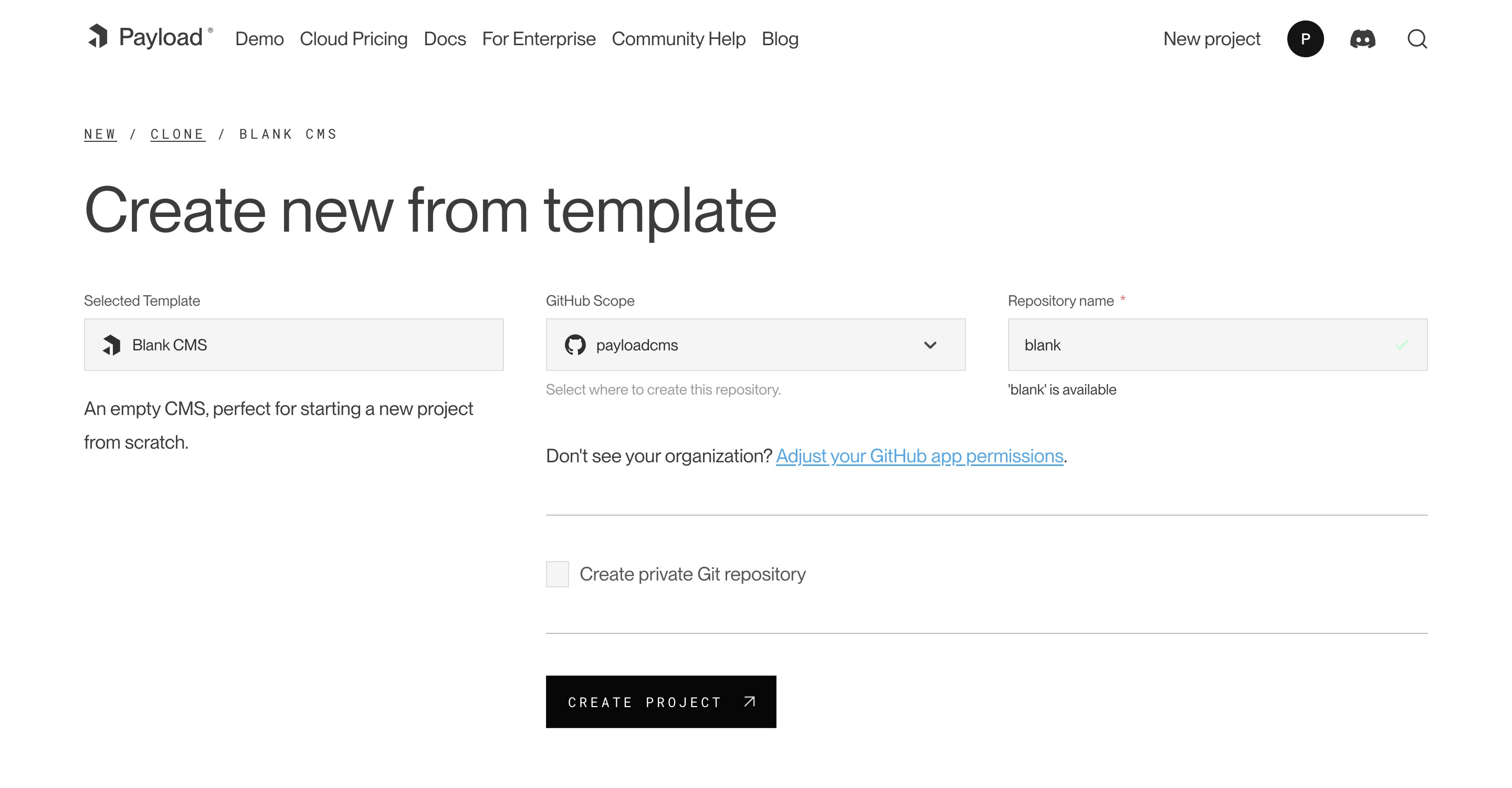
_Creating a new project from a template._
After creating an account, select your desired template from the Projects page. At this point, you need to connect to authorize the Payload Cloud application with your GitHub account. Click Continue with GitHub and follow the prompts to authorize the app.
Next, select your `GitHub Scope`. If you belong to multiple organizations, they will show up here. If you do not see the organization you are looking for, you may need to adjust your GitHub app permissions.
After selecting your scope, create a unique `repository name` and select whether you want your repository to be public or private on GitHub.
<Banner type="warning">
<strong>Note:</strong> Public repositories can be accessed by anyone online, while private
repositories grant access only to you and anyone you explicitly authorize.
</Banner>
Once you are ready, click **Create Project**. This will clone the selected template to a new repository in your GitHub account, and take you to the configuration page to set up your project for deployment.
## Importing from an Existing Codebase
Payload Cloud works for any Node.js + MongoDB app. From the New Project page, select **import an existing Git codebase**. Choose the organization and select the repository you want to import. From here, you will be taken to the configuration page to set up your project for deployment.
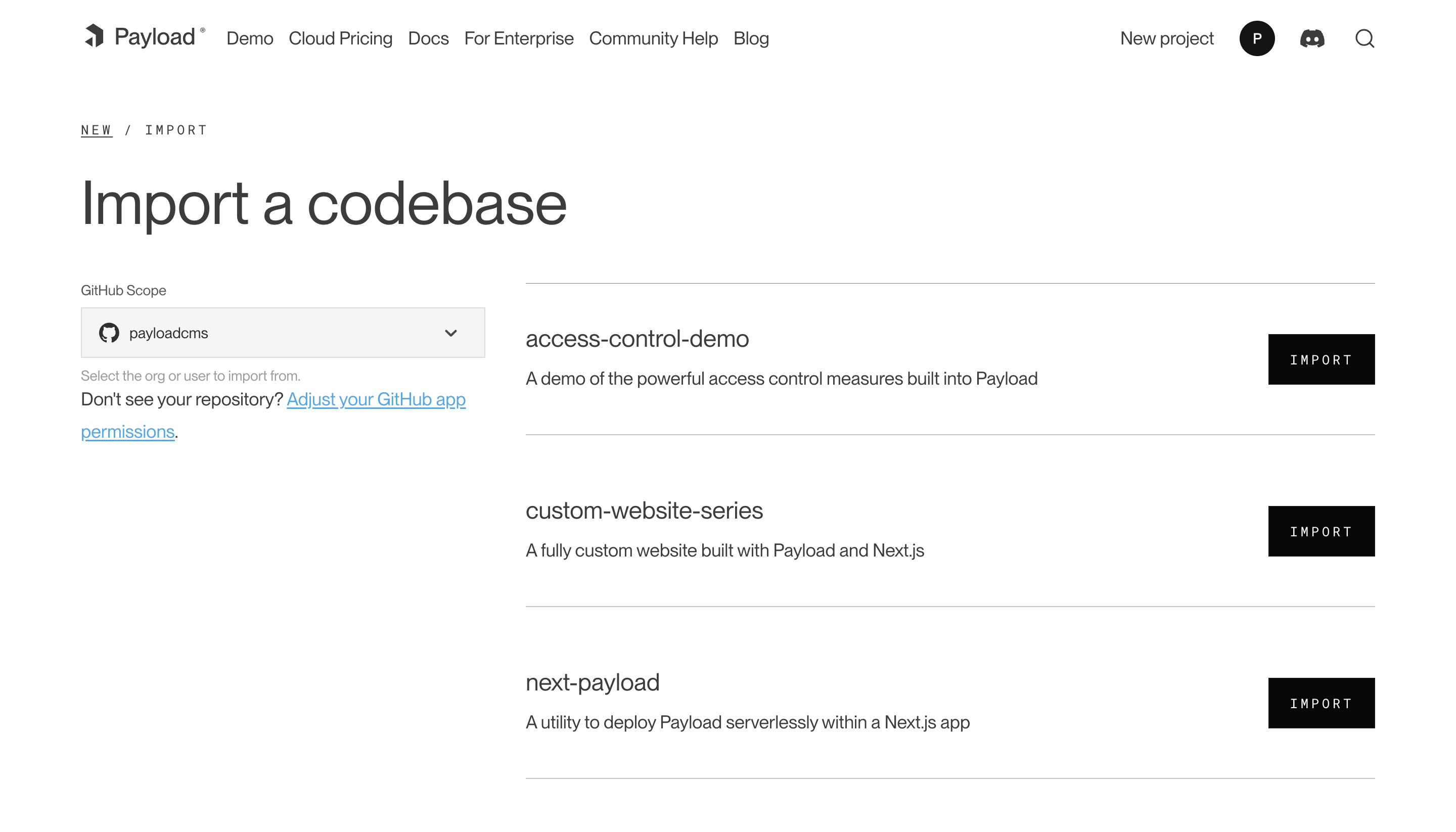
_Creating a new project from an existing repository._
<Banner type="warning">
<strong>Note:</strong> In order to make use of the features of Payload Cloud in your own codebase,
you will need to add the [Cloud Plugin](https://github.com/payloadcms/plugin-cloud) to your
_A screenshot of the Overview page for a Cloud project._
### Database
Your Payload Cloud project comes with a MongoDB serverless Atlas DB instance or a Dedicated Atlas cluster, depending on your plan. To interact with your cloud database, you will be provided with a MongoDB connection string. This can be found under the **Database** tab of your project.
`mongodb+srv://your_connection_string`
### File Storage
Payload Cloud gives you S3 file storage backed by Cloudflare as a CDN, and this plugin extends Payload so that all of your media will be stored in S3 rather than locally.
AWS Cognito is used for authentication to your S3 bucket. The[Payload Cloud Plugin](https://github.com/payloadcms/plugin-cloud)will automatically pick up these values. These values are only if you'd like to access your files directly, outside of Payload Cloud.
### Build Settings
You can update settings from your Project’s Settings tab. Changes to your build settings will trigger a redeployment of your project.
### Environment Variables
From the Environment Variables page of the Settings tab, you can add, update and delete variables for use in your project. Like build settings, these changes will trigger a redeployment of your project.
<Banner>
Note: For security reasons, any variables you wish to provide to the Admin panel must be prefixed
With Payload Cloud, you can add custom domain names to your project. To do so, first go to the Domains page of the Settings tab of your project. Here you can see your default domain. To add a new domain, type in the domain name you wish to use.
<Banner>
Note: do not include the protocol (http:// or https://) or any paths (/page). Only include the
domain name and extension, and optionally a subdomain. - your-domain.com - backend.your-domain.com
</Banner>
Once you click save, a DNS record will be generated for your domain name to point to your live project. Add this record into your DNS provider’s records, and once the records are resolving properly (this can take 1hr to 48hrs in some cases), your domain will now to point to your live project.
You will also need to configure your Payload project to use your specified domain. In your `payload.config.ts` file, specify your `serverURL` with your domain:
```ts
export default buildConfig({
serverURL: 'https://example.com',
// the rest of your config,
})
```
### Email
Powered by [Resend](https://resend.com), Payload Cloud comes with integrated email support out of the box. No configuration is needed, and you can use `payload.sendEmail()` to send email right from your Payload app. To learn more about sending email with Payload, checkout the [Email Configuration](https://payloadcms.com/docs/email/overview) overview.
If you are on the Pro or Enterprise plan, you can add your own custom Email domain name. From the Email page of your project’s Settings, add the domain you wish to use for email delivery. This will generate a set of DNS records. Add these records to your DNS provider and click verify to check that your records are resolving properly. Once verified, your emails will now be sent from your custom domain name.
### Developing Locally
To make changes to your project, you will need to clone the repository defined in your project settings to your local machine. In order to run your project locally, you will need configure your local environment first. Refer to your repository’s `README.md` file to see the steps needed for your specific template.
From there, you are ready to make updates to your project. When you are ready to make your changes live, commit your changes to the branch you specified in your Project settings, and your application will automatically trigger a redeploy and build from your latest commit.
### Cloud Plugin
Projects generated from a template will come pre-configured with the official Cloud Plugin, but if you are using your own repository you will need to add this into your project. To do so, add the plugin to your Payload config:
`yarn add @payloadcms/plugin-cloud`
```js
import { payloadCloud } from '@payloadcms/plugin-cloud'
import { buildConfig } from 'payload/config'
export default buildConfig({
plugins: [payloadCloud()],
// rest of config
})
```
<Banner type="warning">
**Note:** If your Payload config already has an email with transport, this will take precedence
over Payload Cloud's email service.
</Banner>
##### **Optional configuration**
If you wish to opt-out of any Payload cloud features, the plugin also accepts options to do so.
Within Payload Cloud, the team management feature offers you the ability to manage your
organization, team members, billing, and subscription settings.
</Banner>
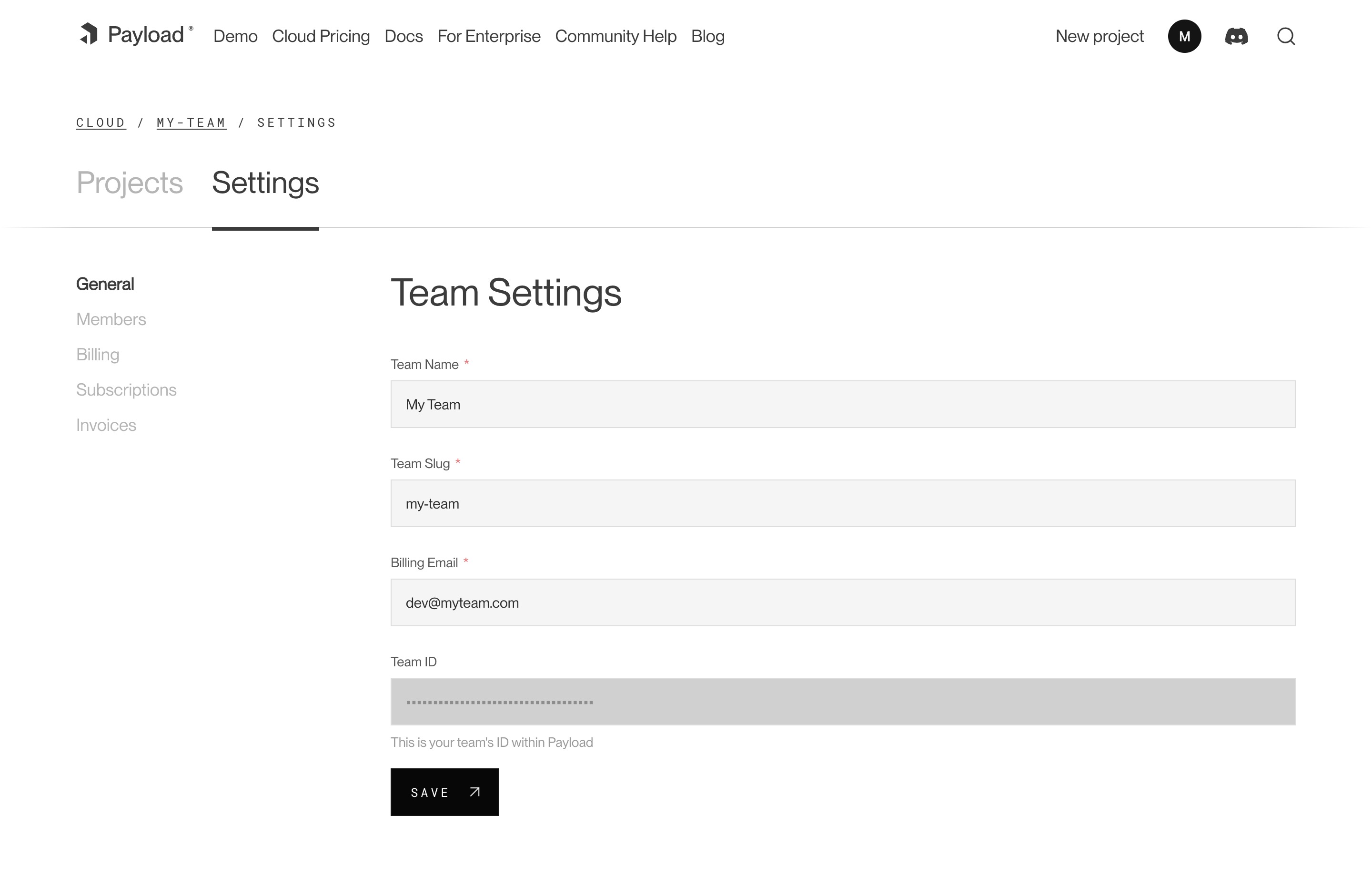
_A screenshot of the Team Settings page._
### Members
Each team has members that can interact with your projects. You can invite multiple people to your team and each individual can belong to more than one team. You can assign them either `owner` or `user` permissions. Owners are able to make admin-only changes, such as deleting projects, and editing billing information.
### Adding Members
To add a new member to your team, visit your Team’s Settings page, and click “Invite Teammate”. You can then add their email address, and assign their role. Press “Save” to send the invitations, which will send an email to the invited team member where they can create a new account.
### Billing
Users can update billing settings and subscriptions for any teams where they are designated as an `owner`. To make updates to the team’s payment methods, visit the Billing page under the Team Settings tab. You can add new cards, delete cards, and set a payment method as a default. The default payment method will be used in the event that another payment method fails.
### Subscriptions
From the Subscriptions page, a team owner can see all current plans for their team. From here, you can see the price of each plan, if there is an active trial, and when you will be billed next.
### Invoices
The Invoices page will you show you the invoices for your account, as well as the status on their payment.
desc: Structure your Collections for your needs by defining fields, adding slugs and labels, establishing access control, tying in hooks, setting timestamps and more.
| **`slug`** \* | Unique, URL-friendly string that will act as an identifier for this Collection. |
| **`fields`** \* | Array of field types that will determine the structure and functionality of the data stored within this Collection. [Click here](/docs/fields/overview) for a full list of field types as well as how to configure them. |
| **`labels`** | Singular and plural labels for use in identifying this Collection throughout Payload. Auto-generated from slug if not defined. |
| **`admin`** | Admin-specific configuration. See below for [more detail](#admin-options). |
| **`hooks`** | Entry points to "tie in" to Collection actions at specific points. [More](/docs/hooks/overview#collection-hooks) |
| **`access`** | Provide access control functions to define exactly who should be able to do what with Documents in this Collection. [More](/docs/access-control/overview/#collections) |
| **`auth`** | Specify options if you would like this Collection to feature authentication. For more, consult the [Authentication](/docs/authentication/config) documentation. |
| **`upload`** | Specify options if you would like this Collection to support file uploads. For more, consult the [Uploads](/docs/upload/overview) documentation. |
| **`timestamps`** | Set to false to disable documents' automatically generated `createdAt` and `updatedAt` timestamps. |
| **`versions`** | Set to true to enable default options, or configure with object properties. [More](/docs/versions/overview#collection-config) |
| **`endpoints`** | Add custom routes to the REST API. Set to `false` to disable routes. [More](/docs/rest-api/overview#custom-endpoints) |
| **`graphQL`** | An object with `singularName` and `pluralName` strings used in schema generation. Auto-generated from slug if not defined. Set to `false` to disable GraphQL. |
| **`typescript`** | An object with property `interface` as the text used in schema generation. Auto-generated from slug if not defined. |
| **`defaultSort`** | Pass a top-level field to sort by default in the collection List view. Prefix the name of the field with a minus symbol ("-") to sort in descending order. |
| **`custom`** | Extension point for adding custom data (e.g. for plugins) |
_\* An asterisk denotes that a property is required._
#### Simple collection example
```ts
import { CollectionConfig } from 'payload/types'
export const Orders: CollectionConfig = {
slug: 'orders',
fields: [
{
name: 'total',
type: 'number',
required: true,
},
{
name: 'placedBy',
type: 'relationship',
relationTo: 'customers',
required: true,
},
],
}
```
#### More collection config examples
You can find an assortment
of [example collection configs](https://github.com/payloadcms/public-demo/tree/master/src/collections) in the Public
Demo source code on GitHub.
### Admin options
You can customize the way that the Admin panel behaves on a collection-by-collection basis by defining the `admin`
| `group` | Text used as a label for grouping collection and global links together in the navigation. |
| `hidden` | Set to true or a function, called with the current user, returning true to exclude this collection from navigation and admin routing. |
| `hooks` | Admin-specific hooks for this collection. [More](#admin-hooks) |
| `useAsTitle` | Specify a top-level field to use for a document title throughout the Admin panel. If no field is defined, the ID of the document is used as the title. |
| `description` | Text or React component to display below the Collection label in the List view to give editors more information. |
| `defaultColumns` | Array of field names that correspond to which columns to show by default in this collection's List view. |
| `disableDuplicate ` | Disables the "Duplicate" button while editing documents within this collection. |
| `hideAPIURL` | Hides the "API URL" meta field while editing documents within this collection. |
| `enableRichTextLink` | The [Rich Text](/docs/fields/rich-text) field features a `Link` element which allows for users to automatically reference related documents within their rich text. Set to `true` by default. |
| `enableRichTextRelationship` | The [Rich Text](/docs/fields/rich-text) field features a `Relationship` element which allows for users to automatically reference related documents within their rich text. Set to `true` by default. |
| `preview` | Function to generate preview URLS within the Admin panel that can point to your app. [More](#preview). |
| `livePreview` | Enable real-time editing for instant visual feedback of your front-end application. [More](/docs/live-preview/overview). |
| `components` | Swap in your own React components to be used within this collection. [More](/docs/admin/components#collections) |
| `listSearchableFields` | Specify which fields should be searched in the List search view. [More](#list-searchable-fields) |
| **`pagination`** | Set pagination-specific options for this collection. [More](#pagination) |
### Preview
Collection `admin` options can accept a `preview` function that will be used to generate a link pointing to the frontend
of your app to preview data.
If the function is specified, a Preview button will automatically appear in the corresponding collection's Edit view.
Clicking the Preview button will link to the URL that is generated by the function.
**The preview function accepts two arguments:**
1. The document being edited
1. An `options` object, containing `locale` and `token` properties. The `token` is the currently logged-in user's JWT.
Payload utilizes a few Express-specific middleware packages within its own routers. You can customize how they work by passing in configuration options to the main Payload config's `express` property.
### Custom Middleware
Payload allows you to pass in custom Express middleware to be used on all of the routes it opens. This is useful for adding logging or any other custom functionality to your endpoints.
There are 2 exposed properties. Each property is an array of middleware functions.
- `preMiddleware` - runs before any of the Payload middleware
- `postMiddleware` - runs after all of the Payload middleware
`express.json()` is used to parse JSON body content into JavaScript objects accessible on the Express `req`. Payload allows you to customize all of the `json` method's options. Common examples of customization use-cases are increasing the max allowed JSON body size which defaults to `2MB`.
**Example payload.config.js for how to increase the max JSON size allowed to be sent to Payload endpoints:**
```js
{
express: {
json: {
limit: '4mb',
}
}
}
```
You can find a list of all available options that are able to be passed to `express.json()` [here](https://expressjs.com/en/api.html).
### Compression
Payload uses the `compression` package to optimize transfer size for all of the routes it opens, and you can pass customization options through the Payload config.
To customize compression options, pass an object to the Payload config's `express` property.
**Example payload.config.js:**
```js
{
express: {
compression: {
// settings go here
}
}
}
```
Typically, the default options for this package are suitable. However, for a list of all available customization options, [click here](http://expressjs.com/en/resources/middleware/compression.html).
Global configs are in many ways similar to [Collections](/docs/configuration/collections). The big difference is that Collections will potentially contain _many_ documents, while a Global is a "one-off". Globals are perfect for things like header nav, site-wide banner alerts, app-wide localized strings, and other "global" data that your site or app might rely on.
As with Collection configs, it's often best practice to write your Globals in separate files and then import them into the main Payload config.
| **`slug`** \* | Unique, URL-friendly string that will act as an identifier for this Global. |
| **`fields`** \* | Array of field types that will determine the structure and functionality of the data stored within this Global. [Click here](/docs/fields/overview) for a full list of field types as well as how to configure them. |
| **`label`** | Text for the name in the Admin panel or an object with keys for each language. Auto-generated from slug if not defined. |
| **`description`** | Text or React component to display below the Global header to give editors more information. |
| **`admin`** | Admin-specific configuration. See below for [more detail](/docs/configuration/globals#admin-options). |
| **`hooks`** | Entry points to "tie in" to collection actions at specific points. [More](/docs/hooks/overview#global-hooks) |
| **`access`** | Provide access control functions to define exactly who should be able to do what with this Global. [More](/docs/access-control/overview/#globals) |
| **`versions`** | Set to true to enable default options, or configure with object properties. [More](/docs/versions/overview#globals-config) |
| **`endpoints`** | Add custom routes to the REST API. [More](/docs/rest-api/overview#custom-endpoints) |
| **`graphQL.name`** | Text used in schema generation. Auto-generated from slug if not defined. |
| **`typescript`** | An object with property `interface` as the text used in schema generation. Auto-generated from slug if not defined. |
| **`custom`** | Extension point for adding custom data (e.g. for plugins) |
_\* An asterisk denotes that a property is required._
#### Simple Global example
```ts
import { GlobalConfig } from 'payload/types'
const Nav: GlobalConfig = {
slug: 'nav',
fields: [
{
name: 'items',
type: 'array',
required: true,
maxRows: 8,
fields: [
{
name: 'page',
type: 'relationship',
relationTo: 'pages', // "pages" is the slug of an existing collection
required: true,
},
],
},
],
}
export default Nav
```
#### Global config example
You can find an [example Global config](https://github.com/payloadcms/public-demo/blob/master/src/globals/MainMenu.ts) in the Public Demo source code on GitHub.
### Admin options
You can customize the way that the Admin panel behaves on a Global-by-Global basis by defining the `admin` property on a Global's config.
| `group` | Text used as a label for grouping collection and global links together in the navigation. |
| `hidden` | Set to true or a function, called with the current user, returning true to exclude this global from navigation and admin routing. |
| `components` | Swap in your own React components to be used within this Global. [More](/docs/admin/components#globals) |
| `preview` | Function to generate a preview URL within the Admin panel for this global that can point to your app. [More](#preview). |
| `livePreview`| Enable real-time editing for instant visual feedback of your front-end application. [More](/docs/live-preview/overview). |
| `hideAPIURL` | Hides the "API URL" meta field while editing documents within this collection. |
### Preview
Global `admin` options can accept a `preview` function that will be used to generate a link pointing to the frontend of your app to preview data.
If the function is specified, a Preview button will automatically appear in the corresponding global's Edit view. Clicking the Preview button will link to the URL that is generated by the function.
**The preview function accepts two arguments:**
1. The document being edited
1. An `options` object, containing `locale` and `token` properties. The `token` is the currently logged-in user's JWT.
As with Collections, you can specify extremely granular access control (what users can do with this Global) on a Global-by-Global basis. However, Globals only have `update` and `read` access control due to their nature of only having one document. To learn more, go to the [Access Control](/docs/access-control/overview) docs.
### Hooks
Globals also fully support a smaller subset of Hooks. To learn more, go to the [Hooks](/docs/hooks/overview) documentation.
### Field types
Globals support all field types that Payload has to offer—including simple fields like text and checkboxes all the way to more complicated layout-building field groups like Blocks. [Click here](/docs/fields/overview) to learn more about field types.
### TypeScript
You can import global types as follows:
```ts
import { GlobalConfig } from 'payload/types'
// This is the type used for incoming global configs.
// Only the bare minimum properties are marked as required.
```
```ts
import { SanitizedGlobalConfig } from 'payload/types'
// This is the type used after an incoming global config is fully sanitized.
// Generally, this is only used internally by Payload.
Not only does Payload support managing localized content, it also has internationalization support so that admin users can work in their preferred language. Payload's i18n support is built on top of [i18next](https://www.i18next.com). It comes included by default and can be extended in your config.
While Payload's built-in features come translated, you may want to also translate parts of your project's configuration too. This is possible in places like collections and globals labels and groups, field labels, descriptions and input placeholder text. The admin UI will display all the correct translations you provide based on the user's language.
Here is an example of a simple collection supporting both English and Spanish editors:
```ts
import { CollectionConfig } from 'payload/types'
export const Articles: CollectionConfig = {
slug: 'articles',
labels: {
singular: {
en: 'Article',
es: 'Artículo',
},
plural: {
en: 'Articles',
es: 'Artículos',
},
},
admin: {
group: { en: 'Content', es: 'Contenido' },
},
fields: [
{
name: 'title',
type: 'text',
label: {
en: 'Title',
es: 'Título',
},
admin: {
placeholder: { en: 'Enter title', es: 'Introduce el título' },
},
},
{
name: 'type',
type: 'radio',
options: [
{
value: 'news',
label: { en: 'News', es: 'Noticias' },
}, // etc...
],
},
],
}
```
### Admin UI
The Payload admin panel reads the language settings of a user's browser and display all text in that language, or will fall back to English if the user's language is not yet supported.
After a user logs in, they can change their language selection in the `/account` view.
<Banner>
<strong>Note:</strong>
<br />
If there is a language that Payload does not yet support, we accept code
Payload's backend uses express middleware to set the language on incoming requests before they are handled. This allows backend validation to return error messages in the user's own language or system generated emails to be sent using the correct translation. You can make HTTP requests with the `accept-language` header and Payload will use that language.
Anywhere in your Payload app that you have access to the `req` object, you can access i18next's extensive internationalization features assigned to `req.i18n`. To access text translations you can use `req.t('namespace:key')`.
Read the i18next [API documentation](https://www.i18next.com/overview/api) to learn more.
### Configuration Options
In your Payload config, you can add translations and customize the settings in `i18n`. Payload will use your custom options and merge it with the default, allowing you to override the settings Payload provides.
**Example Payload config extending i18n:**
```ts
import { buildConfig } from 'payload/config'
export default buildConfig({
//...
i18n: {
fallbackLng: 'en', // default
debug: false, // default
resources: {
en: {
custom: {
// namespace can be anything you want
key1: 'Translation with {{variable}}', // translation
},
// override existing translation keys
general: {
dashboard: 'Home',
},
},
},
},
//...
})
```
See the i18next [configuration options](https://www.i18next.com/overview/configuration-options) to learn more.
desc: Add and maintain as many locales as you need by adding Localization to your Payload config, set options for default locale, fallbacks, fields and more.
Payload features deep field-based localization support. Maintaining as many locales as you need is easy. All localization support is opt-in by default. To do so, follow the two steps below.
### Enabling in the Payload config
Add the `localization` property to your Payload config to enable localization project-wide. You'll need to provide a list of all locales that you'd like to support as well as set a few other options.
**Example Payload config set up for localization:**
```ts
import { buildConfig } from 'payload/config'
export default buildConfig({
collections: [
// collections go here
],
localization: {
locales: ['en', 'es', 'de'],
defaultLocale: 'en',
fallback: true,
},
})
```
**Example Payload config set up for localization with full locales objects:**
```ts
import { buildConfig } from 'payload/config'
export default buildConfig({
collections: [
// collections go here
],
localization: {
locales: [
{
label: 'English',
code: 'en',
},
{
label: 'Arabic',
code: 'ar',
// opt-in to setting default text-alignment on Input fields to rtl (right-to-left) when current locale is rtl
rtl: true,
},
],
defaultLocale: 'en',
fallback: true,
},
})
```
**Here is a brief explanation of each of the options available within the `localization` property:**
**`locales`**
Array-based list of all locales that you would like to support. These can be strings of locale codes or objects with a `label`, a locale `code`, and the `rtl` (right-to-left) property. The locale codes do not need to be in any specific format. It's up to you to define how to represent your locales. Common patterns are to use two-letter ISO 639 language codes or four-letter language and country codes (ISO 3166‑1) such as `en-US`, `en-UK`, `es-MX`, etc.
**`defaultLocale`**
Required string that matches one of the locale codes from the array provided. By default, if no locale is specified, documents will be returned in this locale.
**`fallback`**
Boolean enabling "fallback" locale functionality. If a document is requested in a locale, but a field does not have a localized value corresponding to the requested locale, then if this property is enabled, the document will automatically fall back to the fallback locale value. If this property is not enabled, the value will not be populated.
### Field by field localization
Payload localization works on a **field** level—not a document level. In addition to configuring the base Payload config to support localization, you need to specify each field that you would like to localize.
**Here is an example of how to enable localization for a field:**
```js
{
name: 'title',
type: 'text',
// highlight-start
localized: true,
// highlight-end
}
```
With the above configuration, the `title` field will now be saved in the database as an object of all locales instead of a single string.
All field types with a `name` property support the `localized` property—even the more complex field types like `array`s and `block`s.
<Banner>
<strong>Note:</strong>
<br />
Enabling localization for field types that support nested fields will automatically create
localized "sets" of all fields contained within the field. For example, if you have a page layout
using a blocks field type, you have the choice of either localizing the full layout, by enabling
localization on the top-level blocks field, or only certain fields within the layout.
</Banner>
<Banner type="warning">
<strong>Important:</strong>
<br />
When converting an existing field to or from `localized: true` the data structure in the document
will change for this field and so existing data for this field will be lost. Before changing the
localization setting on fields with existing data, you may need to consider a field migration
strategy.
</Banner>
### Retrieving localized docs
When retrieving documents, you can specify which locale you'd like to receive as well as which fallback locale should be used.
##### REST API
REST API locale functionality relies on URL query parameters.
**`?locale=`**
Specify your desired locale by providing the `locale` query parameter directly in the endpoint URL.
**`?fallback-locale=`**
Specify fallback locale to be used by providing the `fallback-locale` query parameter. This can be provided as either a valid locale as provided to your base Payload config, or `'null'`, `'false'`, or `'none'` to disable falling back.
In the GraphQL API, you can specify `locale` and `fallbackLocale` args to all relevant queries and mutations.
The `locale` arg will only accept valid locales, but locales will be formatted automatically as valid GraphQL enum values (dashes or special characters will be converted to underscores, spaces will be removed, etc.). If you are curious to see how locales are auto-formatted, you can use the [GraphQL playground](/docs/graphql/overview#graphql-playground).
The `fallbackLocale` arg will accept valid locales as well as `none` to disable falling back.
**Example:**
```graphql
query {
Posts(locale: de, fallbackLocale: none) {
docs {
title
}
}
}
```
<Banner>
In GraphQL, specifying the locale at the top level of a query will automatically apply it
throughout all nested relationship fields. You can override this behavior by re-specifying locale
arguments in nested related document queries.
</Banner>
##### Local API
You can specify `locale` as well as `fallbackLocale` within the Local API as well as properties on the `options` argument. The `locale` property will accept any valid locale, and the `fallbackLocale` property will accept any valid locale as well as `'null'`, `'false'`, `false`, and `'none'`.
**Example:**
```js
const posts = await payload.find({
collection: 'posts',
locale: 'es',
fallbackLocale: false,
})
```
<Banner type="alert">
<strong>Tip:</strong>
<br />
The REST and Local APIs can return all localization data in one request by passing 'all' or '*' as
the <strong>locale</strong> parameter. The response will be structured so that field values come
back as the full objects keyed for each locale instead of the single, translated value.
desc: The Payload config is central to everything that Payload does, from adding custom React components, to modifying collections, controlling localization and much more.
Payload is a _config-based_, code-first CMS and application framework. The Payload config is central to everything that Payload does. It scaffolds the data that Payload stores as well as maintains custom React components, hook logic, custom validations, and much more.
**Also, because the Payload source code is fully written in TypeScript, its configs are strongly typed—meaning that even if you aren't using TypeScript, your IDE (such as VSCode) may still provide helpful information like type-ahead suggestions while you write your config.**
<Banner type="warning">
<strong>Important:</strong>
<br />
This file is included in the Payload admin bundle, so make sure you do not embed any sensitive
| `admin` \* | Base Payload admin configuration. Specify bundler*, custom components, control metadata, set the Admin user collection, and [more](/docs/admin/overview#admin-options). Required. |
| `editor` \* | Rich Text Editor which will be used by richText fields. Required. |
| `db` \* | Database Adapter which will be used by Payload. Read more [here](/docs/database/overview). Required. |
| `serverURL` | A string used to define the absolute URL of your app including the protocol, for example `https://example.com`. No paths allowed, only protocol, domain and (optionally) port |
| `collections` | An array of all Collections that Payload will manage. To read more about how to define your collection configs, [click here](/docs/configuration/collections). |
| `globals` | An array of all Globals that Payload will manage. For more on Globals and their configs, [click here](/docs/configuration/globals). |
| `cors` | Either a whitelist array of URLS to allow CORS requests from, or a wildcard string (`'*'`) to accept incoming requests from any domain. |
| `localization` | Opt-in and control how Payload handles the translation of your content into multiple locales. [More](/docs/configuration/localization) |
| `graphQL` | Manage GraphQL-specific functionality here. Define your own queries and mutations, manage query complexity limits, and [more](/docs/graphql/overview#graphql-options). |
| `cookiePrefix` | A string that will be prefixed to all cookies that Payload sets. |
| `csrf` | A whitelist array of URLs to allow Payload cookies to be accepted from as a form of CSRF protection. [More](/docs/authentication/overview#csrf-protection) |
| `defaultDepth` | If a user does not specify `depth` while requesting a resource, this depth will be used. [More](/docs/getting-started/concepts#depth) |
| `maxDepth` | The maximum allowed depth to be permitted application-wide. This setting helps prevent against malicious queries. Defaults to `10`. |
| `indexSortableFields` | Automatically index all sortable top-level fields in the database to improve sort performance and add database compatibility for Azure Cosmos and similar. |
| `upload` | Base Payload upload configuration. [More](/docs/upload/overview#payload-wide-upload-options). |
| `routes` | Control the routing structure that Payload binds itself to. Specify `admin`, `api`, `graphQL`, and `graphQLPlayground`. |
| `email` | Base email settings to allow Payload to generate email such as Forgot Password requests and other requirements. [More](/docs/email/overview#configuration) |
| `express` | Express-specific middleware options such as compression and JSON parsing. [More](/docs/configuration/express) |
| `debug` | Enable to expose more detailed error information. |
| `rateLimit` | Control IP-based rate limiting for all Payload resources. Used to prevent DDoS attacks and [more](/docs/production/preventing-abuse#rate-limiting-requests). |
| `hooks` | Tap into Payload-wide hooks. [More](/docs/hooks/overview) |
| `plugins` | An array of Payload plugins. [More](/docs/plugins/overview) |
| `endpoints` | An array of custom API endpoints added to the Payload router. [More](/docs/rest-api/overview#custom-endpoints) |
| `custom` | Extension point for adding custom data (e.g. for plugins) |
_\* An asterisk denotes that a property is required._
#### Simple example
```ts
import { buildConfig } from 'payload/config'
import { mongooseAdapter } from '@payloadcms/db-mongodb'
import { postgresAdapter } from '@payloadcms/db-postgres' // beta
import { viteBundler } from '@payloadcms/bundler-vite'
import { webpackBundler } from '@payloadcms/bundler-webpack'
import { lexicalEditor } from '@payloadcms/richtext-lexical' // beta
import { slateEditor } from '@payloadcms/richtext-slate'
export default buildConfig({
admin: {
bundler: webpackBundler(), // or viteBundler()
},
db: mongooseAdapter({}) // or postgresAdapter({}),
editor: lexicalEditor({}) // or slateEditor({})
collections: [
{
slug: 'pages',
fields: [
{
name: 'title',
type: 'text',
required: true,
},
{
name: 'content',
type: 'richText',
required: true,
},
],
},
],
globals: [
{
slug: 'header',
fields: [
{
name: 'nav',
type: 'array',
fields: [
{
name: 'page',
type: 'relationship',
relationTo: 'pages',
},
],
},
],
},
],
})
```
#### Full example config
You can see a full [example config](https://github.com/payloadcms/public-demo/blob/master/src/payload.config.ts) in the Public Demo source code on GitHub.
### Using environment variables in your config
We suggest using the `dotenv` package to handle environment variables alongside of Payload. All that's necessary to do is to require the package as high up in your application as possible (for example, at the top of your `server.js` file), and ensure that it can find an `.env` file that you create.
**Add this line to the top of your server:**
```
require('dotenv').config()
// ...
// the rest of your `server.js` file goes here
```
Note that if you rely on any environment variables in your config itself, you should also call `dotenv()` at the top of your config itself as well. There's no harm in calling it in both your server and your config itself!
**Here is an example project structure w/ `dotenv` and an `.env` file:**
```
project-name
---- .env
---- package.json
---- payload.config.js
---- server.js
```
<Banner type="warning">
<strong>Important:</strong>
<br />
If you use an environment variable to configure any properties that are required for the Admin
panel to function (ex. serverURL or any routes), you need to make sure that your Admin panel code
can access it. [Click here](/docs/admin/webpack#admin-environment-vars) for more info.
Payload is designed to automatically locate your configuration file. By default, it will first look in the root of your current working directory for a file named `payload.config.js` or `payload.config.ts` if you're using TypeScript.
In development mode, if the configuration file is not found at the root, Payload will attempt to read your `tsconfig.json`, and search in the directory specified in `compilerOptions.rootDir` (typically "src").
In production mode, Payload will first attempt to find the config file in the output directory specified in `compilerOptions.outDir` of your `tsconfig.json`, then fallback to the source directory (`compilerOptions.rootDir`), and finally will check the 'dist' directory.
Please ensure your `tsconfig.json` is properly configured if you want Payload to accurately auto-detect your configuration file location. If `tsconfig.json` does not exist or doesn't specify `rootDir` or `outDir`, Payload will default to the current working directory.
#### Overriding the Config Location
In addition to the above automated detection, you can specify your own location for the Payload config file. This is done by using the environment variable `PAYLOAD_CONFIG_PATH`. The path you provide via this environment variable can either be absolute or relative to your current working directory. This can be useful in situations where your Payload config is not in a standard location, or you wish to switch between multiple configurations.
When `PAYLOAD_CONFIG_PATH` is set, Payload will use this path to load the configuration, bypassing all automated detection.
### Developing within the Config
Payload comes with `isomorphic-fetch` installed which means that even in Node, you can use the `fetch` API just as you would within the browser. No need to import `axios` or similar, unless you want to!
### TypeScript
You can import config types as follows:
```ts
import { Config } from 'payload/config'
// This is the type used for an incoming Payload config.
// Only the bare minimum properties are marked as required.
```
```ts
import { SanitizedConfig } from 'payload/config'
// This is the type used after an incoming Payload config is fully sanitized.
// Generally, this is only used internally by Payload.
```
### Telemetry
Payload collects **completely anonymous** telemetry data about general usage. This data is super important to us and helps us accurately understand how we're growing and what we can do to build the software into everything that it can possibly be. The telemetry that we collect also help us demonstrate our growth in an accurate manner, which helps us as we seek investment to build and scale our team. If we can accurately demonstrate our growth, we can more effectively continue to support Payload as free and open-source software. To opt out of telemetry, you can pass `telemetry: false` within your Payload config.
For more information about what we track, take a look at our [privacy policy](/privacy).
desc: Payload features first-party database migrations all done in TypeScript.
---
Payload exposes a full suite of migration controls available for your use. Migration commands are accessible via the `npm run payload` command in your project directory.
Ensure you have an npm script called "payload" in your `package.json` file.
Note that you need to run Payload migrations through the package manager that you are using, because Payload should not be globally installed on your system.
</Banner>
### Migration file contents
Payload stores all created migrations in a folder that you can specify. By default, migrations are stored in `./src/migrations`.
A migration file has two exports - an `up` function, which is called when a migration is executed, and a `down` function that will be called if for some reason the migration fails to complete successfully. The `up` function should contain all changes that you attempt to make within the migration, and the `down` should ideally revert any changes you make.
For an added level of safety, migrations should leverage Payload [transactions](/docs/database/transactions).
Here is an example migration file:
```ts
import { MigrateUpArgs, MigrateDownArgs } from '@payloadcms/your-db-adapter'
export async function up({ payload }: MigrateUpArgs): Promise<void> {
// Perform changes to your database here.
// You have access to `payload` as an argument, and
// everything is done in TypeScript.
};
export async function down({ payload }: MigrateDownArgs): Promise<void> {
// Do whatever you need to revert changes if the `up` function fails
};
```
All database adapters should implement similar migration patterns, but there will be small differences based on the adapter and its specific needs. Below is a list of all migration commands that should be supported by your database adapter.
### Migrate
The `migrate` command will run any migrations that have not yet been run.
```text
npm run payload migrate
```
### Create
Create a new migration file in the migrations directory. You can optionally name the migration that will be created. By default, migrations will be named using a timestamp.
```text
npm run payload migrate:create optional-name-here
```
### Status
The `migrate:status` command will check the status of migrations and output a table of which migrations have been run, and which migrations have not yet run.
`payload migrate:status`
```text
npm run payload migrate:status
```
### Down
Roll back the last batch of migrations.
```text
npm run payload migrate:down
```
### Refresh
Roll back all migrations that have been run, and run them again.
```text
npm run payload migrate:refresh
```
### Reset
Roll back all migrations.
```text
npm run payload migrate:reset
```
### Fresh
Drops all entities from the database and re-runs all migrations from scratch.
To use Payload with MongoDB, install the package `@payloadcms/db-mongodb`. It will come with everything you need to store your Payload data in MongoDB.
Then from there, pass it to your Payload config as follows:
```ts
import { mongooseAdapter } from '@payloadcms/db-mongodb'
| `autoPluralization` | Tell Mongoose to auto-pluralize any collection names if it encounters any singular words used as collection `slug`s. |
| `connectOptions` | Customize MongoDB connection options. Payload will connect to your MongoDB database using default options which you can override and extend to include all the [options](https://mongoosejs.com/docs/connections.html#options) available to mongoose. |
| `migrationDir` | Customize the directory that migrations are stored. |
### Access to Mongoose models
After Payload is initialized, this adapter exposes all of your Mongoose models and they are available for you to work with directly.
We will be adding support for SQLite and MySQL in the near future using Drizzle ORM.
To use a specific database adapter, you need to install it and configure it according to its own specifications. Visit the documentation for your applicable database adapter to learn more.
## Selecting a database
There are several factors to consider when choosing which database technology and hosting option is right for your project and workload. Payload can theoretically support any database, but it's up to you to decide which database to use.
#### When to use MongoDB
If your project has a lot of dynamic fields, and you are comfortable with allowing Payload to enforce data integrity across your documents, MongoDB is a great choice. With it, your Payload documents are stored as _one_ document in your database—no matter if you have localization enabled, how many block or array fields you have, etc. This means that the shape of your data in your database will very closely reflect your field schema, and there is minimal complexity involved in storing or retrieving your data.
You should prefer MongoDB if:
- You prefer simplicity within your database
- You don't want to deal with keeping production / staging databases in sync via [DDL changes](https://en.wikipedia.org/wiki/Data_definition_language)
- Most (or everything) in your project is localized
- You leverage a lot of array fields, block fields, or `hasMany` select fields and similar
#### When to use a relational DB
Many projects might call for more rigid database architecture where the shape of your data is strongly enforced at the database level. For example, if you know the shape of your data and it's relatively "flat", and you don't anticipate it to change often, your workload might suit relational databases like Postgres very well.
You should prefer a relational DB like Postgres if:
- You are comfortable with migration workflows
- You require enforced data consistency at the database level
- You have a lot of relationships between collections and require relationships to be enforced
#### Differences in Payload features
It's important to note that almost everything Payload does is available in all of our officially supported database adapters, including localization, arrays, blocks, etc.
The only thing that is not supported in Postgres yet is the [Point field](/docs/fields/point), but that should be added soon.
It's up to you to choose which database you would like to use.
## Configuration
To configure the database for your Payload application, an adapter can be assigned to `config.db`. This property is required within your Payload config.
Here's an example:
```ts
import { postgresAdapter } from '@payloadcms/db-postgres'
export default buildConfig({
// Your config goes here
collections: [
// Collections go here
],
// Here is where you pass your database adapter
// and the adapter will require options specific to itself
To use Payload with Postgres, install the package `@payloadcms/db-postgres`. It leverages Drizzle ORM and `node-postgres` to interact with a Postgres database that you provide.
<Banner>
The Postgres database adapter is currently in beta. If you would like to help us test this package, we'd love to hear if you find any bugs or issues!
</Banner>
It automatically manages changes to your database for you in development mode, and exposes a full suite of migration controls for you to leverage in order to keep other database environments in sync with your schema. DDL transformations are automatically generated.
To configure Payload to use Postgres, pass the `postgresAdapter` to your Payload config as follows:
```ts
import { postgresAdapter } from '@payloadcms/db-postgres'
| `pool` | [Pool connection options](https://orm.drizzle.team/docs/quick-postgresql/node-postgres) that will be passed to Drizzle and `node-postgres`. |
| `push` | Disable Drizzle's [`db push`](https://orm.drizzle.team/kit-docs/overview#prototyping-with-db-push) in development mode. By default, `push` is enabled for development mode only. |
| `migrationDir` | Customize the directory that migrations are stored. |
### Access to Drizzle
After Payload is initialized, this adapter will expose the full power of Drizzle to you for use if you need it.
You can access Drizzle as follows:
```text
payload.db.drizzle
```
### Tables, relations, and enums
In addition to exposing Drizzle directly, all of the tables, Drizzle relations, and enum configs are exposed for you via the `payload.db` property as well.
- Tables - `payload.db.tables`
- Enums - `payload.db.enums`
- Relations - `payload.db.relations`
### Prototyping in development mode
Drizzle exposes two ways to work locally in development mode.
The first is [`db push`](https://orm.drizzle.team/kit-docs/overview#prototyping-with-db-push), which automatically pushes changes you make to your Payload config (and therefore, Drizzle schema) to your database so you don't have to manually migrate every time you change your Payload config. This only works in development mode, and should not be mixed with manually running [`migrate`](/docs/database/migrations) commands.
You will be warned if any changes that you make will entail data loss while in development mode. Push is enabled by default, but you can opt out if you'd like.
Alternatively, you can disable `push` and rely solely on migrations to keep your local database in sync with your Payload config.
### Migration workflows
Migrations are extremely powerful thanks to the seamless way that Payload and Drizzle work together. Let's take the following scenario:
1. You are building your Payload config locally, with a local database used for testing.
1. You have left the default setting of `push` enabled, so every time you change your Payload config (add or remove fields, collections, etc.), Drizzle will automatically push changes to your local DB.
1. Once you're done with your changes, or have completed a feature, you can run `npm run payload migrate:create`.
1. Payload and Drizzle will look for any existing migrations, and automatically generate all SQL changes necessary to convert your schema from its prior state into the state of your current Payload config, and store the resulting DDL in a newly created migration.
1. Once you're ready to go to production, you will be able to run `npm run payload migrate` against your production database, which will apply any new migrations that have not yet run.
1. Now your production database is in sync with your Payload config!
<Banner type="warning">
Warning: do not mix "push" and migrations with your local development database. If you use "push" locally, and then try to migrate, Payload will throw a warning, telling you that these two methods are not meant to be used interchangeably.
desc: Database transactions are fully supported within Payload.
---
Database transactions allow your application to make a series of database changes in an all-or-nothing commit. Consider an HTTP request that creates a new **Order** and has an `afterChange` hook to update the stock count of related **Items**. If an error occurs when updating an **Item** and an HTTP error is returned to the user, you would not want the new **Order** to be persisted or any other items to be changed either. This kind of interaction with the database is handled seamlessly with transactions.
By default, Payload will use transactions for all operations, as long as it is supported by the configured database. Database changes are contained within all Payload operations and any errors thrown will result in all changes being rolled back without being committed. When transactions are not supported by the database, Payload will continue to operate as expected without them.
<Banner type="info">
<strong>Note:</strong>
<br />
MongoDB requires a connection to a replicaset in order to make use of transactions.
</Banner>
The initial request made to Payload will begin a new transaction and attach it to the `req.transactionID`. If you have a `hook` that interacts with the database, you can opt-in to using the same transaction by passing the `req` in the arguments. For example:
// because req.transactionID is assigned from Payload and passed through, my-slug will only persist if the entire request is successful
await req.payload.create({
req,
collection: 'my-slug',
data: {
some: 'data',
},
})
}
```
### Async Hooks with Transactions
Since Payload hooks can be async and be written to not await the result, it is possible to have an incorrect success response returned on a request that is rolled back. If you have a hook where you do not `await` the result, then you should **not** pass the `req.transactionID`.
// Should this call fail, it will not rollback other changes
// because the req (and its transationID) is not passed through
const safelyIgnoredAsync = req.payload.create({
collection: 'my-slug',
data: {
some: 'other data',
},
})
}
```
### Direct Transaction Access
When writing your own scripts or custom endpoints, you may wish to have direct control over transactions. This is useful for interacting with your database outside of Payload's local API.
The following functions can be used for managing transactions:
`payload.db.beginTransaction` - Starts a new session and returns a transaction ID for use in other Payload Local API calls.
`payload.db.commitTransaction` - Takes the identifier for the transaction, finalizes any changes.
`payload.db.rollbackTransaction` - Takes the identifier for the transaction, discards any changes.
desc: Payload uses NodeMailer to allow you to send emails smoothly from your app. Set up email functions such as password resets, order confirmations and more.
Payload comes ready to send your application's email. Whether you simply need built-in password reset
email to work or you want customers to get an order confirmation email, you're almost there. Payload makes use of
[NodeMailer](https://nodemailer.com) for email and won't get in your way for those already familiar.
For email to send from your Payload server, some configuration is required. The settings you provide will be set
in the `email` property object of your payload init call. Payload will make use of the transport that you have configured for it for things like reset password or verifying new user accounts and email send methods are available to you as well on your payload instance.
### Configuration
**Three ways to set it up**
1. **Default**: When email is not needed, a mock email handler will be created and used when nothing is provided. This is ideal for development environments and can be changed later when ready to [go to production](/docs/production/deployment).
1. **Recommended**: Set the `transportOptions` and Payload will do the set up for you.
1. **Advanced**: The `transport` object can be assigned a nodemailer transport object set up in your server scripts and given for Payload to use.
The following options are configurable in the `email` property object as part of the options object when calling payload.init().
| **`fromName`** \* | The name part of the From field that will be seen on the delivered email |
| **`fromAddress`** \* | The email address part of the From field that will be used when delivering email |
| **`transport`** | The NodeMailer transport object for when you want to do it yourself, not needed when transportOptions is set |
| **`transportOptions`** | An object that configures the transporter that Payload will create. For all the available options see the [NodeMailer documentation](https://nodemailer.com/smtp/) or see the examples below |
| **`logMockCredentials`** | If set to true and no transport/transportOptions, ethereal credentials will be logged to console on startup |
_\* An asterisk denotes that a property is required._
### Use SMTP
Simple Mail Transfer Protocol, also known as SMTP can be passed in using the `transportOptions` object on the `email` options.
**Example email part using SMTP:**
```ts
payload.init({
email: {
transportOptions: {
host: process.env.SMTP_HOST,
auth: {
user: process.env.SMTP_USER,
pass: process.env.SMTP_PASS,
},
port: 587,
secure: true, // use TLS
tls: {
// do not fail on invalid certs
rejectUnauthorized: false,
},
},
fromName: 'hello',
fromAddress: 'hello@example.com',
},
// ...
})
```
<Banner type="warning">
It is best practice to avoid saving credentials or API keys directly in your code, use
Many third party mail providers are available and offer benefits beyond basic SMTP. As an example your payload init could look this if you wanted to use SendGrid.com though the same approach would work for any other [NodeMailer transports](https://nodemailer.com/transports/) shown here or provided by another third party.
```ts
import payload from 'payload'
import nodemailerSendgrid from 'nodemailer-sendgrid'
To take full control of the mail transport you may wish to use `nodemailer.createTransport()` on your server and provide it to Payload init.
```ts
import payload from 'payload'
import nodemailer from 'nodemailer'
const payload = require('payload')
const nodemailer = require('nodemailer')
const transport = await nodemailer.createTransport({
host: process.env.SMTP_HOST,
port: 587,
auth: {
user: process.env.SMTP_USER,
pass: process.env.SMTP_PASS,
},
})
payload.init({
email: {
fromName: 'Admin',
fromAddress: 'admin@example.com',
transport,
},
// ...
})
```
### Sending Mail
With a working transport you can call it anywhere you have access to payload by calling `payload.sendEmail(message)`. The `message` will contain the `to`, `subject` and `email` or `text` for the email being sent. To see all available message configuration options see [NodeMailer](https://nodemailer.com/message).
### Mock transport
By default, Payload uses a mock implementation that only sends mail to the [ethereal](https://ethereal.email) capture service that will never reach a user's inbox. While in development you may wish to make use of the captured messages which is why the payload output during server output helpfully logs this out on the server console.
To see ethereal credentials, add `logMockCredentials: true` to the email options. This will cause them to be logged to console on startup.
```ts
payload.init({
email: {
fromName: 'Admin',
fromAddress: 'admin@example.com',
logMockCredentials: true, // Optional
},
// ...
})
```
**Console output when starting payload with a mock email instance and logMockCredentials: true**
```
[06:37:21] INFO (payload): Starting Payload...
[06:37:22] INFO (payload): Payload Demo Initialized
[06:37:22] INFO (payload): listening on 3000...
[06:37:22] INFO (payload): Connected to MongoDB server successfully!
[06:37:23] INFO (payload): E-mail configured with mock configuration
[06:37:23] INFO (payload): Log into mock email provider at https://ethereal.email
[06:37:23] INFO (payload): Mock email account username: hhav5jw7doo4euev@ethereal.email
[06:37:23] INFO (payload): Mock email account password: VNdGcvDZeyEhtuPBqf
```
The mock email handler is used when payload is started with neither `transport` or `transportOptions` to know how to deliver email.
<Banner type="warning">
The randomly generated email account username and password will be different each time the Payload
server starts.
</Banner>
### Using multiple mail providers
Payload supports the use of a single transporter of email, but there is nothing stopping you from having more. Consider a use case where sending bulk email is handled differently than transactional email and could be done using a [hook](/docs/hooks/overview).
alt="Array field with two Rows in Payload admin panel"
caption="Admin panel screenshot of an Array field with two Rows"
/>
**Example uses:**
- A "slider" with an image ([upload field](/docs/fields/upload)) and a caption ([text field](/docs/fields/text))
- Navigational structures where editors can specify nav items containing pages ([relationship field](/docs/fields/relationship)), an "open in new tab" [checkbox field](/docs/fields/checkbox)
- Event agenda "timeslots" where you need to specify start & end time ([date field](/docs/fields/date)), label ([text field](/docs/fields/text)), and Learn More page [relationship](/docs/fields/relationship)
| **`name`** \* | To be used as the property name when stored and retrieved from the database. [More](/docs/fields/overview#field-names) |
| **`label`** | Text used as the heading in the Admin panel or an object with keys for each language. Auto-generated from name if not defined. |
| **`fields`** \* | Array of field types to correspond to each row of the Array. |
| **`validate`** | Provide a custom validation function that will be executed on both the Admin panel and the backend. [More](/docs/fields/overview#validation) |
| **`minRows`** | A number for the fewest allowed items during validation when a value is present. |
| **`maxRows`** | A number for the most allowed items during validation when a value is present. |
| **`saveToJWT`** | If this field is top-level and nested in a config supporting [Authentication](/docs/authentication/config), include its data in the user JWT. |
| **`hooks`** | Provide field-based hooks to control logic for this field. [More](/docs/fields/overview#field-level-hooks) |
| **`access`** | Provide field-based access control to denote what users can see and do with this field's data. [More](/docs/fields/overview#field-level-access-control) |
| **`hidden`** | Restrict this field's visibility from all APIs entirely. Will still be saved to the database, but will not appear in any API or the Admin panel. |
| **`defaultValue`** | Provide an array of row data to be used for this field's default value. [More](/docs/fields/overview#default-values) |
| **`localized`** | Enable localization for this field. Requires [localization to be enabled](/docs/configuration/localization) in the Base config. If enabled, a separate, localized set of all data within this Array will be kept, so there is no need to specify each nested field as `localized`. |
| **`required`** | Require this field to have a value. |
| **`labels`** | Customize the row labels appearing in the Admin dashboard. |
| **`admin`** | Admin-specific configuration. See below for [more detail](#admin-config). |
| **`custom`** | Extension point for adding custom data (e.g. for plugins) |
| **`interfaceName`** | Create a top level, reusable [Typescript interface](/docs/typescript/generating-types#custom-field-interfaces) & [GraphQL type](/docs/graphql/graphql-schema#custom-field-schemas). |
_\* An asterisk denotes that a property is required._
### Admin Config
In addition to the default [field admin config](/docs/fields/overview#admin-config), you can adjust the following properties:
desc: The Blocks field type is a great layout build and can be used to construct any flexible content model. Learn how to use Block fields, see examples and options.
alt="Admin panel screenshot of add Blocks drawer view"
caption="Admin panel screenshot of add Blocks drawer view"
/>
**Example uses:**
- A layout builder tool that grants editors to design highly customizable page or post layouts. Blocks could include configs such as `Quote`, `CallToAction`, `Slider`, `Content`, `Gallery`, or others.
- A form builder tool where available block configs might be `Text`, `Select`, or `Checkbox`.
- Virtual event agenda "timeslots" where a timeslot could either be a `Break`, a `Presentation`, or a `BreakoutSession`.
| **`name`** \* | To be used as the property name when stored and retrieved from the database. [More](/docs/fields/overview#field-names) |
| **`label`** | Text used as the heading in the Admin panel or an object with keys for each language. Auto-generated from name if not defined. |
| **`blocks`** \* | Array of [block configs](/docs/fields/blocks#block-configs) to be made available to this field. |
| **`validate`** | Provide a custom validation function that will be executed on both the Admin panel and the backend. [More](/docs/fields/overview#validation) |
| **`minRows`** | A number for the fewest allowed items during validation when a value is present. |
| **`maxRows`** | A number for the most allowed items during validation when a value is present. |
| **`saveToJWT`** | If this field is top-level and nested in a config supporting [Authentication](/docs/authentication/config), include its data in the user JWT. |
| **`hooks`** | Provide field-level hooks to control logic for this field. [More](/docs/fields/overview#field-level-hooks) |
| **`access`** | Provide field-level access control to denote what users can see and do with this field's data. [More](/docs/fields/overview#field-level-access-control) |
| **`hidden`** | Restrict this field's visibility from all APIs entirely. Will still be saved to the database, but will not appear in any API response or the Admin panel. |
| **`defaultValue`** | Provide an array of block data to be used for this field's default value. [More](/docs/fields/overview#default-values) |
| **`localized`** | Enable localization for this field. Requires [localization to be enabled](/docs/configuration/localization) in the Base config. If enabled, a separate, localized set of all data within this field will be kept, so there is no need to specify each nested field as `localized`. |
| **`unique`** | Enforce that each entry in the Collection has a unique value for this field. |
| **`labels`** | Customize the block row labels appearing in the Admin dashboard. |
| **`admin`** | Admin-specific configuration. See below for [more detail](#admin-config). |
| **`custom`** | Extension point for adding custom data (e.g. for plugins) |
_\* An asterisk denotes that a property is required._
### Admin Config
In addition to the default [field admin config](/docs/fields/overview#admin-config), you can adjust the following properties:
| **`slug`** \* | Identifier for this block type. Will be saved on each block as the `blockType` property. |
| **`fields`** \* | Array of fields to be stored in this block. |
| **`labels`** | Customize the block labels that appear in the Admin dashboard. Auto-generated from slug if not defined. |
| **`imageURL`** | Provide a custom image thumbnail to help editors identify this block in the Admin UI. |
| **`imageAltText`** | Customize this block's image thumbnail alt text. |
| **`interfaceName`** | Create a top level, reusable [Typescript interface](/docs/typescript/generating-types#custom-field-interfaces) & [GraphQL type](/docs/graphql/graphql-schema#custom-field-schemas). |
| **`graphQL.singularName`** | Text to use for the GraphQL schema name. Auto-generated from slug if not defined. NOTE: this is set for deprecation, prefer `interfaceName`. |
#### Auto-generated data per block
In addition to the field data that you define on each block, Payload will store two additional properties on each block:
**`blockType`**
The `blockType` is saved as the slug of the block that has been selected.
**`blockName`**
The Admin panel provides each block with a `blockName` field which optionally allows editors to label their blocks for better editability and readability.
### Example
`collections/ExampleCollection.js`
```ts
import { Block, CollectionConfig } from 'payload/types'
const QuoteBlock: Block = {
slug: 'Quote', // required
imageURL: 'https://google.com/path/to/image.jpg',
imageAltText: 'A nice thumbnail image to show what this block looks like',
As you build your own Block configs, you might want to store them in separate files but retain typing accordingly. To do so, you can import and use Payload's `Block` type:
| **`name`** \* | To be used as the property name when stored and retrieved from the database. [More](/docs/fields/overview#field-names) |
| **`label`** | Text used as a field label in the Admin panel or an object with keys for each language. |
| **`validate`** | Provide a custom validation function that will be executed on both the Admin panel and the backend. [More](/docs/fields/overview#validation) |
| **`index`** | Build an [index](/docs/database/overview) for this field to produce faster queries. Set this field to `true` if your users will perform queries on this field's data often. |
| **`saveToJWT`** | If this field is top-level and nested in a config supporting [Authentication](/docs/authentication/config), include its data in the user JWT. |
| **`hooks`** | Provide field-based hooks to control logic for this field. [More](/docs/fields/overview#field-level-hooks) |
| **`access`** | Provide field-based access control to denote what users can see and do with this field's data. [More](/docs/fields/overview#field-level-access-control) |
| **`hidden`** | Restrict this field's visibility from all APIs entirely. Will still be saved to the database, but will not appear in any API or the Admin panel. |
| **`defaultValue`** | Provide data to be used for this field's default value, will default to false if field is also `required`. [More](/docs/fields/overview#default-values) |
| **`localized`** | Enable localization for this field. Requires [localization to be enabled](/docs/configuration/localization) in the Base config. |
| **`required`** | Require this field to have a value. |
| **`admin`** | Admin-specific configuration. See the [default field admin config](/docs/fields/overview#admin-config) for more details. |
| **`custom`** | Extension point for adding custom data (e.g. for plugins) |
_\* An asterisk denotes that a property is required._
| **`name`** \* | To be used as the property name when stored and retrieved from the database. [More](/docs/fields/overview#field-names) |
| **`label`** | Text used as a field label in the Admin panel or an object with keys for each language. |
| **`unique`** | Enforce that each entry in the Collection has a unique value for this field. |
| **`index`** | Build an [index](/docs/database#overview) for this field to produce faster queries. Set this field to `true` if your users will perform queries on this field's data often. |
| **`minLength`** | Used by the default validation function to ensure values are of a minimum character length. |
| **`maxLength`** | Used by the default validation function to ensure values are of a maximum character length. |
| **`validate`** | Provide a custom validation function that will be executed on both the Admin panel and the backend. [More](/docs/fields/overview#validation) |
| **`saveToJWT`** | If this field is top-level and nested in a config supporting [Authentication](/docs/authentication/config), include its data in the user JWT. |
| **`hooks`** | Provide field-based hooks to control logic for this field. [More](/docs/fields/overview#field-level-hooks) |
| **`access`** | Provide field-based access control to denote what users can see and do with this field's data. [More](/docs/fields/overview#field-level-access-control) |
| **`hidden`** | Restrict this field's visibility from all APIs entirely. Will still be saved to the database, but will not appear in any API or the Admin panel. |
| **`defaultValue`** | Provide data to be used for this field's default value. [More](/docs/fields/overview#default-values) |
| **`localized`** | Enable localization for this field. Requires [localization to be enabled](/docs/configuration/localization) in the Base config. |
| **`required`** | Require this field to have a value. |
| **`admin`** | Admin-specific configuration. See below for [more detail](#admin-config). |
| **`custom`** | Extension point for adding custom data (e.g. for plugins) |
_\* An asterisk denotes that a property is required._
### Admin Config
In addition to the default [field admin config](/docs/fields/overview#admin-config), you can adjust the following properties:
| **`language`** | This property can be set to any language listed [here](https://github.com/microsoft/monaco-editor/tree/main/src/basic-languages). |
| **`editorOptions`** | Options that can be passed to the monaco editor, [view the full list](https://microsoft.github.io/monaco-editor/typedoc/interfaces/editor.IDiffEditorConstructionOptions.html). |
| **`label`** \* | A label to render within the header of the collapsible component. This can be a string, function or react component. Function/components receive `({ data, path })` as args. |
| **`fields`** \* | Array of field types to nest within this Collapsible. |
| **`admin`** | Admin-specific configuration. See below for [more detail](#admin-config). |
| **`custom`** | Extension point for adding custom data (e.g. for plugins) |
_\* An asterisk denotes that a property is required._
### Admin Config
In addition to the default [field admin config](/docs/fields/overview#admin-config), you can adjust the following properties:
| **`name`** \* | To be used as the property name when stored and retrieved from the database. [More](/docs/fields/overview#field-names) |
| **`label`** | Text used as a field label in the Admin panel or an object with keys for each language. |
| **`index`** | Build an [index](/docs/database/overview) for this field to produce faster queries. Set this field to `true` if your users will perform queries on this field's data often. |
| **`validate`** | Provide a custom validation function that will be executed on both the Admin panel and the backend. [More](/docs/fields/overview#validation) |
| **`saveToJWT`** | If this field is top-level and nested in a config supporting [Authentication](/docs/authentication/config), include its data in the user JWT. |
| **`hooks`** | Provide field-based hooks to control logic for this field. [More](/docs/fields/overview#field-level-hooks) |
| **`access`** | Provide field-based access control to denote what users can see and do with this field's data. [More](/docs/fields/overview#field-level-access-control) |
| **`hidden`** | Restrict this field's visibility from all APIs entirely. Will still be saved to the database, but will not appear in any API or the Admin panel. |
| **`defaultValue`** | Provide data to be used for this field's default value. [More](/docs/fields/overview#default-values) |
| **`localized`** | Enable localization for this field. Requires [localization to be enabled](/docs/configuration/localization) in the Base config. |
| **`required`** | Require this field to have a value. |
| **`admin`** | Admin-specific configuration. See below for [more detail](#admin-config). |
| **`custom`** | Extension point for adding custom data (e.g. for plugins) |
_\* An asterisk denotes that a property is required._
### Admin Config
In addition to the default [field admin config](/docs/fields/overview#admin-config), you can customize the following fields that will adjust how the component displays in the admin panel via the `date` property.
| **`placeholder`** | Placeholder text for the field. |
| **`date`** | Pass options to customize date field appearance. |
| **`date.displayFormat`** | Format date to be shown in field **cell**. |
| **`date.pickerAppearance`** \* | Determines the appearance of the datepicker: `dayAndTime` `timeOnly` `dayOnly` `monthOnly`. |
| **`date.monthsToShow`** \* | Number of months to display max is 2. Defaults to 1. |
| **`date.minDate`** \* | Min date value to allow. |
| **`date.maxDate`** \* | Max date value to allow. |
| **`date.minTime`** \* | Min time value to allow. |
| **`date.maxTime`** \* | Max date value to allow. |
| **`date.timeIntervals`** \* | Time intervals to display. Defaults to 30 minutes. |
| **`date.timeFormat`** \* | Determines time format. Defaults to `'h:mm aa'`. |
_\* This property is passed directly to [react-datepicker](https://github.com/Hacker0x01/react-datepicker/blob/master/docs/datepicker.md). ._
#### Display Format and Picker Appearance
These properties only affect how the date is displayed in the UI. The full date is always stored in the format `YYYY-MM-DDTHH:mm:ss.SSSZ` (e.g. `1999-01-01T8:00:00.000+05:00`).
`displayFormat` determines how the date is presented in the field **cell**, you can pass any valid (unicode date format)[https://date-fns.org/v2.29.3/docs/format].
`pickerAppearance` sets the appearance of the **react datepicker**, the options available are `dayAndTime`, `dayOnly`, `timeOnly`, and `monthOnly`. By default, the datepicker will display `dayOnly`.
When only `pickerAppearance` is set, an equivalent format will be rendered in the date field cell. To overwrite this format, set `displayFormat`.
| **`name`** \* | To be used as the property name when stored and retrieved from the database. [More](/docs/fields/overview#field-names) |
| **`label`** | Text used as a field label in the Admin panel or an object with keys for each language. |
| **`unique`** | Enforce that each entry in the Collection has a unique value for this field. |
| **`index`** | Build an [index](/docs/database/overview) for this field to produce faster queries. Set this field to `true` if your users will perform queries on this field's data often. |
| **`validate`** | Provide a custom validation function that will be executed on both the Admin panel and the backend. [More](/docs/fields/overview#validation) |
| **`saveToJWT`** | If this field is top-level and nested in a config supporting [Authentication](/docs/authentication/config), include its data in the user JWT. |
| **`hooks`** | Provide field-based hooks to control logic for this field. [More](/docs/fields/overview#field-level-hooks) |
| **`access`** | Provide field-based access control to denote what users can see and do with this field's data. [More](/docs/fields/overview#field-level-access-control) |
| **`hidden`** | Restrict this field's visibility from all APIs entirely. Will still be saved to the database, but will not appear in any API or the Admin panel. |
| **`defaultValue`** | Provide data to be used for this field's default value. [More](/docs/fields/overview#default-values) |
| **`localized`** | Enable localization for this field. Requires [localization to be enabled](/docs/configuration/localization) in the Base config. |
| **`required`** | Require this field to have a value. |
| **`admin`** | Admin-specific configuration. See below for [more detail](#admin-config). |
| **`custom`** | Extension point for adding custom data (e.g. for plugins) |
_\* An asterisk denotes that a property is required._
### Admin config
In addition to the default [field admin config](/docs/fields/overview#admin-config), this field type allows for the following `admin` properties:
**`placeholder`**
Set this property to define a placeholder string for the field.
**`autoComplete`**
Set this property to a string that will be used for browser autocomplete.
| **`name`** \* | To be used as the property name when stored and retrieved from the database. [More](/docs/fields/overview#field-names) |
| **`fields`** \* | Array of field types to nest within this Group. |
| **`label`** | Used as a heading in the Admin panel and to name the generated GraphQL type. |
| **`validate`** | Provide a custom validation function that will be executed on both the Admin panel and the backend. [More](/docs/fields/overview#validation) |
| **`saveToJWT`** | If this field is top-level and nested in a config supporting [Authentication](/docs/authentication/config), include its data in the user JWT. |
| **`hooks`** | Provide field-based hooks to control logic for this field. [More](/docs/fields/overview#field-level-hooks) |
| **`access`** | Provide field-based access control to denote what users can see and do with this field's data. [More](/docs/fields/overview#field-level-access-control) |
| **`hidden`** | Restrict this field's visibility from all APIs entirely. Will still be saved to the database, but will not appear in any API or the Admin panel. |
| **`defaultValue`** | Provide an object of data to be used for this field's default value. [More](/docs/fields/overview#default-values) |
| **`localized`** | Enable localization for this field. Requires [localization to be enabled](/docs/configuration/localization) in the Base config. If enabled, a separate, localized set of all data within this Group will be kept, so there is no need to specify each nested field as `localized`. |
| **`admin`** | Admin-specific configuration. See below for [more detail](#admin-config). |
| **`custom`** | Extension point for adding custom data (e.g. for plugins) |
| **`interfaceName`** | Create a top level, reusable [Typescript interface](/docs/typescript/generating-types#custom-field-interfaces) & [GraphQL type](/docs/graphql/graphql-schema#custom-field-schemas). |
_\* An asterisk denotes that a property is required._
### Admin config
In addition to the default [field admin config](/docs/fields/overview#admin-config), the Group allows for the following admin property:
**`hideGutter`**
Set this property to `true` to hide this field's gutter within the admin panel. The field gutter is rendered as a vertical line and padding, but often if this field is nested within a Group, Block, or Array, you may want to hide the gutter.
| **`name`** \* | To be used as the property name when stored and retrieved from the database. [More](/docs/fields/overview#field-names) |
| **`label`** | Text used as a field label in the Admin panel or an object with keys for each language. |
| **`unique`** | Enforce that each entry in the Collection has a unique value for this field. |
| **`index`** | Build a an [index](/docs/database/overview) for this field to produce faster queries. Set this field to `true` if your users will perform queries on this field's data often. |
| **`validate`** | Provide a custom validation function that will be executed on both the Admin panel and the backend. [More](/docs/fields/overview#validation) |
| **`saveToJWT`** | If this field is top-level and nested in a config supporting [Authentication](/docs/authentication/config), include its data in the user JWT. |
| **`hooks`** | Provide field-based hooks to control logic for this field. [More](/docs/fields/overview#field-level-hooks) |
| **`access`** | Provide field-based access control to denote what users can see and do with this field's data. [More](/docs/fields/overview#field-level-access-control) |
| **`hidden`** | Restrict this field's visibility from all APIs entirely. Will still be saved to the database, but will not appear in any API or the Admin panel. |
| **`defaultValue`** | Provide data to be used for this field's default value. [More](/docs/fields/overview#default-values) |
| **`localized`** | Enable localization for this field. Requires [localization to be enabled](/docs/configuration/localization) in the Base config. |
| **`required`** | Require this field to have a value. |
| **`admin`** | Admin-specific configuration. See below for [more detail](#admin-config). |
| **`custom`** | Extension point for adding custom data (e.g. for plugins) |
_\* An asterisk denotes that a property is required._
### Admin Config
In addition to the default [field admin config](/docs/fields/overview#admin-config), you can adjust the following properties:
| **`editorOptions`** | Options that can be passed to the monaco editor, [view the full list](https://microsoft.github.io/monaco-editor/api/interfaces/monaco.editor.IDiffEditorConstructionOptions.html). |
| **`name`** \* | To be used as the property name when stored and retrieved from the database. [More](/docs/fields/overview#field-names) |
| **`label`** | Text used as a field label in the Admin panel or an object with keys for each language. |
| **`min`** | Minimum value accepted. Used in the default `validation` function. |
| **`max`** | Maximum value accepted. Used in the default `validation` function. |
| **`hasMany`** | Makes this field an ordered array of numbers instead of just a single number. |
| **`minRows`** | Minimum number of numbers in the numbers array, if `hasMany` is set to true. |
| **`maxRows`** | Maximum number of numbers in the numbers array, if `hasMany` is set to true. |
| **`unique`** | Enforce that each entry in the Collection has a unique value for this field. |
| **`index`** | Build an [index](/docs/database/overview) for this field to produce faster queries. Set this field to `true` if your users will perform queries on this field's data often. |
| **`validate`** | Provide a custom validation function that will be executed on both the Admin panel and the backend. [More](/docs/fields/overview#validation) |
| **`saveToJWT`** | If this field is top-level and nested in a config supporting [Authentication](/docs/authentication/config), include its data in the user JWT. |
| **`hooks`** | Provide field-based hooks to control logic for this field. [More](/docs/fields/overview#field-level-hooks) |
| **`access`** | Provide field-based access control to denote what users can see and do with this field's data. [More](/docs/fields/overview#field-level-access-control) |
| **`hidden`** | Restrict this field's visibility from all APIs entirely. Will still be saved to the database, but will not appear in any API or the Admin panel. |
| **`defaultValue`** | Provide data to be used for this field's default value. [More](/docs/fields/overview#default-values) |
| **`localized`** | Enable localization for this field. Requires [localization to be enabled](/docs/configuration/localization) in the Base config. |
| **`required`** | Require this field to have a value. |
| **`admin`** | Admin-specific configuration. See below for [more detail](#admin-config). |
| **`custom`** | Extension point for adding custom data (e.g. for plugins) |
_\* An asterisk denotes that a property is required._
### Admin config
In addition to the default [field admin config](/docs/fields/overview#admin-config), this field type allows for the following `admin` properties:
**`step`**
Set a value for the number field to increment / decrement using browser controls.
**`placeholder`**
Set this property to define a placeholder string for the field.
**`autoComplete`**
Set this property to a string that will be used for browser autocomplete.
desc: Fields are the building blocks of Payload, find out how to add or remove a field, change field type, add hooks, define access control and validation.
Fields are the building blocks of Payload. Collections and Globals both use Fields to define the
shape of the data that they store. Payload offers a wide variety of field types - both simple and
complex.
</Banner>
Fields are defined as an array on Collections and Globals via the `fields` key. They define the shape of the data that will be stored as well as automatically construct the corresponding Admin UI.
The required `type` property on a field determines what values it can accept, how it is presented in the API, and how the field will be rendered in the admin interface.
**Simple collection with two fields:**
```ts
import { CollectionConfig } from 'payload/types'
export const Page: CollectionConfig = {
slug: 'pages',
fields: [
{
name: 'myField',
type: 'text', // highlight-line
},
{
name: 'otherField',
type: 'checkbox', // highlight-line
},
],
}
```
### Field types
- [Array](/docs/fields/array) - for repeating content, supports nested fields
- [Code](/docs/fields/code) - code editor that saves a string to the database
- [Collapsible](/docs/fields/collapsible) - used for admin layout, nest fields within a collapsible component
- [Date](/docs/fields/date) - date / time field that saves a timestamp
- [Email](/docs/fields/email) - validates the entry is a properly formatted email
- [Group](/docs/fields/group) - nest fields within an object
- [Number](/docs/fields/number) - field that enforces that its value be a number
- [Point](/docs/fields/point) - geometric coordinates for location data
- [Radio](/docs/fields/radio) - radio button group, allowing only one value to be selected
- [Relationship](/docs/fields/relationship) - assign relationships to other collections
- [Rich Text](/docs/fields/rich-text) - fully extensible Rich Text editor
- [Row](/docs/fields/row) - used for admin field layout, no effect on data shape
- [Select](/docs/fields/select) - dropdown / picklist style value selector
- [Text](/docs/fields/text) - simple text input
- [Textarea](/docs/fields/textarea) - allows a bit larger of a text editor
- [Upload](/docs/fields/upload) - allows local file and image upload
- [UI](/docs/fields/ui) - inject your own custom components and do whatever you need
### Field-level hooks
One of the most powerful parts about Payload is its ability for you to define field-level hooks that can control the logic of your fields to a fine-grained level. for more information about how to define field hooks, [click here](/docs/hooks/overview#field-hooks).
### Field-level access control
In addition to being able to define access control on a document-level, you can define extremely granular permissions on a field by field level. For more information about field-level access control, [click here](/docs/access-control/overview#fields).
### Field names
Some fields use their `name` property as a unique identifier to store and retrieve from the database. `__v`, `salt`, and `hash` are all reserved field names which are sanitized from Payload's config and cannot be used.
### Validation
Field validation is enforced automatically based on the field type and other properties such as `required` or `min` and `max` value constraints on certain field types. This default behavior can be replaced by providing your own validate function for any field. It will be used on both the frontend and the backend, so it should not rely on any Node-specific packages. The validation function can be either synchronous or asynchronous and expects to return either `true` or a string error message to display in both API responses and within the Admin panel.
There are two arguments available to custom validation functions.
1. The value which is currently assigned to the field
2. An optional object with dynamic properties for more complex validation having the following:
return 'The customer number provided does not match any customers within our records.'
},
},
],
}
```
When supplying a field `validate` function, Payload will use yours in place of the default. To make use of the default field validation in your custom logic you can import, call and return the result as needed.
For example:
```ts
import { text } from 'payload/fields/validations'
const field: Field = {
name: 'notBad',
type: 'text',
validate: (val, args) => {
if (val === 'bad') {
return 'This cannot be "bad"'
}
// highlight-start
return text(val, args)
// highlight-end
},
}
```
### Customizable ID
Collections ID fields are generated automatically by default. An explicit `id` field can be declared in the `fields` array to override this behavior.
Users are then required to provide a custom ID value when creating a record through the Admin UI or API.
Valid ID types are `number` and `text`.
Example:
```ts
{
fields: [
{
name: 'id',
type: 'number',
},
],
}
```
### Admin config
In addition to each field's base configuration, you can define specific traits and properties for fields that only have effect on how they are rendered in the Admin panel. The following properties are available for all fields within the `admin` property:
| `condition` | You can programmatically show / hide fields based on what other fields are doing. [Click here](#conditional-logic) for more info. |
| `components` | All field components can be completely and easily swapped out for custom components that you define. [Click here](#custom-components) for more info. |
| `description` | Helper text to display with the field to provide more information for the editor user. [Click here](#description) for more info. |
| `position` | Specify if the field should be rendered in the sidebar by defining `position: 'sidebar'`. |
| `width` | Restrict the width of a field. you can pass any string-based value here, be it pixels, percentages, etc. This property is especially useful when fields are nested within a `Row` type where they can be organized horizontally. |
| `style` | Attach raw CSS style properties to the root DOM element of a field. |
| `className` | Attach a CSS class name to the root DOM element of a field. |
| `readOnly` | Setting a field to `readOnly` has no effect on the API whatsoever but disables the admin component's editability to prevent editors from modifying the field's value. |
| `disabled` | If a field is `disabled`, it is completely omitted from the Admin panel. |
| `disableBulkEdit` | Set `disableBulkEdit` to `true` to prevent fields from appearing in the select options when making edits for multiple documents. |
| `hidden` | Setting a field's `hidden` property on its `admin` config will transform it into a `hidden` input type. Its value will still submit with the Admin panel's requests, but the field itself will not be visible to editors. |
### Custom components
All Payload fields support the ability to swap in your own React components with ease. For more information, including examples, [click here](/docs/admin/components#fields).
### Conditional logic
You can show and hide fields based on what other fields are doing by utilizing conditional logic on a field by field basis. The `condition` property on a field's admin config accepts a function which takes three arguments:
- `data` - the entire document's data that is currently being edited
- `siblingData` - only the fields that are direct siblings to the field with the condition
- `{ user }` - the final argument is an object containing the currently authenticated user
The `condition` function should return a boolean that will control if the field should be displayed or not.
**Example:**
```ts
{
fields: [
{
name: 'enableGreeting',
type: 'checkbox',
defaultValue: false,
},
{
name: 'greeting',
type: 'text',
admin: {
// highlight-start
condition: (data, siblingData, { user }) => {
if (data.enableGreeting) {
return true
} else {
return false
}
},
// highlight-end
},
},
]
}
```
### Default values
Fields can be prefilled with starting values using the `defaultValue` property. This is used in the admin UI and also on the backend as API requests will be populated with missing or undefined field values. You can assign the defaultValue directly in the field configuration or supply a function for dynamic behavior. Values assigned during a create request on the server are added before validation occurs.
Functions are called with an optional argument object containing:
- `user` - the authenticated user object
- `locale` - the currently selected locale string
Here is an example of a defaultValue function that uses both:
You can use async defaultValue functions to fill fields with data from API requests.
</Banner>
### Description
A description can be configured three ways.
- As a string
- As a function that accepts an object containing the field's value, which returns a string
- As a React component that accepts value as a prop
As shown above, you can simply provide a string that will show by the field, but there are use cases where you may want to create some dynamic feedback. By using a function or a component for the `description` property you can provide realtime feedback as the user interacts with the form.
alt="Shows a Point field in the Payload admin panel"
caption="Admin panel screenshot of a Point field"
/>
The data structure in the database matches the GeoJSON structure to represent point. The Payload APIs simplifies the object data to only the [longitude, latitude] location.
| **`name`** \* | To be used as the property name when stored and retrieved from the database. [More](/docs/fields/overview#field-names) |
| **`label`** | Used as a field label in the Admin panel and to name the generated GraphQL type. |
| **`unique`** | Enforce that each entry in the Collection has a unique value for this field. |
| **`index`** | Build an [index](/docs/database/overview) for this field to produce faster queries. To support location queries, point index defaults to `2dsphere`, to disable the index set to `false`. |
| **`validate`** | Provide a custom validation function that will be executed on both the Admin panel and the backend. [More](/docs/fields/overview#validation) |
| **`saveToJWT`** | If this field is top-level and nested in a config supporting [Authentication](/docs/authentication/config), include its data in the user JWT. |
| **`hooks`** | Provide field-based hooks to control logic for this field. [More](/docs/fields/overview#field-level-hooks) |
| **`access`** | Provide field-based access control to denote what users can see and do with this field's data. [More](/docs/fields/overview#field-level-access-control) |
| **`hidden`** | Restrict this field's visibility from all APIs entirely. Will still be saved to the database, but will not appear in any API or the Admin panel. |
| **`defaultValue`** | Provide data to be used for this field's default value. [More](/docs/fields/overview#default-values) |
| **`localized`** | Enable localization for this field. Requires [localization to be enabled](/docs/configuration/localization) in the Base config. |
| **`required`** | Require this field to have a value. |
| **`admin`** | Admin-specific configuration. See below for [more detail](#admin-config). |
| **`custom`** | Extension point for adding custom data (e.g. for plugins) |
_\* An asterisk denotes that a property is required._
<Banner type="warning">
<strong>Note:</strong> The Point field type is currently only supported in MongoDB.
In order to do query based on the distance to another point, you can use the `near` operator. When querying using the near operator, the returned documents will be sorted by nearest first.
desc: The Radio field type allows for the selection of one value from a predefined set of possible values. Learn how to use Radio fields, see examples and options.
| **`name`** \* | To be used as the property name when stored and retrieved from the database. [More](/docs/fields/overview#field-names) |
| **`options`** \* | Array of options to allow the field to store. Can either be an array of strings, or an array of objects containing an `label` string and a `value` string. |
| **`label`** | Text used as a field label in the Admin panel or an object with keys for each language. |
| **`validate`** | Provide a custom validation function that will be executed on both the Admin panel and the backend. [More](/docs/fields/overview#validation) |
| **`index`** | Build an [index](/docs/database/overview) for this field to produce faster queries. Set this field to `true` if your users will perform queries on this field's data often. |
| **`saveToJWT`** | If this field is top-level and nested in a config supporting [Authentication](/docs/authentication/config), include its data in the user JWT. |
| **`hooks`** | Provide field-based hooks to control logic for this field. [More](/docs/fields/overview#field-level-hooks) |
| **`access`** | Provide field-based access control to denote what users can see and do with this field's data. [More](/docs/fields/overview#field-level-access-control) |
| **`hidden`** | Restrict this field's visibility from all APIs entirely. Will still be saved to the database, but will not appear in any API or the Admin panel. |
| **`defaultValue`** | Provide data to be used for this field's default value. The default value must exist within provided values in `options`. [More](/docs/fields/overview#default-values) |
| **`localized`** | Enable localization for this field. Requires [localization to be enabled](/docs/configuration/localization) in the Base config. |
| **`required`** | Require this field to have a value. |
| **`admin`** | Admin-specific configuration. See below for [more detail](#admin-config). |
| **`custom`** | Extension point for adding custom data (e.g. for plugins) |
_\* An asterisk denotes that a property is required._
<Banner type="warning">
<strong>Important:</strong>
<br />
Option values should be strings that do not contain hyphens or special characters due to GraphQL
enumeration naming constraints. Underscores are allowed. If you determine you need your option
values to be non-strings or contain special characters, they will be formatted accordingly before
being used as a GraphQL enum.
</Banner>
### Admin config
In addition to the default [field admin config](/docs/fields/overview#admin-config), the Radio Group field type allows for the specification of the following `admin` properties:
**`layout`**
The `layout` property allows for the radio group to be styled as a horizonally or vertically distributed list. The default value is `horizontal`.
| **`name`** \* | To be used as the property name when stored and retrieved from the database. [More](/docs/fields/overview#field-names) |
| **`relationTo`** \* | Provide one or many collection `slug`s to be able to assign relationships to. |
| **`filterOptions`** | A query to filter which options appear in the UI and validate against. [More](#filtering-relationship-options). |
| **`hasMany`** | Boolean when, if set to `true`, allows this field to have many relations instead of only one. |
| **`minRows`** | A number for the fewest allowed items during validation when a value is present. Used with `hasMany`. |
| **`maxRows`** | A number for the most allowed items during validation when a value is present. Used with `hasMany`. |
| **`maxDepth`** | Sets a number limit on iterations of related documents to populate when queried. [Depth](/docs/getting-started/concepts#depth) |
| **`label`** | Text used as a field label in the Admin panel or an object with keys for each language. |
| **`unique`** | Enforce that each entry in the Collection has a unique value for this field. |
| **`validate`** | Provide a custom validation function that will be executed on both the Admin panel and the backend. [More](/docs/fields/overview#validation) |
| **`index`** | Build a an [index](/docs/database/overview) for this field to produce faster queries. Set this field to `true` if your users will perform queries on this field's data often. |
| **`saveToJWT`** | If this field is top-level and nested in a config supporting [Authentication](/docs/authentication/config), include its data in the user JWT. |
| **`hooks`** | Provide field-based hooks to control logic for this field. [More](/docs/fields/overview#field-level-hooks) |
| **`access`** | Provide field-based access control to denote what users can see and do with this field's data. [More](/docs/fields/overview#field-level-access-control) |
| **`hidden`** | Restrict this field's visibility from all APIs entirely. Will still be saved to the database, but will not appear in any API or the Admin panel. |
| **`defaultValue`** | Provide data to be used for this field's default value. [More](/docs/fields/overview#default-values) |
| **`localized`** | Enable localization for this field. Requires [localization to be enabled](/docs/configuration/localization) in the Base config. |
| **`required`** | Require this field to have a value. |
| **`admin`** | Admin-specific configuration. See the [default field admin config](/docs/fields/overview#admin-config) for more details. |
| **`custom`** | Extension point for adding custom data (e.g. for plugins) |
_\* An asterisk denotes that a property is required._
<Banner type="success">
<strong>Tip:</strong>
<br />
The [Depth](/docs/getting-started/concepts#depth) parameter can be used to automatically populate
related documents that are returned by the API.
</Banner>
### Admin config
In addition to the default [field admin config](/docs/fields/overview#admin-config), the Relationship field type also allows for the following admin-specific properties:
**`isSortable`**
Set to `true` if you'd like this field to be sortable within the Admin UI using drag and drop (only works when `hasMany` is set to `true`).
**`allowCreate`**
Set to `false` if you'd like to disable the ability to create new documents from within the relationship field (hides the "Add new" button in the admin UI).
### Filtering relationship options
Options can be dynamically limited by supplying a [query constraint](/docs/queries/overview), which will be used both for validating input and filtering available relationships in the UI.
The `filterOptions` property can either be a `Where` query directly, or a function (synchronous or asynchronous) that returns one. When using a function, it will be called with an argument object containing the following properties:
// returns a Where query dynamically by the type of relationship
if (relationTo === 'products') {
return {
stock: { greater_than: siblingData.quantity },
}
}
if (relationTo === 'services') {
return {
isAvailable: { equals: true },
}
}
},
},
],
}
```
You can learn more about writing queries [here](/docs/queries/overview).
<Banner type="warning">
<strong>Note:</strong>
<br />
When a relationship field has both <strong>filterOptions</strong> and a custom{' '}
<strong>validate</strong> function, the api will not validate <strong>filterOptions</strong>{' '}
unless you call the default relationship field validation function imported from{' '}
<strong>payload/fields/validations</strong> in your validate function.
</Banner>
### How the data is saved
Given the variety of options possible within the `relationship` field type, the shape of the data needed for creating and updating these fields can vary. The following sections will describe the variety of data shapes that can arise from this field.
#### Has One
The most simple pattern of a relationship is to use `hasMany: false` with a `relationTo` that allows for only one type of collection.
```ts
{
slug: 'example-collection',
fields: [
{
name: 'owner', // required
type: 'relationship', // required
relationTo: 'users', // required
hasMany: false,
}
]
}
```
The shape of the data to save for a document with the field configured this way would be:
```json
{
// ObjectID of the related user
"owner": "6031ac9e1289176380734024"
}
```
When querying documents in this collection via REST API, you could query as follows:
`?where[owner][equals]=6031ac9e1289176380734024`.
#### Has One - Polymorphic
Also known as **dynamic references**, in this configuration, the `relationTo` field is an array of Collection slugs that tells Payload which Collections are valid to reference.
Relationship fields with `hasMany` set to more than one kind of collections save their data as an array of objects—each containing the Collection `slug` as the `relationTo` value, and the related document `id` for the `value`:
```json
{
"owners": [
{
"relationTo": "users",
"value": "6031ac9e1289176380734024"
},
{
"relationTo": "organizations",
"value": "602c3c327b811235943ee12b"
}
]
}
```
Querying is done in the same way as the earlier Polymorphic example:
alt="Shows a Rich Text field in the Payload admin panel"
caption="Admin panel screenshot of a Rich Text field"
/>
Payload's rich text field is built on an "adapter pattern" which lets you specify which rich text editor you'd like to use.
Right now, Payload is officially supporting two rich text editors:
1. [SlateJS](/docs/rich-text/slate) - stable, backwards-compatible with 1.0
2. [Lexical](/docs/rich-text/lexical) - beta, where things will be moving
<Banner type="success">
<strong>Consistent with Payload's goal of making you learn as little of Payload as possible, customizing and using the Rich Text Editor does not involve learning how to develop for a <em>Payload</em> rich text editor.</strong> Instead, you can invest your time and effort into learning the underlying open-source tools that will allow you to apply your learnings elsewhere as well.
| **`name`** \* | To be used as the property name when stored and retrieved from the database. [More](/docs/fields/overview#field-names) |
| **`label`** | Text used as a field label in the Admin panel or an object with keys for each language. |
| **`validate`** | Provide a custom validation function that will be executed on both the Admin panel and the backend. [More](/docs/fields/overview#validation) |
| **`saveToJWT`** | If this field is top-level and nested in a config supporting [Authentication](/docs/authentication/config), include its data in the user JWT. |
| **`hooks`** | Provide field-based hooks to control logic for this field. [More](/docs/fields/overview#field-level-hooks) |
| **`access`** | Provide field-based access control to denote what users can see and do with this field's data. [More](/docs/fields/overview#field-level-access-control) |
| **`hidden`** | Restrict this field's visibility from all APIs entirely. Will still be saved to the database, but will not appear in any API or the Admin panel. |
| **`defaultValue`** | Provide data to be used for this field's default value. [More](/docs/fields/overview#default-values) |
| **`localized`** | Enable localization for this field. Requires [localization to be enabled](/docs/configuration/localization) in the Base config. |
| **`required`** | Require this field to have a value. |
| **`admin`** | Admin-specific configuration. See below for [more detail](#admin-config). |
| **`editor`** | Override the rich text editor specified in your base configuration for this field. |
| **`custom`** | Extension point for adding custom data (e.g. for plugins) |
_\* An asterisk denotes that a property is required._
### Admin config
In addition to the default [field admin config](/docs/fields/overview#admin-config), the Rich Text editor allows for the following admin properties:
**`placeholder`**
Set this property to define a placeholder string in the text input.
**`hideGutter`**
Set this property to `true` to hide this field's gutter within the admin panel. The field gutter is rendered as a vertical line and padding, but often if this field is nested within a Group, Block, or Array, you may want to hide the gutter.
**`rtl`**
Override the default text direction of the Admin panel for this field. Set to `true` to force right-to-left text direction.
### Editor-specific options
For a ton more editor-specific options, including how to build custom rich text elements directly into your editor, take a look at either the [Slate docs](/docs/rich-text/slate) or the [Lexical docs](/docs/rich-text/lexical) depending on which editor you're using.
| **`fields`** \* | Array of field types to nest within this Row. |
| **`admin`** | Admin-specific configuration excluding `description`, `readOnly`, and `hidden`. See the [default field admin config](/docs/fields/overview#admin-config) for more details. |
| **`custom`** | Extension point for adding custom data (e.g. for plugins) |
_\* An asterisk denotes that a property is required._
desc: The Select field provides a dropdown-style interface for choosing options from a predefined list. Learn how to use Select fields, see examples and options.
| **`name`** \* | To be used as the property name when stored and retrieved from the database. [More](/docs/fields/overview#field-names) |
| **`options`** \* | Array of options to allow the field to store. Can either be an array of strings, or an array of objects containing a `label` string and a `value` string. |
| **`hasMany`** | Boolean when, if set to `true`, allows this field to have many selections instead of only one. |
| **`label`** | Text used as a field label in the Admin panel or an object with keys for each language. |
| **`unique`** | Enforce that each entry in the Collection has a unique value for this field. |
| **`validate`** | Provide a custom validation function that will be executed on both the Admin panel and the backend. [More](/docs/fields/overview#validation) |
| **`index`** | Build an [index](/docs/database/overview) for this field to produce faster queries. Set this field to `true` if your users will perform queries on this field's data often. |
| **`saveToJWT`** | If this field is top-level and nested in a config supporting [Authentication](/docs/authentication/config), include its data in the user JWT. |
| **`hooks`** | Provide field-based hooks to control logic for this field. [More](/docs/fields/overview#field-level-hooks) |
| **`access`** | Provide field-based access control to denote what users can see and do with this field's data. [More](/docs/fields/overview#field-level-access-control) |
| **`hidden`** | Restrict this field's visibility from all APIs entirely. Will still be saved to the database, but will not appear in any API or the Admin panel. |
| **`defaultValue`** | Provide data to be used for this field's default value. [More](/docs/fields/overview#default-values) |
| **`localized`** | Enable localization for this field. Requires [localization to be enabled](/docs/configuration/localization) in the Base config. |
| **`required`** | Require this field to have a value. |
| **`admin`** | Admin-specific configuration. See the [default field admin config](/docs/fields/overview#admin-config) for more details. |
| **`custom`** | Extension point for adding custom data (e.g. for plugins) |
_\* An asterisk denotes that a property is required._
<Banner type="warning">
<strong>Important:</strong>
<br />
Option values should be strings that do not contain hyphens or special characters due to GraphQL
enumeration naming constraints. Underscores are allowed. If you determine you need your option
values to be non-strings or contain special characters, they will be formatted accordingly before
being used as a GraphQL enum.
</Banner>
### Admin config
In addition to the default [field admin config](/docs/fields/overview#admin-config), the Select field type also allows for the following admin-specific properties:
**`isClearable`**
Set to `true` if you'd like this field to be clearable within the Admin UI.
**`isSortable`**
Set to `true` if you'd like this field to be sortable within the Admin UI using drag and drop. (Only works when `hasMany` is set to `true`)
If you are looking to create a dynamic select field, the following tutorial will walk you through the process of creating a custom select field that fetches its options from an external API.
<VideoDrawer
id='Efn9OxSjA6Y'
label='How to Create a Custom Select Field'
drawerTitle='How to Create a Custom Select Field: A Step-by-Step Guide'
/>
If you want to learn more about custom components check out the [Admin > Custom Component](/docs/admin/components#field-component) docs.
| **`tabs`** \* | Array of tabs to render within this Tabs field. |
| **`admin`** | Admin-specific configuration. See the [default field admin config](/docs/fields/overview#admin-config) for more details. |
| **`custom`** | Extension point for adding custom data (e.g. for plugins) |
#### Tab-specific Config
Each tab must have either a `name` or `label` and the required `fields` array. You can also optionally pass a `description` to render within each individual tab.
| **`name`** | Groups field data into an object when stored and retrieved from the database. [More](/docs/fields/overview#field-names) |
| **`label`** | The label to render on the tab itself. Required when name is undefined, defaults to name converted to words. |
| **`fields`** \* | The fields to render within this tab. |
| **`description`** | Optionally render a description within this tab to describe the contents of the tab itself. |
| **`interfaceName`** | Create a top level, reusable [Typescript interface](/docs/typescript/generating-types#custom-field-interfaces) & [GraphQL type](/docs/graphql/graphql-schema#custom-field-schemas). (`name` must be present) |
_\* An asterisk denotes that a property is required._
desc: Text field types simply save a string to the database and provide the Admin panel with a text input. Learn how to use Text fields, see examples and options.
| **`name`** \* | To be used as the property name when stored and retrieved from the database. [More](/docs/fields/overview#field-names) |
| **`label`** | Text used as a field label in the Admin panel or an object with keys for each language. |
| **`unique`** | Enforce that each entry in the Collection has a unique value for this field. |
| **`minLength`** | Used by the default validation function to ensure values are of a minimum character length. |
| **`maxLength`** | Used by the default validation function to ensure values are of a maximum character length. |
| **`validate`** | Provide a custom validation function that will be executed on both the Admin panel and the backend. [More](/docs/fields/overview#validation) |
| **`index`** | Build an [index](/docs/database/overview) for this field to produce faster queries. Set this field to `true` if your users will perform queries on this field's data often. |
| **`saveToJWT`** | If this field is top-level and nested in a config supporting [Authentication](/docs/authentication/config), include its data in the user JWT. |
| **`hooks`** | Provide field-based hooks to control logic for this field. [More](/docs/fields/overview#field-level-hooks) |
| **`access`** | Provide field-based access control to denote what users can see and do with this field's data. [More](/docs/fields/overview#field-level-access-control) |
| **`hidden`** | Restrict this field's visibility from all APIs entirely. Will still be saved to the database, but will not appear in any API or the Admin panel. |
| **`defaultValue`** | Provide data to be used for this field's default value. [More](/docs/fields/overview#default-values) |
| **`localized`** | Enable localization for this field. Requires [localization to be enabled](/docs/configuration/localization) in the Base config. |
| **`required`** | Require this field to have a value. |
| **`admin`** | Admin-specific configuration. See below for [more detail](#admin-config). |
| **`custom`** | Extension point for adding custom data (e.g. for plugins) |
_\* An asterisk denotes that a property is required._
### Admin config
In addition to the default [field admin config](/docs/fields/overview#admin-config), the Text field type allows for the following `admin` properties:
**`placeholder`**
Set this property to define a placeholder string in the text input.
**`autoComplete`**
Set this property to a string that will be used for browser autocomplete.
**`rtl`**
Override the default text direction of the Admin panel for this field. Set to `true` to force right-to-left text direction.
desc: Textarea field types save a string to the database, similar to the Text field type but equipped for longer text. Learn how to use Textarea fields, see examples and options.
| **`name`** \* | To be used as the property name when stored and retrieved from the database. [More](/docs/fields/overview#field-names) |
| **`label`** | Text used as a field label in the Admin panel or an object with keys for each language. |
| **`unique`** | Enforce that each entry in the Collection has a unique value for this field. |
| **`minLength`** | Used by the default validation function to ensure values are of a minimum character length. |
| **`maxLength`** | Used by the default validation function to ensure values are of a maximum character length. |
| **`validate`** | Provide a custom validation function that will be executed on both the Admin panel and the backend. [More](/docs/fields/overview#validation) |
| **`index`** | Build an [index](/docs/database/overview) for this field to produce faster queries. Set this field to `true` if your users will perform queries on this field's data often. |
| **`saveToJWT`** | If this field is top-level and nested in a config supporting [Authentication](/docs/authentication/config), include its data in the user JWT. |
| **`hooks`** | Provide field-based hooks to control logic for this field. [More](/docs/fields/overview#field-level-hooks) |
| **`access`** | Provide field-based access control to denote what users can see and do with this field's data. [More](/docs/fields/overview#field-level-access-control) |
| **`hidden`** | Restrict this field's visibility from all APIs entirely. Will still be saved to the database, but will not appear in any API or the Admin panel. |
| **`defaultValue`** | Provide data to be used for this field's default value. [More](/docs/fields/overview#default-values) |
| **`localized`** | Enable localization for this field. Requires [localization to be enabled](/docs/configuration/localization) in the Base config. |
| **`required`** | Require this field to have a value. |
| **`admin`** | Admin-specific configuration. See below for [more detail](#admin-config). |
| **`custom`** | Extension point for adding custom data (e.g. for plugins) |
_\* An asterisk denotes that a property is required._
### Admin config
In addition to the default [field admin config](/docs/fields/overview#admin-config), the Textarea field type allows for the following `admin` properties:
**`placeholder`**
Set this property to define a placeholder string in the textarea.
**`autoComplete`**
Set this property to a string that will be used for browser autocomplete.
**`rtl`**
Override the default text direction of the Admin panel for this field. Set to `true` to force right-to-left text direction.
desc: UI fields are purely presentational and allow developers to customize the admin panel to a very fine degree, including adding actions and other functions.
The UI (user interface) field gives you a ton of power to add your own React components directly
into the Admin panel, nested directly within your other fields. It has absolutely no effect on the
data of your documents. It is presentational-only.
</Banner>
This field is helpful if you need to build in custom functionality via React components within the Admin panel. Think of it as a way for you to "plug in" your own React components directly within your other fields, so you can provide your editors with new controls exactly where you want them to go.
With this field, you can also inject custom `Cell` components that appear as additional columns within collections' List views.
**Example uses:**
- Add a custom message or block of text within the body of an Edit view to describe the purpose of surrounding fields
- Add a "Refund" button to an Order's Edit view sidebar, which might make a fetch call to a custom `refund` endpoint
- Add a "view page" button into a Pages List view to give editors a shortcut to view a page on the frontend of the site
- Build a "clear cache" button or similar mechanism to manually clear caches of specific documents
| **`name`** \* | A unique identifier for this field. |
| **`label`** | Human-readable label for this UI field. |
| **`admin.components.Field`** \* | React component to be rendered for this field within the Edit view. [More](/docs/admin/components/#field-component) |
| **`admin.components.Cell`** | React component to be rendered as a Cell within collection List views. [More](/docs/admin/components/#field-component) |
| **`custom`** | Extension point for adding custom data (e.g. for plugins) |
_\* An asterisk denotes that a property is required._
desc: Upload fields will allow a file to be uploaded, only from a collection supporting Uploads. Learn how to use Upload fields, see examples and options.
| **`name`** \* | To be used as the property name when stored and retrieved from the database. [More](/docs/fields/overview#field-names) |
| **`*relationTo`** \* | Provide a single collection `slug` to allow this field to accept a relation to. <strong>Note: the related collection must be configured to support Uploads.</strong> |
| **`filterOptions`** | A query to filter which options appear in the UI and validate against. [More](#filtering-upload-options). |
| **`maxDepth`** | Sets a number limit on iterations of related documents to populate when queried. [Depth](/docs/getting-started/concepts#depth) |
| **`label`** | Text used as a field label in the Admin panel or an object with keys for each language. |
| **`unique`** | Enforce that each entry in the Collection has a unique value for this field. |
| **`validate`** | Provide a custom validation function that will be executed on both the Admin panel and the backend. [More](/docs/fields/overview#validation) |
| **`index`** | Build an [index](/docs/database/overview) for this field to produce faster queries. Set this field to `true` if your users will perform queries on this field's data often. |
| **`saveToJWT`** | If this field is top-level and nested in a config supporting [Authentication](/docs/authentication/config), include its data in the user JWT. |
| **`hooks`** | Provide field-based hooks to control logic for this field. [More](/docs/fields/overview#field-level-hooks) |
| **`access`** | Provide field-based access control to denote what users can see and do with this field's data. [More](/docs/fields/overview#field-level-access-control) |
| **`hidden`** | Restrict this field's visibility from all APIs entirely. Will still be saved to the database, but will not appear in any API or the Admin panel. |
| **`defaultValue`** | Provide data to be used for this field's default value. [More](/docs/fields/overview#default-values) |
| **`localized`** | Enable localization for this field. Requires [localization to be enabled](/docs/configuration/localization) in the Base config. |
| **`required`** | Require this field to have a value. |
| **`admin`** | Admin-specific configuration. See the [default field admin config](/docs/fields/overview#admin-config) for more details. |
| **`custom`** | Extension point for adding custom data (e.g. for plugins) |
_\* An asterisk denotes that a property is required._
Options can be dynamically limited by supplying a [query constraint](/docs/queries/overview), which will be used both for validating input and filtering available uploads in the UI.
The `filterOptions` property can either be a `Where` query directly, or a function that returns one. When using a function, it will be called with an argument object with the following properties:
Payload is based around a small and intuitive set of concepts. Before starting to work with Payload, it's a good idea to familiarize yourself with the following:
### Config
<Banner type="info">The Payload config is where you configure everything that Payload does.</Banner>
By default, the Payload config lives in the root folder of your code and is named `payload.config.js` (`payload.config.ts` if you're using TypeScript), but you can customize its name and where you store it. You can write full functions and even full React components right into your config.
### Collections
<Banner type="info">
A Collection represents a type of content that Payload will store and can contain many documents.
</Banner>
Collections define the shape of your data as well as all functionalities attached to that data. They will contain one or many "documents", all corresponding with the same fields and functionalities that you define.
They can represent anything you can store in a database - for example - pages, posts, users, people, orders, categories, events, customers, transactions, and anything else your app needs.
### Globals
<Banner type="info">
A Global is a "one-off" piece of content that is perfect for storing navigational structures,
themes, top-level meta data, and more.
</Banner>
Globals are in many ways similar to Collections, but there is only ever **one** instance of a Global, whereas Collections can contain many documents.
### Fields
<Banner type="info">
Fields are the building blocks of Payload. Collections and Globals both use Fields to define the
shape of the data that they store.
</Banner>
Payload comes with [many different field types](../fields/overview) that give you a ton of flexibility while designing your API. Each Field type has its own potential properties that allow you to customize how they work.
### Hooks
<Banner type="info">
Hooks are where you can "tie in" to existing Payload actions to perform your own additional logic
or modify how Payload operates altogether.
</Banner>
Hooks are an extremely powerful concept and are central to extending and customizing your app. Payload provides a wide variety of hooks which you can utilize. For example, imagine if you'd like to send an email every time a document is created in your Orders collection. To do so, you can add an `afterChange` hook function to your Orders collection that receives the Order data and allows you to send an email accordingly.
There are many more potential reasons to use Hooks. For more, visit the [Hooks documentation](/docs/hooks/overview).
### Access Control
<Banner type="info">
Access Control refers to Payload's system of defining who can do what to your API.
</Banner>
Access Control is extremely powerful but easy and intuitive to manage. You can easily define your own full-blown RBAC (role-based access control) or any other access control pattern that your scenario requires. No conventions or structure is forced on you whatsoever.
For more, visit the [Access Control documentation](/docs/access-control/overview).
### Depth
<Banner type="info">
"Depth" gives you control over how many levels down related documents should be automatically
populated when retrieved.
</Banner>
You can specify population `depth` via query parameter in the REST API and by an option in the local API. _Depth has no effect in the GraphQL API, because there, depth is based on the shape of your queries._
It is also possible to limit the depth for specific `relation` and `upload` fields using the `maxDepth` property in your configuration.
**For example, let's look at the following Collections:** `departments`, `users`, `posts`
```
// type: 'relationship' fields are equal to 1 depth level
{
slug: 'posts',
fields: [
{
name: 'title',
type: 'text',
},
{
name: 'author',
label: 'Post Author',
type: 'relationship',
relationTo: 'users',
}
]
}
{
slug: 'users',
fields: [
{
name: 'email',
type: 'email',
},
{
name: 'department'
type: 'relationship',
relationTo: 'departments'
}
]
}
{
slug: 'departments',
fields: [
{
name: 'name'
type: 'text',
}
]
}
```
If you were to query the Posts endpoint at, say, `http://localhost:3000/api/posts?depth=1`, you will retrieve Posts with populations one level deep. This depth parameter can be thought of as N, where N is the number of levels you want to populate. To populate one level further, you would simply specify N+1 as the depth. A returned result may look like the following:
```
// ?depth=1
{
id: '5ae8f9bde69e394e717c8832',
title: 'This post sucks',
author: {
id: '5f7dd05cd50d4005f8bcab17',
email: 'spiderman@superheroes.gov',
department: '5e3ca05cd50d4005f8bdab15'
}
}
```
Notice how the `user.author` is fully populated, but `user.author.department` is left as a document ID? That's because the User collection counted as the first level of `depth` and got populated—but then prevented any further populations from taking place.
To populate `user.author.department` in it's entirety you could specify `?depth=2` or _higher_.
```
// ?depth=2
{
id: '5ae8f9bde69e394e717c8832',
title: 'This post sucks',
author: {
id: '5f7dd05cd50d4005f8bcab17',
email: 'spiderman@superheroes.gov',
department: {
id: '5e3ca05cd50d4005f8bdab15',
name: 'Marvel'
}
}
}
```
<Banner type="warning">
<strong>Note:</strong>
<br />
When access control on collections prevents relationship fields from populating, the API response
will contain the relationship id instead of the full document.
- Any [compatible database](/docs/database/overview) (MongoDB or Postgres)
<Banner type="warning">
Before proceeding any further, please ensure that you have the above requirements met.
</Banner>
## Quickstart with create-payload-app
To quickly scaffold a new Payload app in the fastest way possible, you can use [create-payload-app](https://npmjs.com/package/create-payload-app). To do so, run the following command:
```
npx create-payload-app
```
Then just follow the prompts! You'll get set up with a new folder and a functioning Payload app inside.
## Adding to an existing app
Adding Payload to either a new or existing TypeScript + Express app is super straightforward. To add to an existing app, just run `npm install --save --legacy-peer-deps payload`.
From there, the first step is writing a baseline config. Create a new `payload.config.ts` in your project's `/src` directory (or whatever your root TS dir is). The simplest config contains the following:
```js
import { buildConfig } from 'payload/config'
export default buildConfig({
// By default, Payload will boot up normally
// and you will be provided with a base `User` collection.
// But, here is where you define how you'd like Payload to work!
})
```
Write the above code into your newly created config file. This baseline config will automatically provide you with a default `User` collection. For more information about users and authentication, including how to provide your own user config, jump to the [Authentication](/docs/authentication/config) section.
Although this is just the bare minimum config, there are _many_ more options that you can control here. To reference the full config and all of its options, [click here](/docs/configuration/overview).
### Server
Now that you've got a baseline Payload config, it's time to initialize Payload. It requires an Express server that you provide, so if you're not familiar with how to set up a baseline Express server, please read up on exactly what Express is and why to use it. Express' own [Documentation](https://expressjs.com/en/starter/hello-world.html) is a good place to start. Otherwise, follow along below for how to build your own Express server to use with Payload.
1. Run `npm install --save --legacy-peer-deps express` if you have not done so already
1. Create a new `server.ts` file in the root directory of your app
1. Add the following code to `server.ts`:
```ts
import express from 'express'
const app = express()
app.listen(3000, async () => {
console.log(
"Express is now listening for incoming connections on port 3000."
)
})
```
This server doesn't do anything just yet. But, after you have this in place, we can initialize Payload via its asynchronous `init()` method, which accepts a small set of arguments to tell it how to operate.
To initialize Payload, update your `server.ts` file to reflect the following code:
```ts
import express from 'express'
import payload from 'payload'
require('dotenv').config()
const app = express()
const start = async () => {
await payload.init({
secret: process.env.PAYLOAD_SECRET,
express: app,
})
app.listen(3000, async () => {
console.log(
"Express is now listening for incoming connections on port 3000."
)
})
}
start()
```
A quick reminder: in this configuration, we're making use of environmental variables, `process.env.PAYLOAD_SECRET`. Often, it's smart to store these values in an `.env` file at the root of your directory and set different values for each of your environments (local, stage, prod, etc). The `dotenv` package is very handy and works well alongside of Payload. A typical `.env` file will look like this:
```
DATABASE_URI=mongodb://127.0.0.1/your-payload-app
PAYLOAD_SECRET=your-payload-secret
```
Here is a list of all properties available to pass through `payload.init`:
##### secret
**Required**. This is a secure string that will be used to authenticate with Payload. It can be random but should be at least 14 characters and be very difficult to guess.
Payload uses this secret key to generate secure user tokens (JWT). Behind the scenes, we do not use your secret key to encrypt directly - instead, we first take the secret key and create an encrypted string using the SHA-256 hash function. Then, we reduce the encrypted string to its first 32 characters. This final value is what Payload uses for encryption.
##### config
Allows you to pass your config directly to the onInit function. The config passed here should match the payload.config file.
##### disableOnInit
A boolean that disables running your `onInit` function when Payload starts up.
##### disableDBConnect
A boolean that disables the database connection when Payload starts up.
##### email
An object used to configure SMTP. [Read more](/docs/email/overview).
##### express
This is your Express app as shown above. Payload will tie into your existing `app` and scope all of its functionalities to sub-routers. By default, Payload will add an `/admin` router and an `/api` router, but you can customize these paths.
##### local
A boolean that when set to `true` tells Payload to start in local-only mode which will bypass setting up API routes. When set to `true`, `express` is not required. This is useful when running scripts that need to use Payload's [local-api](/docs/local-api/overview).
##### loggerDestination
Specify destination stream for the built-in Pino logger that Payload uses for internal logging. See [Pino Docs](https://getpino.io/#/docs/api?id=pino-destination) for more info on what is available.
##### loggerOptions
Specify options for the built-in Pino logger that Payload uses for internal logging. See [Pino Docs](https://getpino.io/#/docs/api?id=options) for more info on what is available.
##### onInit
A function that is called immediately following startup that receives the Payload instance as it's only argument.
### Test it out
After you've gotten this far, it's time to boot up Payload. Start your project in your application's folder to get going.
After it starts, you can go to `http://localhost:3000/admin` to create your first Payload user!
### Docker
Looking to deploy Payload with Docker? New projects with `create-payload-app` come with a Dockerfile and docker-compose.yml file ready to go. Examples of these files can be seen in our [Deployment docs](/docs/production/deployment#docker).
title="Payload Introduction - Closing the Gap Between Headless CMS and Application Frameworks"
/>
Payload is a headless CMS and application framework. It's meant to provide a massive boost to your
development process, but importantly, stay out of your way as your apps get more complex.
<Banner type="success">
<strong>Payload 2.0 has been released!</strong>
<br />
Includes Postgres support, Live Preview, Lexical Editor, and more. <a href="/blog/payload-2-0">Read the announcement</a>.
</Banner>
Out of the box, Payload gives you a lot of the things that you often need when developing a new website, web app, or native app:
- A database to store your data (Postgres and MongoDB supported)
- A way to store, retrieve, and manipulate data of any shape via full REST and GraphQL APIs
- Authentication—complete with commonly required functionality like registration, email verification, login, & password reset
- Deep access control to your data, based on document or field-level functions
- File storage and access control
- A beautiful admin UI that's generated specifically to suit your data
## What does "headless" mean?
A headless CMS is a system that sticks to what it's good at—managing content. It concentrates solely on granting administrators an effective way to author and maintain content, but doesn't control how and where that content is used.
In this way, the CMS can ensure that its content editing experience is highly polished and effective while avoiding placing creative constraints on designers or restricting development teams. In contrast, traditional content management systems bind the presentation of your content to the storage of your content and severely limit the creativity, development and usability of the content that they manage.
At this point this concept is [widely](https://en.wikipedia.org/wiki/Headless_content_management_system) [discussed](https://css-tricks.com/what-is-a-headless-cms/) online, and for good reason. The web has become more complicated and with complexity comes the demand for developers to better structure their code. The rise of interface libraries like React and Vue are now the de-facto standard for building modern applications and traditional content management systems are often not designed to make use of them.
### Why Payload?
The team behind Payload has been building websites and apps with existing content management systems and application frameworks for over a decade. We know what works and what doesn't about each of the existing solutions, and to this day have found no silver bullet solution.
**We believe that a CMS should be:**
- Cost-effective and should save time and effort
- Intuitive for developers and content authors alike
- Self-hosted however and wherever the application specifies
- Designed in code but used with no coding experience
- Blazing fast
- Secure
- Fully flexible and extensible
Payload is our silver bullet solution. We've blended the best parts of our experience with other CMS and app frameworks into Payload, and we finally have everything we need when we build new apps and websites:
desc: Payload allows you to add your own GraphQL queries and mutations, simply set up GraphQL in your main Payload config by following these instructions.
| `graphQL.queries` | Function that returns an object containing keys to custom GraphQL queries |
| `graphQL.mutations` | Function that returns an object containing keys to custom GraphQL mutations |
The above properties each receive a function that is defined with the following arguments:
**`GraphQL`**
This is Payload's GraphQL dependency. You should not install your own copy of GraphQL as a dependency due to underlying restrictions based on how GraphQL works. Instead, you can use the Payload-provided copy via this argument.
**`payload`**
This is a copy of the currently running Payload instance, which provides you with existing GraphQL types for all of your Collections and Globals - among other things.
##### Return value
Both `graphQL.queries` and `graphQL.mutations` functions should return an object with properties equal to your newly written GraphQL queries and mutations.
### Example
`payload.config.js`:
```ts
import { buildConfig } from 'payload/config'
import myCustomQueryResolver from './graphQL/resolvers/myCustomQueryResolver'
export default buildConfig({
graphQL: {
// highlight-start
queries: (GraphQL, payload) => {
return {
MyCustomQuery: {
type: new GraphQL.GraphQLObjectType({
name: 'MyCustomQuery',
fields: {
text: {
type: GraphQL.GraphQLString,
},
someNumberField: {
type: GraphQL.GraphQLFloat,
},
},
}),
args: {
argNameHere: {
type: new GraphQL.GraphQLNonNull(GraphQLString),
},
},
resolve: myCustomQueryResolver,
},
}
},
// highlight-end
},
})
```
### Resolver function
In your resolver, make sure you set `depth: 0` if you're returning data directly from the local API so that GraphQL can correctly resolve queries to nested values such as relationship data.
Your function will receive four arguments you can make use of:
Example
```ts
;async (obj, args, context, info) => {}
```
**`obj`**
The previous object. Not very often used and usually discarded.
**`args`**
The available arguments from your query or mutation will be available to you here, these must be configured via the custom operation first.
**`context`**
An object containing the `req` and `res` objects that will provide you with the `payload`, `user` instances and more, like any other Payload API handler.
**`info`**
Contextual information about the currently running GraphQL operation. You can get schema information from this as well as contextual information about where this resolver function is being run.
### Types
We've exposed a few types and utilities to help you extend the API further. Payload uses the GraphQL.js package for which you can view the full list of available types in the [official documentation](https://graphql.org/graphql-js/type/).
**`GraphQL`**
You can directly import the GraphQL package used by Payload, most useful for typing. For queries, mutations and handlers make sure you use the `GraphQL` and `payload` instances provided via arguments.
**`buildPaginatedListType`**
This is a utility function that allows you to build a new GraphQL type for a paginated result similar to the Payload's generated schema.
It takes in two arguments, the first for the name of this new schema type and the second for the GraphQL type to be used in the docs parameter.
If you want to extend more of the provided API then the `graphQL` object on your collection slug will contain additional types to help you re-use code for types, mutations and queries.
```ts
graphQL?: {
type: GraphQLObjectType
paginatedType: GraphQLObjectType
JWT: GraphQLObjectType
versionType: GraphQLObjectType
whereInputType: GraphQLInputObjectType
mutationInputType: GraphQLNonNull<any>
updateMutationInputType: GraphQLNonNull<any>
}
```
### Best practices
There are a few ways to structure your code, we recommend using a dedicated `graphql` directory so you can keep all of your logic in one place. You have total freedom of how you want to structure this but a common pattern is to group functions by type and with their resolver.
When working with GraphQL it is useful to have the schema for development of other projects that need to call on your GraphQL endpoint. In Payload the schema is controlled by your collections and globals and is made available to the developer or third parties, it is not necessary for developers using Payload to write schema types manually.
### Schema generation script
Run the following command in a Payload project to generate your project's GraphQL schema from Payload:
```
payload generate:graphQLSchema
```
You can run this command whenever you need to regenerate your GraphQL schema and output it to a file, and then you can use the schema for writing your own GraphQL elsewhere in other projects.
For `array`, `block`, `group` and named `tab` fields, you can generate top level reusable interfaces. The following group field config:
```ts
{
type: 'group',
name: 'meta',
interfaceName: 'SharedMeta', <-- here!!
fields: [
{
name: 'title',
type: 'text',
},
{
name: 'description',
type: 'text',
},
],
}
```
will generate:
```ts
// a top level reusable type!!
type SharedMeta {
title: String
description: String
}
// example usage inside collection schema
type Collection1 {
// ...other fields
meta: SharedMeta
}
```
The above example outputs all your definitions to a file relative from your payload config as `./graphql/schema.graphql`. By default, the file will be output to your current working directory as `schema.graphql`.
#### Adding an NPM script
<Banner type="warning">
<strong>Important</strong>
<br />
Payload needs to be able to find your config to generate your GraphQL schema.
</Banner>
Payload will automatically try and locate your config, but might not always be able to find it. For example, if you are working in a `/src` directory or similar, you need to tell Payload where to find your config manually by using an environment variable. If this applies to you, you can create an NPM script to make generating your types easier.
To add an NPM script to generate your types and show Payload where to find your config, open your `package.json` and update the `scripts` property to the following:
desc: Payload ships with a fully featured and extensible GraphQL API, which can be used in addition to the REST and Local APIs to give you more flexibility.
In addition to its REST and Local APIs, Payload ships with a fully featured and extensible GraphQL API.
By default, the GraphQL API is exposed via `/api/graphql`, but you can customize this URL via specifying your `routes` within the main Payload config.
The labels you provide for your Collections and Globals are used to name the GraphQL types that are created to correspond to your config. Special characters and spaces are removed.
## GraphQL Options
At the top of your Payload config you can define all the options to manage GraphQL.
| `mutations` | Any custom Mutations to be added in addition to what Payload provides. [More](/docs/graphql/extending) |
| `queries` | Any custom Queries to be added in addition to what Payload provides. [More](/docs/graphql/extending) |
| `maxComplexity` | A number used to set the maximum allowed complexity allowed by requests [More](/docs/graphql/overview#query-complexity-limits) |
| `disablePlaygroundInProduction` | A boolean that if false will enable the GraphQL playground, defaults to true. [More](/docs/graphql/overview#graphql-playground) |
| `disable` | A boolean that if true will disable the GraphQL entirely, defaults to false. |
| `schemaOutputFile` | A string for the file path used by the generate schema command. Defaults to `graphql.schema` next to `payload.config.ts` [More](/docs/graphql/graphql-schema) |
## Collections
Everything that can be done to a Collection via the REST or Local API can be done with GraphQL (outside of uploading files, which is REST-only). If you have a collection as follows:
```ts
import { CollectionConfig } from 'payload/types';
export const PublicUser: CollectionConfig = {
slug: 'public-users',
auth: true, // Auth is enabled
fields: [
...
],
}
```
**Payload will automatically open up the following queries:**
User [preferences](/docs/admin/overview#preferences) for the admin panel are also available to GraphQL the same way as other collection schemas are generated. To query preferences you must supply an authorization token in the header and only the preferences of that user will be accessible.
**Payload will open the following query:**
| Query Name | Operation |
| ---------------- | --------- |
| **`Preference`** | `findOne` |
**And the following mutations:**
| Query Name | Operation |
| ---------------------- | --------- |
| **`updatePreference`** | `update` |
| **`deletePreference`** | `delete` |
## GraphQL Playground
GraphQL Playground is enabled by default for development purposes, but disabled in production. You can enable it in production by passing `graphQL.disablePlaygroundInProduction` a `false` setting in the main Payload config.
You can even log in using the `login[collection-singular-label-here]` mutation to use the Playground as an authenticated user.
<Banner type="success">
<strong>Tip:</strong>
<br />
To see more regarding how the above queries and mutations are used, visit your GraphQL playground
while your server is running. There, you can use the "Schema" and "Docs" buttons on the right to
see a ton of detail about how GraphQL operates within Payload.
</Banner>
## Query complexity limits
Payload comes with a built-in query complexity limiter to prevent bad people from trying to slow down your server by running massive queries. To learn more, [click here](/docs/production/preventing-abuse#limiting-graphql-complexity).
Collections feature the ability to define the following hooks:
- [beforeOperation](#beforeoperation)
- [beforeValidate](#beforevalidate)
- [beforeChange](#beforechange)
- [afterChange](#afterchange)
- [beforeRead](#beforeread)
- [afterRead](#afterread)
- [beforeDelete](#beforedelete)
- [afterDelete](#afterdelete)
- [afterOperation](#afteroperation)
Additionally, `auth`-enabled collections feature the following hooks:
- [beforeLogin](#beforelogin)
- [afterLogin](#afterlogin)
- [afterLogout](#afterlogout)
- [afterRefresh](#afterrefresh)
- [afterMe](#afterme)
- [afterForgotPassword](#afterforgotpassword)
## Config
All collection Hook properties accept arrays of synchronous or asynchronous functions. Each Hook type receives specific arguments and has the ability to modify specific outputs.
`collections/exampleHooks.js`
```ts
import { CollectionConfig } from 'payload/types';
export const ExampleHooks: CollectionConfig = {
slug: 'example-hooks',
fields: [
{ name: 'name', type: 'text'},
],
hooks: {
beforeOperation: [(args) => {...}],
beforeValidate: [(args) => {...}],
beforeDelete: [(args) => {...}],
beforeChange: [(args) => {...}],
beforeRead: [(args) => {...}],
afterChange: [(args) => {...}],
afterRead: [(args) => {...}],
afterDelete: [(args) => {...}],
afterOperation: [(args) => {...}],
// Auth-enabled hooks
beforeLogin: [(args) => {...}],
afterLogin: [(args) => {...}],
afterLogout: [(args) => {...}],
afterRefresh: [(args) => {...}],
afterMe: [(args) => {...}],
afterForgotPassword: [(args) => {...}],
},
}
```
### beforeOperation
The `beforeOperation` hook can be used to modify the arguments that operations accept or execute side-effects that run before an operation begins.
Available Collection operations include `create`, `read`, `update`, `delete`, `login`, `refresh`, and `forgotPassword`.
```ts
import { CollectionBeforeOperationHook } from 'payload/types'
operation, // name of the operation ie. 'create', 'update'
originalDoc, // original document
}) => {
return data // Return data to either create or update a document with
}
```
### beforeChange
Immediately following validation, `beforeChange` hooks will run within `create` and `update` operations. At this stage, you can be confident that the data that will be saved to the document is valid in accordance to your field validations. You can optionally modify the shape of data to be saved.
```ts
import { CollectionBeforeChangeHook } from 'payload/types'
operation, // name of the operation ie. 'create', 'update'
originalDoc, // original document
}) => {
return data // Return data to either create or update a document with
}
```
### afterChange
After a document is created or updated, the `afterChange` hook runs. This hook is helpful to recalculate statistics such as total sales within a global, syncing user profile changes to a CRM, and more.
```ts
import { CollectionAfterChangeHook } from 'payload/types'
previousDoc, // document data before updating the collection
operation, // name of the operation ie. 'create', 'update'
}) => {
return doc
}
```
### beforeRead
Runs before `find` and `findByID` operations are transformed for output by `afterRead`. This hook fires before hidden fields are removed and before localized fields are flattened into the requested locale. Using this Hook will provide you with all locales and all hidden fields via the `doc` argument.
```ts
import { CollectionBeforeReadHook } from 'payload/types'
The `afterOperation` hook can be used to modify the result of operations or execute side-effects that run after an operation has completed.
Available Collection operations include `create`, `find`, `findByID`, `update`, `updateByID`, `delete`, `deleteByID`, `login`, `refresh`, and `forgotPassword`.
```ts
import { CollectionAfterOperationHook } from 'payload/types'
result, // the result of the operation, before modifications
}) => {
return result // return modified result as necessary
}
```
### beforeLogin
For auth-enabled Collections, this hook runs during `login` operations where a user with the provided credentials exist, but before a token is generated and added to the response. You can optionally modify the user that is returned, or throw an error in order to deny the login operation.
```ts
import { CollectionBeforeLoginHook } from 'payload/types'
desc: Context allows you to pass in extra data that can be shared between hooks
keywords: hooks, context, payload context, payloadcontext, data, extra data, shared data, shared, extra
---
The `context` object in hooks is used to share data across different hooks. The persists throughout the entire lifecycle of a request and is available within every hook. This allows you to add logic to your hooks based on the request state by setting properties to `req.context` and using them elsewhere.
## When to use Context
Context gives you a way forward on otherwise difficult problems such as:
1. **Passing data between hooks**: Needing data in multiple hooks from a 3rd party API, it could be retrieved and used in `beforeChange` and later used again in an `afterChange` hook without having to fetch it twice.
2. **Preventing infinite loops**: Calling `payload.update()` on the same document that triggered an `afterChange` hook will create an infinite loop, control the flow by assigning a no-op condition to context
3. **Passing data to local API**: Setting values on the `req.context` and pass it to `payload.create()` you can provide additional data to hooks without adding extraneous fields.
4. **Passing data between hooks and middleware or custom endpoints**: Hooks could set context across multiple collections and then be used in a final `postMiddleware`.
## How to Use Context
Let's see examples on how context can be used in the first two scenarios mentioned above:
### Passing data between hooks
To pass data between hooks, you can assign values to context in an earlier hook in the lifecycle of a request and expect it the context in a later hook.
For example:
```ts
const Customer: CollectionConfig = {
slug: 'customers',
hooks: {
beforeChange: [
async ({ context, data }) => {
// assign the customerData to context for use later
// use context.customerData without needing to fetch it again
if (context.customerData.contacted === false) {
createTodo('Call Customer', context.customerData)
}
},
],
},
fields: [
/* ... */
],
}
```
### Preventing infinite loops
Let's say you have an `afterChange` hook, and you want to do a calculation inside the hook (as the document ID needed for the calculation is available in the `afterChange` hook, but not in the `beforeChange` hook). Once that's done, you want to update the document with the result of the calculation.
Bad example:
```ts
const Customer: CollectionConfig = {
slug: 'customers',
hooks: {
afterChange: [
async ({ doc }) => {
await payload.update({
// DANGER: updating the same slug as the collection in an afterChange will create an infinite loop!
collection: 'customers',
id: doc.id,
data: {
...(await fetchCustomerData(data.customerID)),
},
})
},
],
},
fields: [
/* ... */
],
}
```
Instead of the above, we need to tell the `afterChange` hook to not run again if it performs the update (and thus not update itself again). We can solve that with context.
Fixed example:
```ts
const MyCollection: CollectionConfig = {
slug: 'slug',
hooks: {
afterChange: [
async ({ context, doc }) => {
// return if flag was previously set
if (context.triggerAfterChange === false) {
return
}
await payload.update({
collection: contextHooksSlug,
id: doc.id,
data: {
...(await fetchCustomerData(data.customerID)),
},
context: {
// set a flag to prevent from running again
triggerAfterChange: false,
},
})
},
],
},
fields: [
/* ... */
],
}
```
## Typing context
The default typescript interface for `context` is `{ [key: string]: unknown }`. If you prefer a more strict typing in your project or when authoring plugins for others, you can override this using the `declare` syntax.
This is known as "type augmentation" - a TypeScript feature which allows us to add types to existing objects. Simply put this in any .ts or .d.ts file:
```ts
import { RequestContext as OriginalRequestContext } from 'payload'
declare module 'payload' {
// Create a new interface that merges your additional fields with the original one
This will add a the property `myObject` with a type of string to every context object. Make sure to follow this example correctly, as type augmentation can mess up your types if you do it wrong.
Field-level hooks offer incredible potential for encapsulating your logic. They help to isolate concerns and package up functionalities to be easily reusable across your projects.
**Example use cases include:**
- Automatically add an `owner` relationship to a Document based on the `req.user.id`
- Encrypt / decrypt a sensitive field using `beforeValidate` and `afterRead` hooks
- Auto-generate field data using a `beforeValidate` hook
- Format incoming data such as kebab-casing a document `slug` with `beforeValidate`
- Restrict updating a document to only once every X hours using the `beforeChange` hook
**All field types provide the following hooks:**
- `beforeValidate`
- `beforeChange`
- `afterChange`
- `afterRead`
## Config
Example field configuration:
```ts
import { Field } from 'payload/types';
const ExampleField: Field = {
name: 'name',
type: 'text',
// highlight-start
hooks: {
beforeValidate: [(args) => {...}],
beforeChange: [(args) => {...}],
afterChange: [(args) => {...}],
afterRead: [(args) => {...}],
}
// highlight-end
}
```
## Arguments and return values
All field-level hooks are formatted to accept the same arguments, although some arguments may be `undefined` based on which field hook you are utilizing.
<Banner type="success">
<strong>Tip:</strong>
<br />
It's a good idea to conditionally scope your logic based on which operation is executing. For
example, if you are writing a <strong>beforeChange</strong> hook, you may want to perform
different logic based on if the current <strong>operation</strong> is <strong>create</strong> or{' '}
<strong>update</strong>.
</Banner>
#### Arguments
Field Hooks receive one `args` argument that contains the following properties:
| **`data`** | The data passed to update the document within `create` and `update` operations, and the full document itself in the `afterRead` hook. |
| **`siblingData`** | The sibling data passed to a field that the hook is running against. |
| **`findMany`** | Boolean to denote if this hook is running against finding one, or finding many within the `afterRead` hook. |
| **`operation`** | A string relating to which operation the field type is currently executing within. Useful within `beforeValidate`, `beforeChange`, and `afterChange` hooks to differentiate between `create` and `update` operations. |
| **`originalDoc`** | The full original document in `update` operations. In the `afterChange` hook, this is the resulting document of the operation. |
| **`previousDoc`** | The document before changes were applied, only in `afterChange` hooks. |
| **`previousSiblingDoc`** | The sibling data from the previous document in `afterChange` hook. |
| **`req`** | The Express `request` object. It is mocked for Local API operations. |
| **`value`** | The value of the field. |
| **`previousValue`** | The previous value of the field, before changes were applied, only in `afterChange` hooks. |
#### Return value
All field hooks can optionally modify the return value of the field before the operation continues. Field Hooks may optionally return the value that should be used within the field.
<Banner type="warning">
<strong>Important</strong>
<br />
Due to GraphQL's typed nature, you should never change the type of data that you return from a
field, otherwise GraphQL will produce errors. If you need to change the shape or type of data,
reconsider Field Hooks and instead evaluate if Collection / Global hooks might suit you better.
</Banner>
## TypeScript
Payload exports a type for field hooks which can be accessed and used as follows:
```ts
import type { FieldHook } from 'payload/types'
// Field hook type is a generic that takes three arguments:
// 1: The document type
// 2: The value type
// 3: The sibling data type
type ExampleFieldHook = FieldHook<ExampleDocumentType, string, SiblingDataType>
Globals feature the ability to define the following hooks:
- [beforeValidate](#beforevalidate)
- [beforeChange](#beforechange)
- [afterChange](#afterchange)
- [beforeRead](#beforeread)
- [afterRead](#afterread)
## Config
All Global Hook properties accept arrays of synchronous or asynchronous functions. Each Hook type receives specific arguments and has the ability to modify specific outputs.
`globals/example-hooks.js`
```ts
import { GlobalConfig } from 'payload/types';
const ExampleHooks: GlobalConfig = {
slug: 'header',
fields: [
{ name: 'title', type: 'text'},
]
hooks: {
beforeValidate: [(args) => {...}],
beforeChange: [(args) => {...}],
beforeRead: [(args) => {...}],
afterChange: [(args) => {...}],
afterRead: [(args) => {...}],
}
}
```
### beforeValidate
Runs before the `update` operation. This hook allows you to add or format data before the incoming data is validated.
```ts
import { GlobalBeforeValidateHook } from 'payload/types'
return data // Return data to update the document with
}
```
### beforeChange
Immediately following validation, `beforeChange` hooks will run within the `update` operation. At this stage, you can be confident that the data that will be saved to the document is valid in accordance to your field validations. You can optionally modify the shape of data to be saved.
```ts
import { GlobalBeforeChangeHook } from 'payload/types'
previousDoc, // document data before updating the collection
req, // full express request
}) => {
return data
}
```
### beforeRead
Runs before `findOne` global operation is transformed for output by `afterRead`. This hook fires before hidden fields are removed and before localized fields are flattened into the requested locale. Using this Hook will provide you with all locales and all hidden fields via the `doc` argument.
```ts
import { GlobalBeforeReadHook } from 'payload/types'
desc: Hooks allow you to add your own logic to Payload, including integrating with third-party APIs, adding auto-generated data, or modifing Payload's base functionality.
Hooks are powerful ways to tie into existing Payload actions in order to add your own logic like
integrating with third-party APIs, adding auto-generated data, or modifing Payload's base
functionality.
</Banner>
**With Hooks, you can transform Payload from a traditional CMS into a fully-fledged application framework.**
Example uses:
- Integrate user profiles with a third-party CRM such as Salesforce or Hubspot
- Send a copy of uploaded files to Amazon S3 or similar
- Automatically add `lastModifiedBy` data to a document to track who changed what over time
- Encrypt a field's data when it's saved and decrypt it when it's read
- Send emails when `ContactSubmission`s are created from a public website
- Integrate with a payment provider like Stripe to automatically process payments when an `Order` is created
- Securely recalculate order prices on the backend to ensure that the total price for `Order`s that users submit is accurate and valid
- Generate and store a `lastLoggedIn` date on a user by adding an `afterLogin` hook
- Add extra data to documents before they are read such as "average scores" or similar data that needs to be calculated on the fly
There are many more use cases for Hooks and the sky is the limit.
#### Async vs. synchronous
All hooks can be written as either synchronous or asynchronous functions. If the Hook should modify data before a document is updated or created, and it relies on asynchronous actions such as fetching data from a third party, it might make sense to define your Hook as an asynchronous function, so you can be sure that your Hook completes before the operation's lifecycle continues. Async hooks are run in series - so if you have two async hooks defined, the second hook will wait for the first to complete before it starts.
If your Hook simply performs a side-effect, such as updating a CRM, it might be okay to define it synchronously, so the Payload operation does not have to wait for your hook to complete.
#### Server-only execution
Payload Hooks do not have any effect within the Payload Admin panel. You can safely [remove your hooks](/docs/admin/webpack#aliasing-server-only-modules) from your Admin panel's code by customizing the Webpack config, which not only keeps your Admin bundles' filesize small but also ensures that any server-side only code does not cause problems within browser environments.
desc: Payload + Vercel Visual Editing allows yours editors to navigate directly from the content rendered on your front-end to the fields in Payload that control it.
[Vercel Visual Editing](https://vercel.com/docs/workflow-collaboration/visual-editing) will allow your editors to navigate directly from the content rendered on your front-end to the fields in Payload that control it. This requires no changes to your front-end code and very few changes to your Payload config.
Vercel Visual Editing is an enterprise-only feature and only available for deployments hosted on
Vercel. If you are an existing enterprise customer, [contact our sales
team](https://payloadcms.com/for-enterprise) for help with your integration.
</Banner>
### How it works
To power Vercel Visual Editing, Payload embeds Content Source Maps into its API responses. Content Source Maps are invisible, encoded JSON values that include a link back to the field in the CMS that generated the content. When rendered on the page, Vercel detects and decodes these values to display the Visual Editing interface.
For full details on how the encoding and decoding algorithm works, check out [`@vercel/stega`](https://www.npmjs.com/package/@vercel/stega).
### Getting Started
Setting up Payload with Vercel Visual Editing is easy. First, install the `@payloadcms/plugin-csm` plugin into your project. This plugin requires an API key to install, [contact our sales team](https://payloadcms.com/for-enterprise) if you don't already have one.
```bash
npm i @payloadcms/plugin-csm
```
Then in the `plugins` array of your Payload config, call the plugin and enable any collections that require Content Source Maps.
```ts
import { buildConfig } from "payload/config"
import contentSourceMaps from "@payloadcms/plugin-csm"
const config = buildConfig({
collections: [
{
slug: "pages",
fields: [
{
name: 'slug',
type: 'text',
},
{
name: 'title,'
type: 'text',
},
],
},
],
plugins: [
contentSourceMaps({
collections: ["pages"],
}),
],
})
export default config
```
Now in your Next.js app, include the `?encodeSourceMaps=true` parameter in any of your API requests. For performance reasons, this should only be done when in draft mode or on preview deployments.
```ts
if (isDraftMode || process.env.VERCEL_ENV === 'preview') {
And that's it! You are now ready to enter Edit Mode and begin visually editing your content.
##### Edit Mode
To see Visual Editing on your site, you first need to visit any preview deployment on Vercel and login using the Vercel Toolbar. When Content Source Maps are detected on the page, a pencil icon will appear in the toolbar. Clicking this icon will enable Edit Mode, highlighting all editable fields on the page in blue.

### Troubleshooting
##### Dates
The plugin does not encode `date` fields by default, but for some cases like text that uses negative CSS letter-spacing, it may be necessary to split the encoded data out from the rendered text. This way you can safely use the cleaned data as expected.
All `blocks` fields by definition do not have plain text strings to encode. For this reason, blocks are given an additional `encodedSourceMap` key, which you can use to enable Visual Editing on entire sections of your site. You can then specify the editing container by adding the `data-vercel-edit-target` HTML attribute to any top-level element of your block.
While using Live Preview, the Admin panel emits a new `window.postMessage` event every time a change is made to the document. Your front-end application can listen for these events and re-render accordingly.
Wiring your front-end into Live Preview is easy. If your front-end application is built with React or Next.js, use the [`useLivePreview`](#react) React hook that Payload provides. In the future, all other major frameworks like Vue, Svelte, etc will be officially supported. If you are using any of these frameworks today, you can still integrate with Live Preview yourself using the underlying tooling that Payload provides. See [building your own hook](#building-your-own-hook) for more information.
| **`data`** | The live data of the document, merged with the initial data. |
| **`isLoading`** | A boolean that indicates whether or not the document is loading. |
<Banner type="info">
If your front-end is tightly coupled to required fields, you should ensure that your UI does not break when these fields are removed. For example, if you are rendering something like `data.relatedPosts[0].title`, your page will break once you remove the first related post. To get around this, use conditional logic, optional chaining, or default values in your UI where needed. For example, `data?.relatedPosts?.[0]?.title`.
</Banner>
### React
If your front-end application is built with React or Next.js, you can use the `useLivePreview` hook that Payload provides.
First, install the `@payloadcms/live-preview-react` package:
```bash
npm install @payloadcms/live-preview-react
```
Then, use the `useLivePreview` hook in your React component:
```tsx
'use client';
import { useLivePreview } from '@payloadcms/live-preview-react';
import { Page as PageType } from '@/payload-types'
// Fetch the page in a server component, pass it to the client component, then thread it through the hook
// The hook will take over from there and keep the preview in sync with the changes you make
// The `data` property will contain the live data of the document
export const PageClient: React.FC<{
page: {
title: string
}
}> = ({ page: initialPage }) => {
const { data } = useLivePreview<PageType>({
initialData: initialPage,
serverURL: PAYLOAD_SERVER_URL,
depth: 2,
})
return (
<h1>{data.title}</h1>
)
}
```
<Banner type="info">
If is important that the `depth` argument matches exactly with the depth of your initial page request. The depth property is used to populated relationships and uploads beyond their IDs. See [Depth](../getting-started/concepts#depth) for more information.
</Banner>
## Building your own hook
No matter what front-end framework you are using, you can build your own hook using the same underlying tooling that Payload provides.
First, install the base `@payloadcms/live-preview` package:
// When a change is made, the `onChange` callback will be called with the merged data
// Set this merged data into state so that React will re-render the UI
setData(mergedData)
setIsLoading(false)
}, [])
useEffect(() => {
// Listen for `window.postMessage` events from the Admin panel
// When a change is made, the `onChange` callback will be called with the merged data
const subscription = subscribe({
callback: onChange,
depth,
initialData,
serverURL,
})
// Once subscribed, send a `ready` message back up to the Admin panel
// This will indicate that the front-end is ready to receive messages
if (!hasSentReadyMessage.current) {
hasSentReadyMessage.current = true
ready({
serverURL
})
}
// When the component unmounts, unsubscribe from the `window.postMessage` events
return () => {
unsubscribe(subscription)
}
}, [serverURL, onChange, depth, initialData])
return {
data,
isLoading,
}
}
```
<Banner type="info">
When building your own hook, ensure that the args and return values are consistent with the ones listed at the top of this document. This will ensure that all hooks follow the same API.
</Banner>
## Example
For a working demonstration of this, check out the official [Live Preview Example](https://github.com/payloadcms/payload/tree/main/examples/live-preview/payload). There you will find examples of various front-end frameworks and how to integrate each one of them, including:
Some files were not shown because too many files have changed in this diff
Show More
Reference in New Issue
Block a user
Blocking a user prevents them from interacting with repositories, such as opening or commenting on pull requests or issues. Learn more about blocking a user.
