
36 lines
1.8 KiB
Plaintext
36 lines
1.8 KiB
Plaintext
---
|
||
title: Cloud Teams
|
||
label: Teams
|
||
order: 30
|
||
desc: Manage your Payload Cloud team and billing settings.
|
||
keywords: team, teams, billing, subscription, payment, plan, plans, cloud, payload cloud
|
||
---
|
||
|
||
<Banner>
|
||
Within Payload Cloud, the team management feature offers you the ability to manage your
|
||
organization, team members, billing, and subscription settings.
|
||
</Banner>
|
||
|
||
|
||
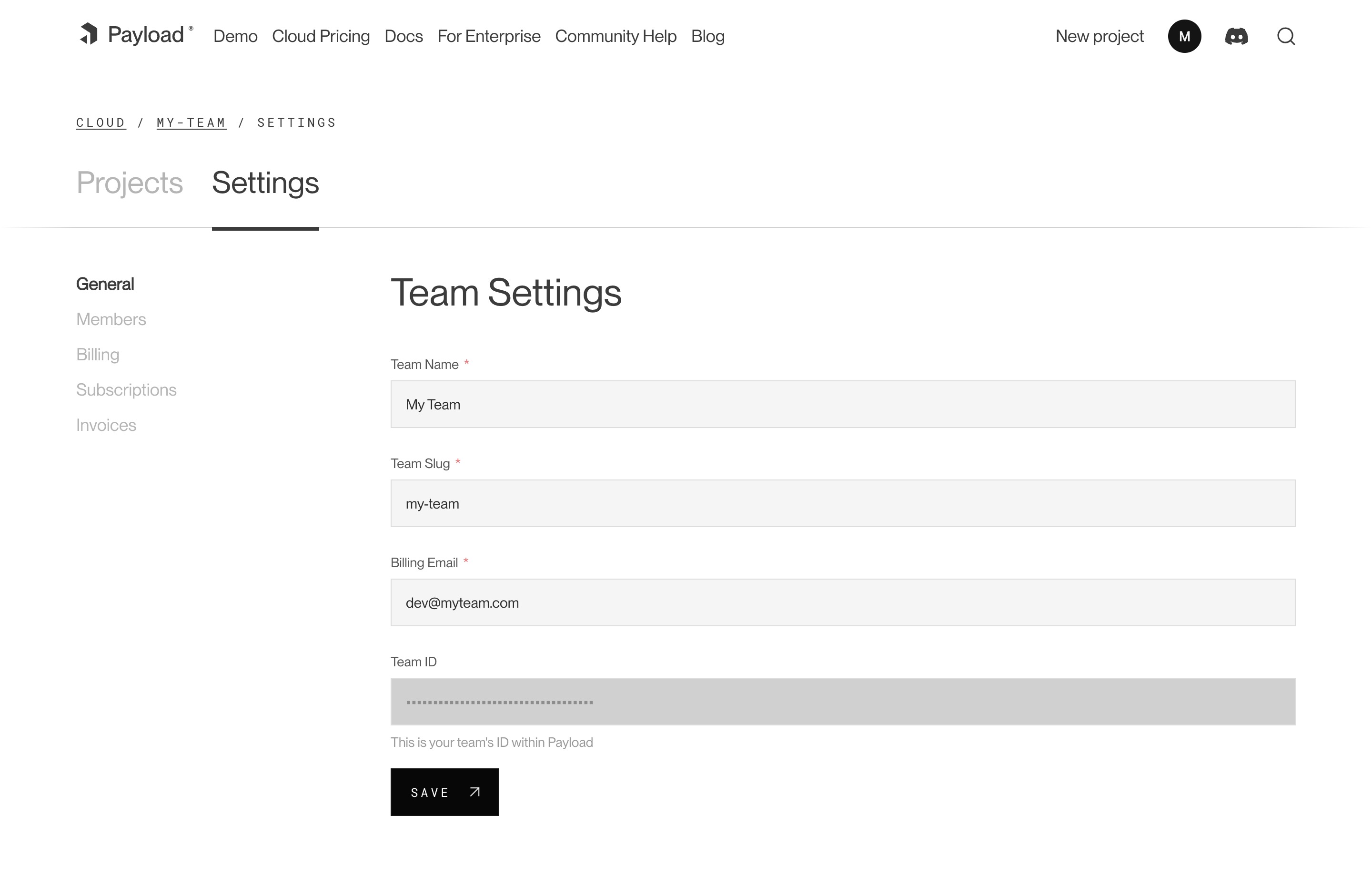
_A screenshot of the Team Settings page._
|
||
|
||
## Members
|
||
|
||
Each team has members that can interact with your projects. You can invite multiple people to your team and each individual can belong to more than one team. You can assign them either `owner` or `user` permissions. Owners are able to make admin-only changes, such as deleting projects, and editing billing information.
|
||
|
||
## Adding Members
|
||
|
||
To add a new member to your team, visit your Team’s Settings page, and click “Invite Teammate”. You can then add their email address, and assign their role. Press “Save” to send the invitations, which will send an email to the invited team member where they can create a new account.
|
||
|
||
## Billing
|
||
|
||
Users can update billing settings and subscriptions for any teams where they are designated as an `owner`. To make updates to the team’s payment methods, visit the Billing page under the Team Settings tab. You can add new cards, delete cards, and set a payment method as a default. The default payment method will be used in the event that another payment method fails.
|
||
|
||
## Subscriptions
|
||
|
||
From the Subscriptions page, a team owner can see all current plans for their team. From here, you can see the price of each plan, if there is an active trial, and when you will be billed next.
|
||
|
||
## Invoices
|
||
|
||
The Invoices page will you show you the invoices for your account, as well as the status on their payment.
|