
262 lines
13 KiB
Plaintext
262 lines
13 KiB
Plaintext
---
|
|
title: Uploads
|
|
label: Overview
|
|
order: 10
|
|
desc: Payload supports uploads, storage and management of files directly on your server, combined with powerful file access control.
|
|
keywords: uploads, images, media, overview, documentation, Content Management System, cms, headless, javascript, node, react, express
|
|
---
|
|
|
|
<Banner>
|
|
Payload provides for everything you need to enable file upload, storage, and management directly
|
|
on your server—including extremely powerful file access control.
|
|
</Banner>
|
|
|
|
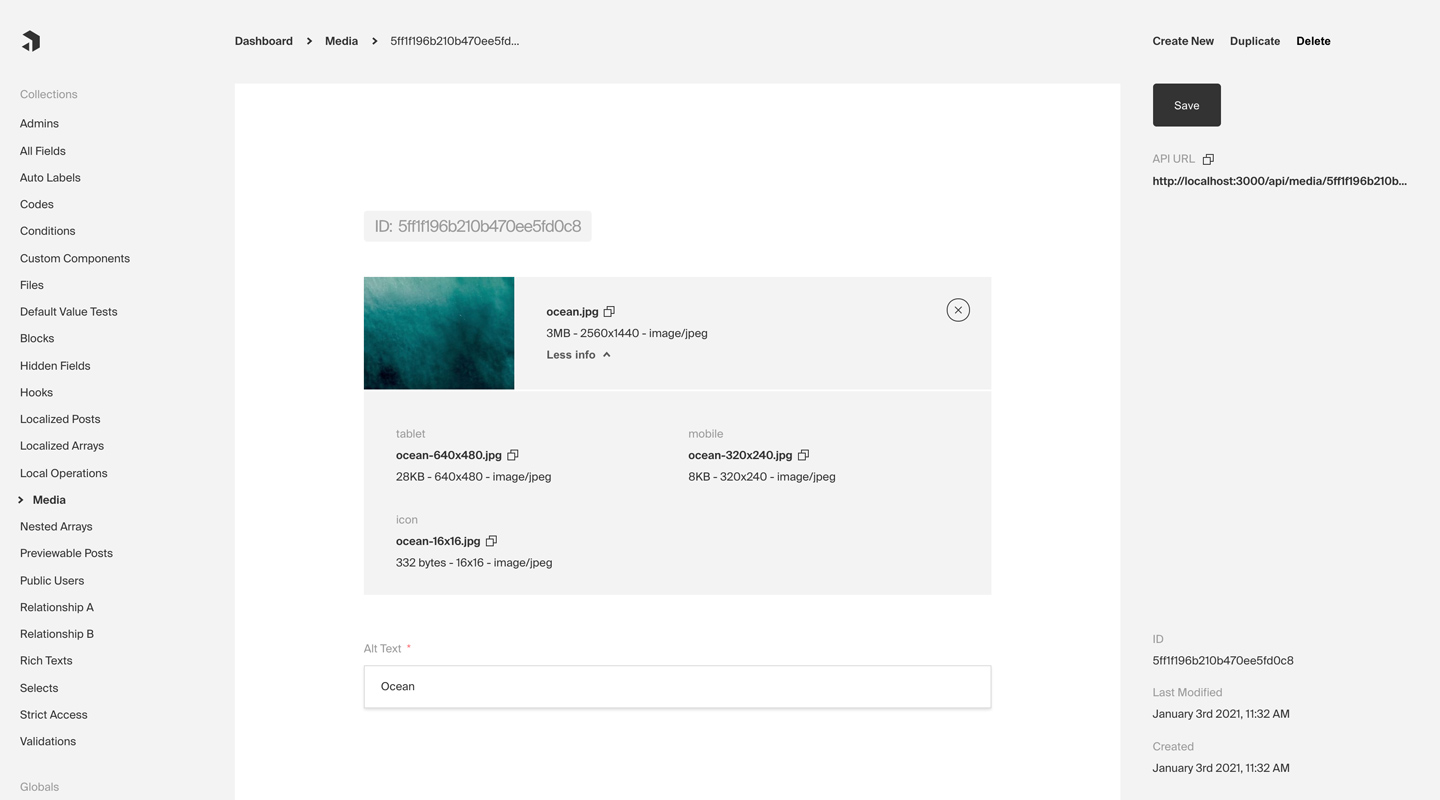
|
|
_Admin panel screenshot depicting a Media Collection with Upload enabled_
|
|
|
|
**Here are some common use cases of Uploads:**
|
|
|
|
- Creating a "Media Library" that contains images for use throughout your site or app
|
|
- Building a Gated Content library where users need to sign up to gain access to downloadable assets like ebook PDFs, whitepapers, etc.
|
|
- Storing publicly available, downloadable assets like software, ZIP files, MP4s, etc.
|
|
|
|
**By simply enabling Upload functionality on a Collection, Payload will automatically transform your Collection into a robust file management / storage solution. The following modifications will be made:**
|
|
|
|
1. `filename`, `mimeType`, and `filesize` fields will be automatically added to your Collection. Optionally, if you pass `imageSizes` to your Collection's Upload config, a [`sizes`](#image-sizes) array will also be added containing auto-resized image sizes and filenames.
|
|
1. The Admin panel will modify its built-in `List` component to show a thumbnail gallery of your Uploads instead of the default Table view
|
|
1. The Admin panel will modify its `Edit` view(s) to add a new set of corresponding Upload UI which will allow for file upload
|
|
1. The `create`, `update`, and `delete` Collection operations will be modified to support file upload, re-upload, and deletion
|
|
|
|
## Enabling Uploads
|
|
|
|
Every Payload Collection can opt-in to supporting Uploads by specifying the `upload` property on the Collection's config to either `true` or to an object containing `upload` options.
|
|
|
|
<Banner type="success">
|
|
<strong>Tip:</strong>
|
|
<br />A common pattern is to create a <strong>Media</strong> collection and enable <strong>
|
|
upload
|
|
</strong> on that collection.
|
|
</Banner>
|
|
|
|
## Collection Upload Options
|
|
|
|
| Option | Description |
|
|
| ------------------------------ | ---------------------------------------------------------------------------------------------------------------------------------------------------------------------------------------------------------------- |
|
|
| **`staticURL`** \* | The URL path to use to access your uploads. Relative path like `/media` will be served by payload. Full path like `https://example.com/media` needs to be served by another web server. |
|
|
| **`staticDir`** \* | The folder directory to use to store media in. Can be either an absolute path or relative to the directory that contains your config. |
|
|
| **`adminThumbnail`** | Set the way that the Admin panel will display thumbnails for this Collection. [More](#admin-thumbnails) |
|
|
| **`crop`** | Set to `false` to disable the cropping tool in the Admin panel. Crop is enabled by default. [More](#crop-and-focal-point-selector) |
|
|
| **`disableLocalStorage`** | Completely disable uploading files to disk locally. [More](#disabling-local-upload-storage) |
|
|
| **`externalFileHeaderFilter`** | Accepts existing headers and can filter/modify them. |
|
|
| **`focalPoint`** | Set to `false` to disable the focal point selection tool in the Admin panel. The focal point selector is only available when `imageSizes` or `resizeOptions` are defined. [More](#crop-and-focal-point-selector) |
|
|
| **`formatOptions`** | An object with `format` and `options` that are used with the Sharp image library to format the upload file. [More](https://sharp.pixelplumbing.com/api-output#toformat) |
|
|
| **`handlers`** | Array of Express request handlers to execute before the built-in Payload static middleware executes. |
|
|
| **`imageSizes`** | If specified, image uploads will be automatically resized in accordance to these image sizes. [More](#image-sizes) |
|
|
| **`mimeTypes`** | Restrict mimeTypes in the file picker. Array of valid mimetypes or mimetype wildcards [More](#mimetypes) | |
|
|
| **`resizeOptions`** | An object passed to the the Sharp image library to resize the uploaded file. [More](https://sharp.pixelplumbing.com/api-resize) |
|
|
| **`filesRequiredOnCreate`** | Mandate file data on creation, default is true. |
|
|
|
|
_An asterisk denotes that a property above is required._
|
|
|
|
**Example Upload collection:**
|
|
|
|
```ts
|
|
import { CollectionConfig } from 'payload/types'
|
|
|
|
export const Media: CollectionConfig = {
|
|
slug: 'media',
|
|
upload: {
|
|
staticURL: '/media',
|
|
staticDir: 'media',
|
|
imageSizes: [
|
|
{
|
|
name: 'thumbnail',
|
|
width: 400,
|
|
height: 300,
|
|
position: 'centre',
|
|
},
|
|
{
|
|
name: 'card',
|
|
width: 768,
|
|
height: 1024,
|
|
position: 'centre',
|
|
},
|
|
{
|
|
name: 'tablet',
|
|
width: 1024,
|
|
// By specifying `undefined` or leaving a height undefined,
|
|
// the image will be sized to a certain width,
|
|
// but it will retain its original aspect ratio
|
|
// and calculate a height automatically.
|
|
height: undefined,
|
|
position: 'centre',
|
|
},
|
|
],
|
|
adminThumbnail: 'thumbnail',
|
|
mimeTypes: ['image/*'],
|
|
},
|
|
fields: [
|
|
{
|
|
name: 'alt',
|
|
type: 'text',
|
|
},
|
|
],
|
|
}
|
|
```
|
|
|
|
## Payload-wide Upload Options
|
|
|
|
Payload relies on the [`express-fileupload`](https://www.npmjs.com/package/express-fileupload) package to manage file uploads in Express. In addition to the Upload options specifiable on a Collection by Collection basis, you can also control the `express-fileupload` options by passing your base Payload config an `upload` property containing an object supportive of all `express-fileupload` properties which use `Busboy` under the hood. [Click here](https://github.com/mscdex/busboy#api) for more documentation about what you can control.
|
|
|
|
A common example of what you might want to customize within Payload-wide Upload options would be to increase the allowed `fileSize` of uploads sent to Payload:
|
|
|
|
```ts
|
|
import { buildConfig } from 'payload/config'
|
|
|
|
export default buildConfig({
|
|
collections: [
|
|
{
|
|
slug: 'media',
|
|
fields: [
|
|
{
|
|
name: 'alt',
|
|
type: 'text',
|
|
},
|
|
],
|
|
upload: true,
|
|
},
|
|
],
|
|
upload: {
|
|
limits: {
|
|
fileSize: 5000000, // 5MB, written in bytes
|
|
},
|
|
},
|
|
})
|
|
```
|
|
|
|
## Image Sizes
|
|
|
|
If you specify an array of `imageSizes` to your `upload` config, Payload will automatically crop and resize your uploads to fit each of the sizes specified by your config.
|
|
|
|
The Payload Admin panel will also automatically display all available files, including width, height, and filesize, for each of your uploaded files.
|
|
|
|
Behind the scenes, Payload relies on [`sharp`](https://sharp.pixelplumbing.com/api-resize#resize) to perform its image resizing. You can specify additional options for `sharp` to use while resizing your images.
|
|
|
|
#### Accessing the resized images in hooks
|
|
|
|
All auto-resized images are exposed to be re-used in hooks and similar via an object that is bound to `req.payloadUploadSizes`.
|
|
|
|
The object will have keys for each size generated, and each key will be set equal to a buffer containing the file data.
|
|
|
|
#### Handling Image Enlargement
|
|
|
|
When an uploaded image is smaller than the defined image size, we have 3 options:
|
|
|
|
`withoutEnlargement: undefined | false | true`
|
|
|
|
1.`undefined` [default]: uploading images with smaller width AND height than the image size will return null 2. `false`: always enlarge images to the image size 3. `true`: if the image is smaller than the image size, return the original image
|
|
|
|
<Banner type="error">
|
|
<strong>Note:</strong>
|
|
<br />
|
|
By default, the image size will return NULL when the uploaded image is smaller than the defined
|
|
image size. Use the `withoutEnlargement` prop to change this.
|
|
</Banner>
|
|
|
|
## Crop and Focal Point Selector
|
|
|
|
This feature is only available for image file types.
|
|
|
|
Setting `crop: false` and `focalPoint: false` in your Upload config will be disable the respective selector in the Admin panel.
|
|
|
|
Image cropping occurs before any resizing, the resized images will therefore be generated from the cropped image (**not** the original image).
|
|
|
|
If no resizing options are specified (`imageSizes` or `resizeOptions`), the focal point selector will not be displayed.
|
|
|
|
## Disabling Local Upload Storage
|
|
|
|
If you are using a plugin to send your files off to a third-party file storage host or CDN, like Amazon S3 or similar, you may not want to store your files locally at all. You can prevent Payload from writing files to disk by specifying `disableLocalStorage: true` on your collection's upload config.
|
|
|
|
<Banner type="warning">
|
|
<strong>Note:</strong>
|
|
<br />
|
|
This is a fairly advanced feature. If you do disable local file storage, by default, your admin
|
|
panel's thumbnails will be broken as you will not have stored a file. It will be totally up to you
|
|
to use either a plugin or your own hooks to store your files in a permanent manner, as well as
|
|
provide your own admin thumbnail using <strong>upload.adminThumbnail</strong>.
|
|
</Banner>
|
|
|
|
## Admin Thumbnails
|
|
|
|
You can specify how Payload retrieves admin thumbnails for your upload-enabled Collections. This property accepts two different configurations:
|
|
|
|
1. A string equal to one of your provided image size names to use for the admin panel's thumbnail (seen in the example Media collection above)
|
|
1. A function that takes the document's data and sends back a full URL to load the thumbnail. For example, to dynamically set an admin thumbnail URL, you could write a function that returns a string pointing to a different file source:
|
|
|
|
**Example custom Admin thumbnail:**
|
|
|
|
```ts
|
|
import { CollectionConfig } from 'payload/types'
|
|
|
|
export const Media: CollectionConfig = {
|
|
slug: 'media',
|
|
upload: {
|
|
staticURL: '/media',
|
|
staticDir: 'media',
|
|
imageSizes: [
|
|
// ... image sizes here
|
|
],
|
|
// highlight-start
|
|
adminThumbnail: ({ doc }) => `https://google.com/custom-path-to-file/${doc.filename}`,
|
|
// highlight-end
|
|
},
|
|
}
|
|
```
|
|
|
|
<Banner>
|
|
<strong>Note:</strong>
|
|
<br />
|
|
This function runs in the browser. If your function returns `null` or `false` Payload will show
|
|
the default generic file thumbnail instead.
|
|
</Banner>
|
|
|
|
## MimeTypes
|
|
|
|
Specifying the `mimeTypes` property can restrict what files are allowed from the user's file picker. This accepts an array of strings, which can be any valid mimetype or mimetype wildcards
|
|
|
|
Some example values are: `image/*`, `audio/*`, `video/*`, `image/png`, `application/pdf`
|
|
|
|
**Example mimeTypes usage:**
|
|
|
|
```ts
|
|
import { CollectionConfig } from 'payload/types'
|
|
|
|
export const Media: CollectionConfig = {
|
|
slug: 'media',
|
|
upload: {
|
|
staticURL: '/media',
|
|
staticDir: 'media',
|
|
mimeTypes: ['image/*', 'application/pdf'], // highlight-line
|
|
},
|
|
}
|
|
```
|
|
|
|
## Uploading Files
|
|
|
|
<Banner type="warning">
|
|
<strong>Important:</strong>
|
|
<br />
|
|
Uploading files is currently only possible through the REST and Local APIs due to how GraphQL
|
|
works. It's difficult and fairly nonsensical to support uploading files through GraphQL.
|
|
</Banner>
|
|
|
|
To upload a file, use your collection's [`create`](/docs/rest-api/overview#collections) endpoint. Send it all the data that your Collection requires, as well as a `file` key containing the file that you'd like to upload.
|
|
|
|
Send your request as a `multipart/form-data` request, using [`FormData`](https://developer.mozilla.org/en-US/docs/Web/API/FormData) if possible.
|
|
|
|
[Here is a walkthrough](https://muffinman.io/blog/uploading-files-using-fetch-multipart-form-data/) detailing how to upload files as `multipart/form-data` using React.
|
|
|
|
## Access Control
|
|
|
|
All files that are uploaded to each Collection automatically support the `read` [Access Control](/docs/access-control/overview) function from the Collection itself. You can use this to control who should be allowed to see your uploads, and who should not.
|